The Book Taco Library catalog gives you powerful tools to explore, filter, and preview 1,000+ curated books. Here's how to find the books you want for your students.
- Step 1: Open the Library catalog
- Step 2: Search or browse by category
- Step 3: Filter by reading level
- Step 4: Preview a book before adding it
Step 1: Open the Library catalog
From your Teacher Panel, click the Book Taco Library widget card (or go directly to the Library from the sidebar). Once your trial or subscription is active, you'll land on the Catalog page where all available books are organized.
Step 2: Search or browse by category
You have two ways to find books:
- Search by title or keyword — use the search box at the top to find a book by name, author, or topic.
- Browse by category — use the dropdown filters to narrow down by Main Category (e.g., Fiction, Nonfiction, Mystery), then refine with Subcategory 1 and Subcategory 2 to find exactly what you need.
Step 3: Filter by reading level
Every book in Book Taco Library is assigned a reading level:
- Level 1 — beginner readers
- Level 2 — intermediate readers
- Level 3 — advanced readers
Click the level buttons to show or hide books at each level. You can select multiple levels at once, or use All to see every book and None to clear your selection. The catalog updates instantly as you filter.
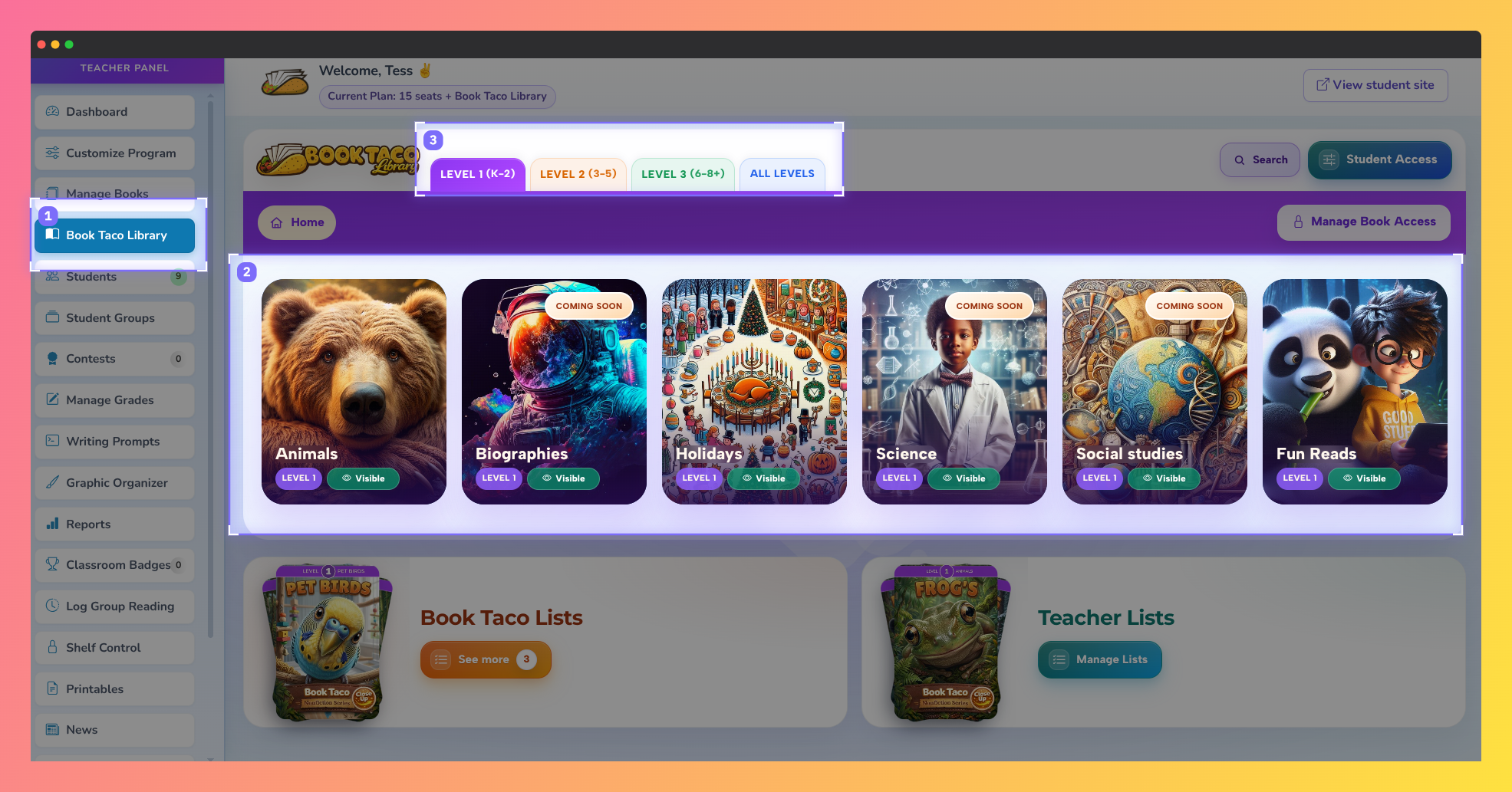
Screenshot of the Book Taco Library Catalog demonstrating how teachers can browse books by category, search for titles and topics, and filter the collection by reading level to find age-appropriate reading materials for their students.
Step 4: Preview a book before adding it
Once you find a book you're interested in, click the Preview button to:
- Read the book's description and cover image
- See the word count and reading level
- View the built-in quiz (number of questions and point value)
- Check if vocabulary activities or other features are available
After previewing, you can decide whether to add it to a custom reading list or assign it directly to your students via Manage Books.
If you're linked to a Super User, you may see some categories or books marked as blocked by your Super User. Blocked books cannot be assigned to students, even if you try to add them.
Was this article helpful?
That’s Great!
Thank you for your feedback
Sorry! We couldn't be helpful
Thank you for your feedback
Feedback sent
We appreciate your effort and will try to fix the article