The Book Taco Library is full of curated, interactive books waiting for you to explore. Each book has its own reading experience with highlighted vocabulary words, audio, videos, and a quiz — and every time you do something amazing, you earn a Reader Rewards badge. Here's how to get started.
Step 1: Open the Book Taco Library
In your student sidebar, click Book Taco Library. The library opens with colorful category shelves ready to explore.
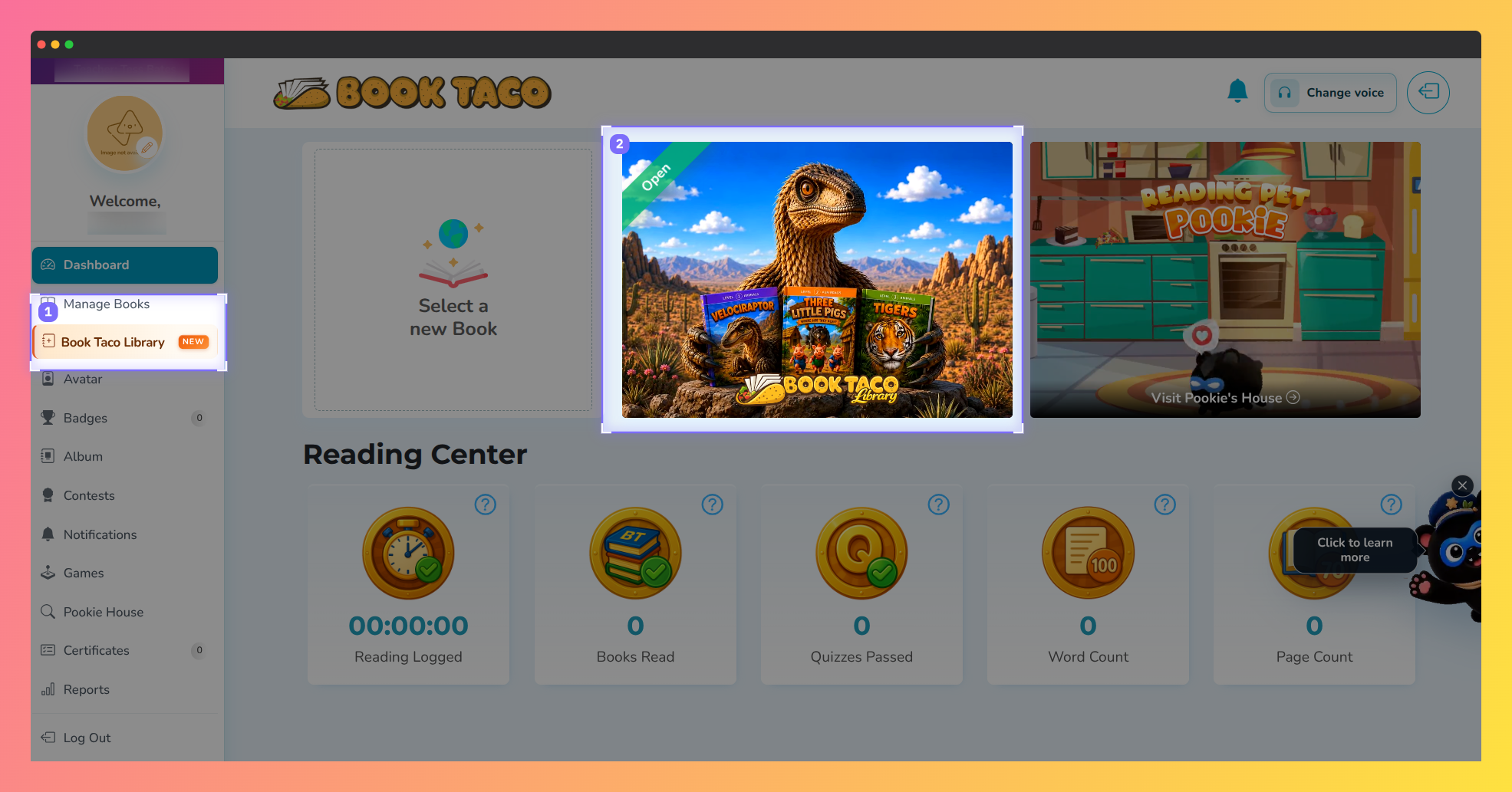
Screenshot of the Book Taco student dashboard highlighting the Book Taco Library widget, where students can access the digital library.
Step 2: Choose Your Reading Level
The first time you visit, a screen will ask you to pick your reading level: Level 1, Level 2, or Level 3. Choose the one that feels right for you — it filters the books to match where you are as a reader. You can change your level any time using the Level button in the toolbar at the top of the page.
Step 3: Find a Book
Browse the category shelves and click on any title that catches your eye. You can also:
- Search by title or topic using the search bar at the top.
- Check out Book Taco Picks, Teacher Picks, or Super Picks for curated recommendations.
- Tap Random in the toolbar for a surprise book pick — feeling lucky? Give it a spin!
Step 4: Start Reading
Click any book cover to open its detail screen. Here you will see the book summary, your progress, the Reader Rewards badges you can earn, and the Vocabulary Spotlight words for that book.
When you are ready, click Start Reading. The book opens in a fullscreen reader. If you have already started the book before, the button will say Continue Reading and pick up where you left off.
If you need to stop before finishing, click the X button at the top. A message will ask "Wait! Are you sure?" — click Keep Reading to stay, or Yes, Exit to leave. Your progress is saved automatically.
Step 5: Explore While You Read
Books in the Book Taco Library are more than just pages — they are interactive! Look out for these features as you read:
- Read To Me — tap this button to have the text read aloud to you.
- Vocabulary Spotlight words — highlighted words appear throughout the story. Tap each one to explore its meaning. Tap them all and you'll unlock the Word Explorer badge!
- Embedded videos — some pages include a video. Watch it all the way to the end to earn the Video Explorer badge.
- Songs and audio — some books have a song experience on a page. Listen to at least half of it to earn the Audio Explorer badge.
Step 6: Finish the Book and Earn Badges
Read all the way to the last page and the Story Finisher badge unlocks automatically — look out for the badge reveal animation! Each book has up to five Reader Rewards badges you can collect:
- ? Story Finisher — read the entire book.
- ? Quiz Champion — complete the book quiz.
- ? Word Explorer — tap every vocabulary spotlight word.
- ? Video Explorer — watch an embedded video to the end.
- ? Audio Explorer — listen to at least half of the book's song.
Tap any locked badge on the book detail screen to see exactly what you need to do to earn it.
Step 7: Take the Quiz
After reading, go back to the book detail screen and click Quiz. Answer the multiple-choice questions about the story to earn the Quiz Champion badge. The quiz button becomes active once it is available for your book.
Tracking Your Progress
Want to see all the books you have been reading? Tap My Library in the toolbar at the top of the page. It shows two tabs:
- Completed — books you have finished reading.
- In Progress — books you have started but not finished yet.
Your progress, badges, and quiz results for each book are shown on the book detail screen whenever you open it.
Was this article helpful?
That’s Great!
Thank you for your feedback
Sorry! We couldn't be helpful
Thank you for your feedback
Feedback sent
We appreciate your effort and will try to fix the article