As a Super User, activating Book Taco Library gives all your linked teachers and their students access to 1,000+ curated books. Here's how to set it up for your entire school.
- Step 1: Open Book Taco Library from your Super User Panel
- Step 2: Try the free 14-day trial or purchase
- Step 3: Manage access for your teachers and students
Step 1: Open Book Taco Library from your Super User Panel
Log in to your Super User account. On your dashboard, you'll see a Book Taco Library widget card. If Library is not yet activated, the ribbon will say "Activate Library". Click the card to open the Library catalog.
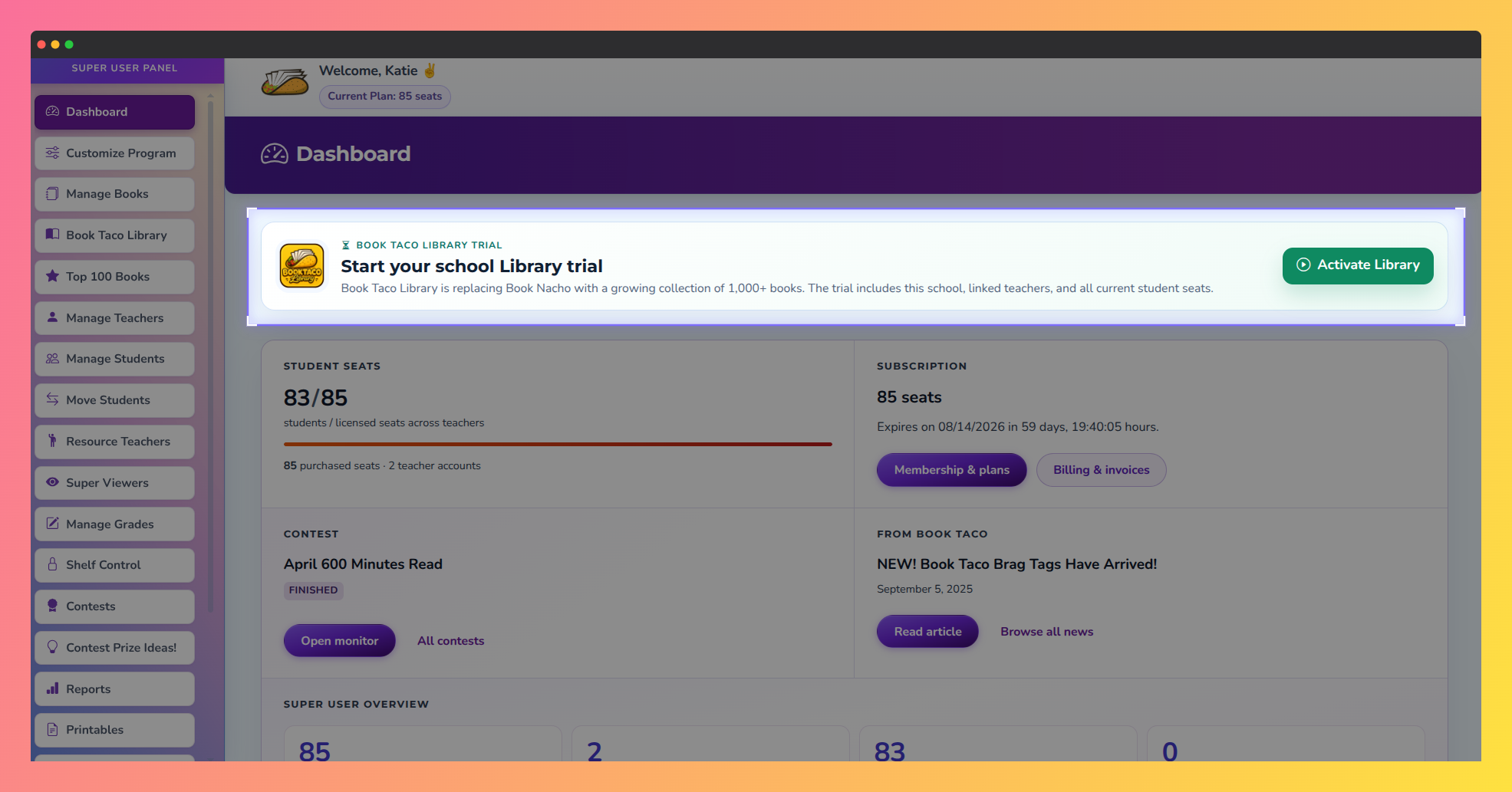
Screenshot of the Book Taco Super User Dashboard displaying the Book Taco Library Trial widget.
Step 2: Try the free 14-day trial or purchase
When you open the Library catalog without an active subscription, you'll see one of two options:
- Try the 14-day free trial — click Start Library trial and you'll have instant access to browse, preview, and add books for 14 days. No payment required upfront.
- Purchase Library — after the trial ends, go to your Membership page and add Book Taco Library ($1.50 per student) to your school account.
Library covers all current student seats across your entire school — there's no per-teacher or per-student activation. Once Library is active, every linked teacher and their students can access the books you curate.
Step 3: Manage access for your teachers and students
Once your trial or subscription is active, the dashboard ribbon will change to "Open". Your Library activation automatically applies to:
- All linked teachers — they can immediately browse the Library catalog and create curated reading lists for their students.
- All students — they can see and access Library books that their teachers assign to them.
Linked teachers cannot activate or purchase Library individually — they inherit your school's Library decision. If you disable Library, it becomes unavailable to all teachers and students at once.
Advanced control: You can also block specific reading levels (Level 1, 2, or 3) school-wide if you want to restrict which books are available to your teachers and students. This is managed in the Library settings area.
Was this article helpful?
That’s Great!
Thank you for your feedback
Sorry! We couldn't be helpful
Thank you for your feedback
Feedback sent
We appreciate your effort and will try to fix the article