The Invite Parent feature lets you connect a student’s parent or guardian to Book Taco Family, the portal where families follow their child’s reading activity. You send the invitation from your Teacher account, one student at a time, by email or as a printed letter with a QR code.
Before you start
- Parent invitations are sent from a Teacher account, on the Students page.
- You need the parent’s email address, or you can print a letter with a QR code instead.
- The invitation email only contains a secure link. No personal student data is included in the email.
- Each student can have one invitation in progress at a time.
Step 1: Open your Students page
- In the left sidebar, under Classroom, click Students.
- Stay on the Active Students tab.
- Find the student you want to connect. The Parent column shows Invite for students who have no invitation yet.
Step 2: Open the invitation window
- In the Parent column, click Invite.
- Or click Actions on the student’s row and choose Invite Parent.
- The Invite a Parent / Guardian window opens and shows the student’s name.
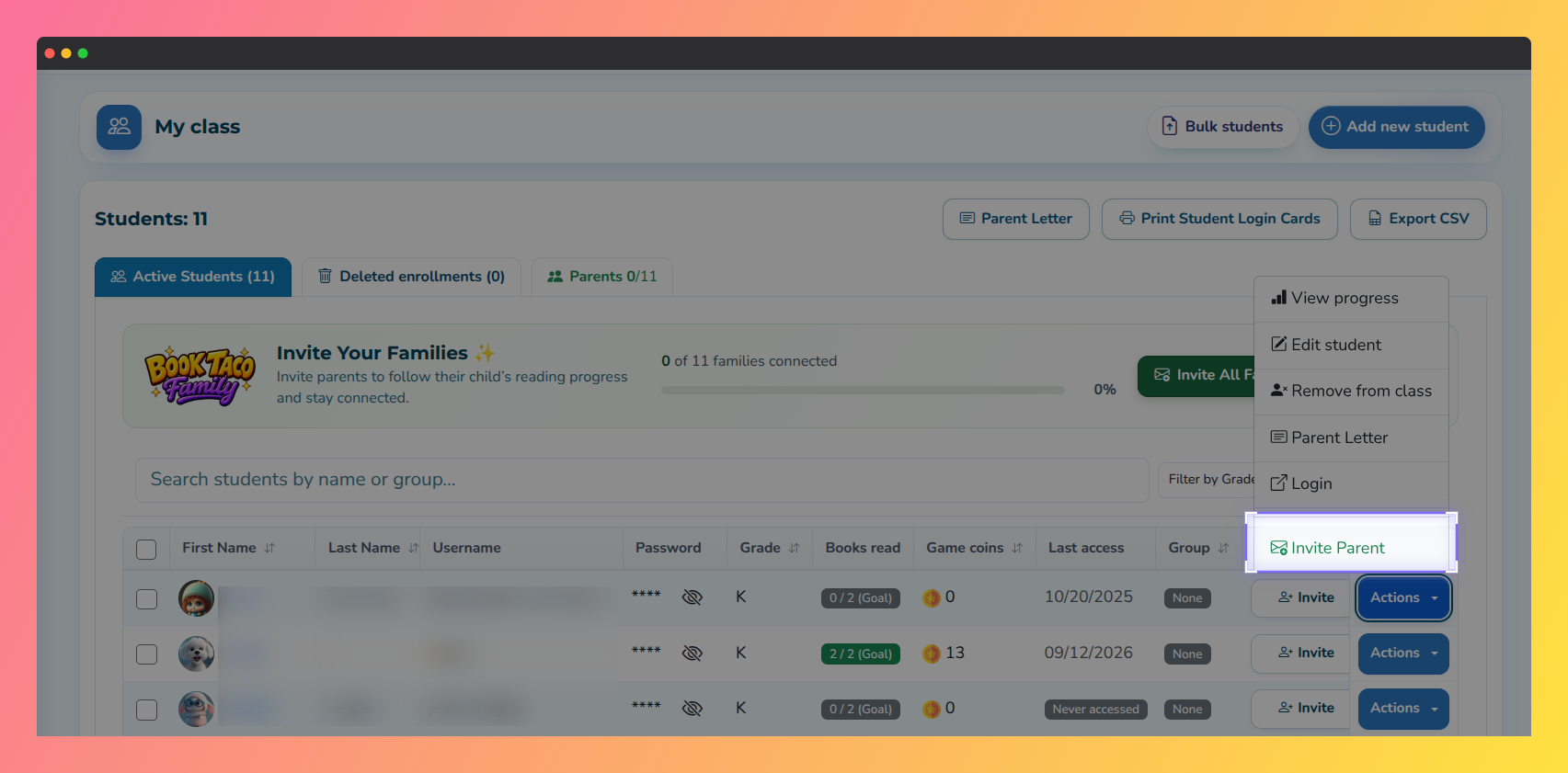 Screenshot of the Active Students table, with the Invite button in the Parent column and the Invite Parent option in the Actions menu.
Step 3: Send the invitation by email
- Under Choose an option, keep Send by email selected.
- Type the address in Parent’s email address.
- Click Send Invitation.
- A message confirms Invitation sent. Click Done.
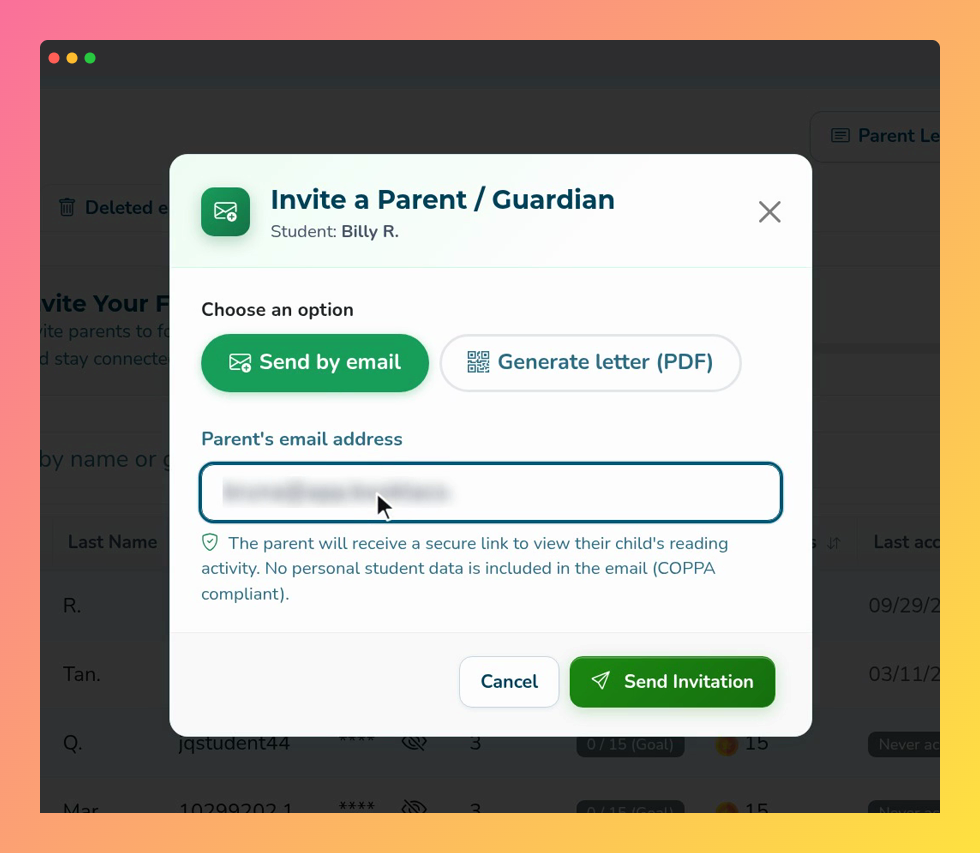 Screenshot of the Invite a Parent / Guardian window, with Send by email selected and the Send Invitation button.
The parent receives a secure link. They use it to create a Book Taco Family account, or to log in if they already have one, and connect to that student.
Step 4: Or print a letter with a QR code
Use this option when you do not have the parent’s email, or when you prefer to send a paper invitation home.
- In the Invite a Parent / Guardian window, choose Generate letter (PDF).
- Pick English or Spanish.
- Click Download PDF. The letter opens in a new browser tab.
- Print the letter and send it home. The parent scans the QR code and creates the account with their own email address.
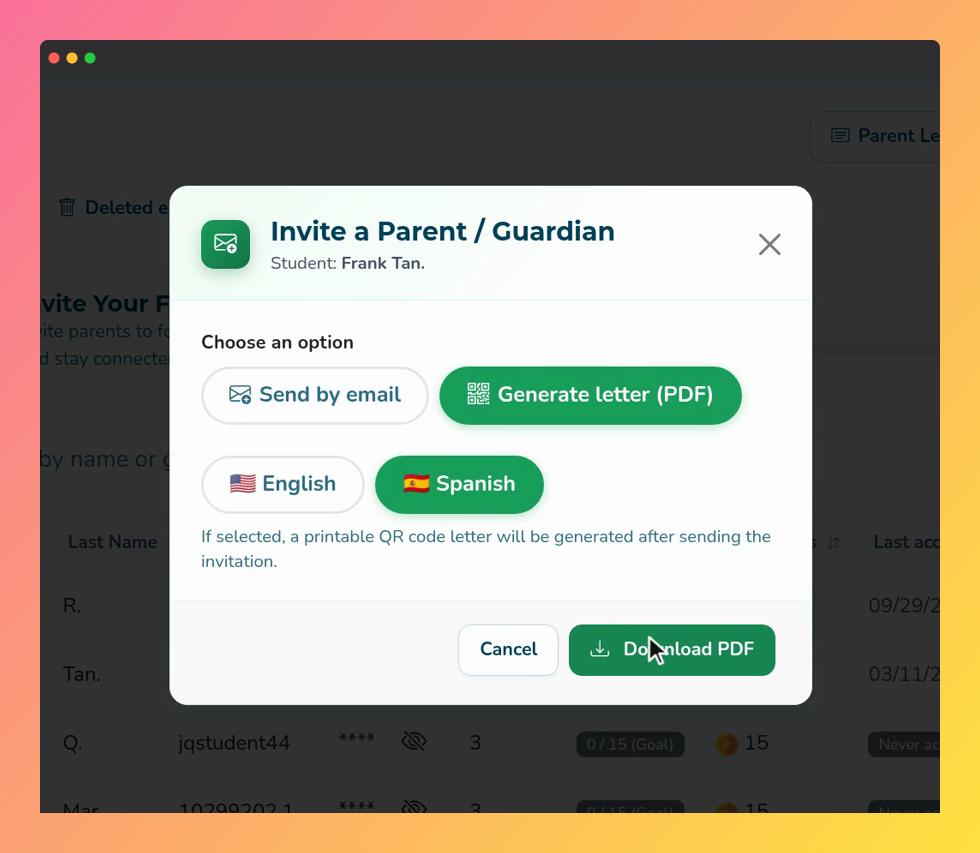 Screenshot of the Invite a Parent / Guardian window, with Generate letter (PDF) selected, the English and Spanish options and the Download PDF button.
Step 5: Check the invitation status
- After you send an email invitation, the Parent column changes to Pending.
- When the parent accepts, it changes to Linked.
- Click Pending to see when the invitation was sent and to resend it.
- Click Linked to see the parent’s name and email in the Linked Parent window.
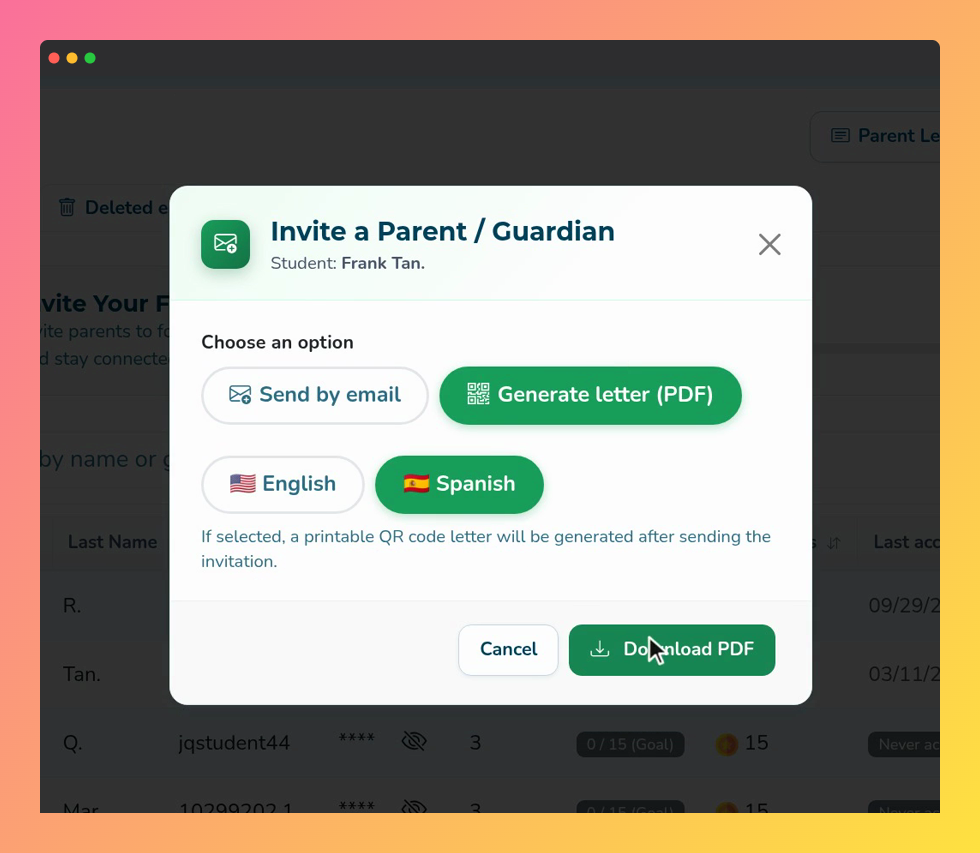 Screenshot of the Active Students table, with the Pending status in the Parent column for an invited student.
Note: While an invitation is Pending, its email address is locked. To use a different address, cancel the invitation on the Parents tab and send a new one.
Troubleshooting
- You do not see the Parent column or the Parents tab. Parent invitations are not enabled for your account. Contact Book Taco support.
- “Please enter a valid email address.” The address is incomplete or has a typo. Check it and try again.
- “An invitation is already pending for this email.” You already invited this address for this student. Use Resend to send a new link.
- The invitation was created, but the email could not be delivered. Check the address. Then use Resend on the Parents tab, or cancel the invitation and send it to the correct address.
Was this article helpful?
That’s Great!
Thank you for your feedback
Sorry! We couldn't be helpful
Thank you for your feedback
Feedback sent
We appreciate your effort and will try to fix the article