Book Taco Family is the portal where parents and guardians follow their child’s reading on Book Taco. You join with an invitation from your child’s teacher, which arrives by email or as a printed letter with a QR code. This article shows how to create your account and how to accept an invitation when you already have one.
Before you start
- You need an invitation from your child’s teacher. You cannot create a Family account without one.
- An email invitation is tied to the address the teacher used. You create the account with that address.
- With a printed letter, you choose the email address yourself.
- One Family account can be connected to more than one child.
Step 1: Open your invitation
- If you received an email, click the link in it.
- If you received a printed letter, scan the QR code with your phone camera.
- The Create your Book Taco Family account page opens and shows your child’s name.
Step 2: Create your account
- If you came from a printed letter, type Your email address. For an email invitation, the page already shows your Account email.
- Type your First Name and Last Name.
- Type a Password with at least 6 characters, and repeat it in Confirm Password.
- Click Create My Account.
- You are taken to your Dashboard, already connected to your child.
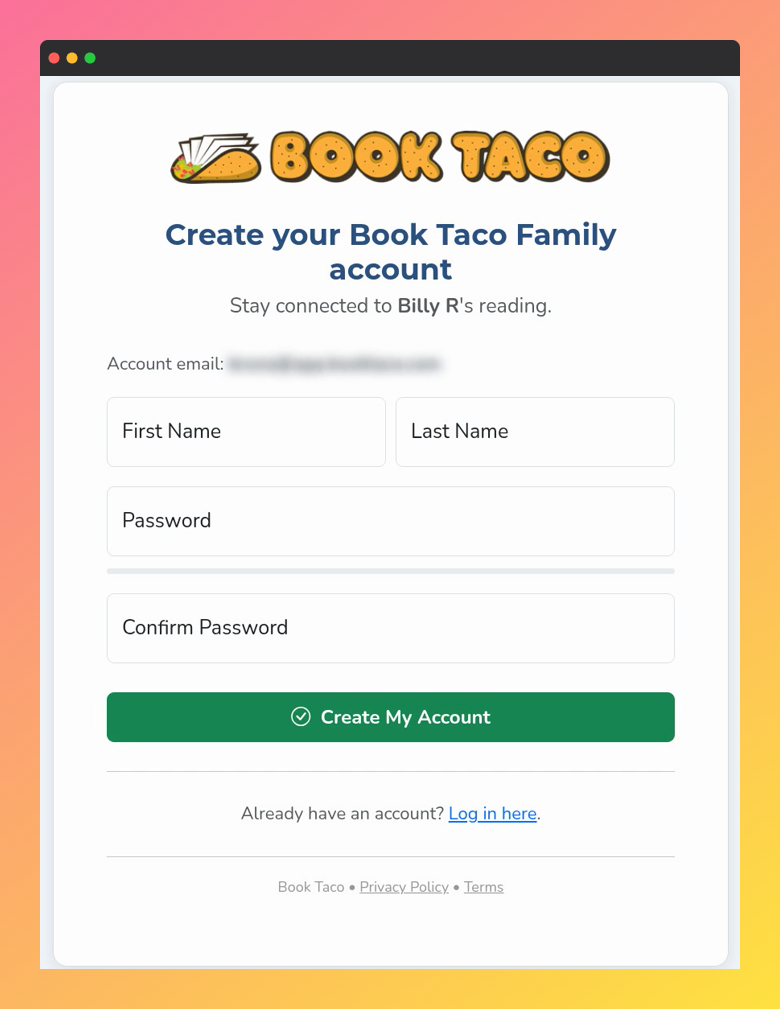 Screenshot of the Create your Book Taco Family account page, with the First Name, Last Name, Password and Confirm Password fields and the Create My Account button.
Tip: If the password is weak, Book Taco asks whether you want to continue. A longer password with letters, numbers and symbols is safer.
Step 3: Accept an invitation when you already have an account
If you already have a Family account, for example because another child is linked, you do not need a new one.
- Click the link in the new invitation email. Book Taco takes you to Parent Login.
- Log in with your Family account. The invitation is accepted and the new child appears on your Dashboard.
- Or log in first: your Dashboard shows the invitation under Pending invitations. Click Accept invitation, then Yes, accept.
- If you do not recognize the invitation, click Delete instead.
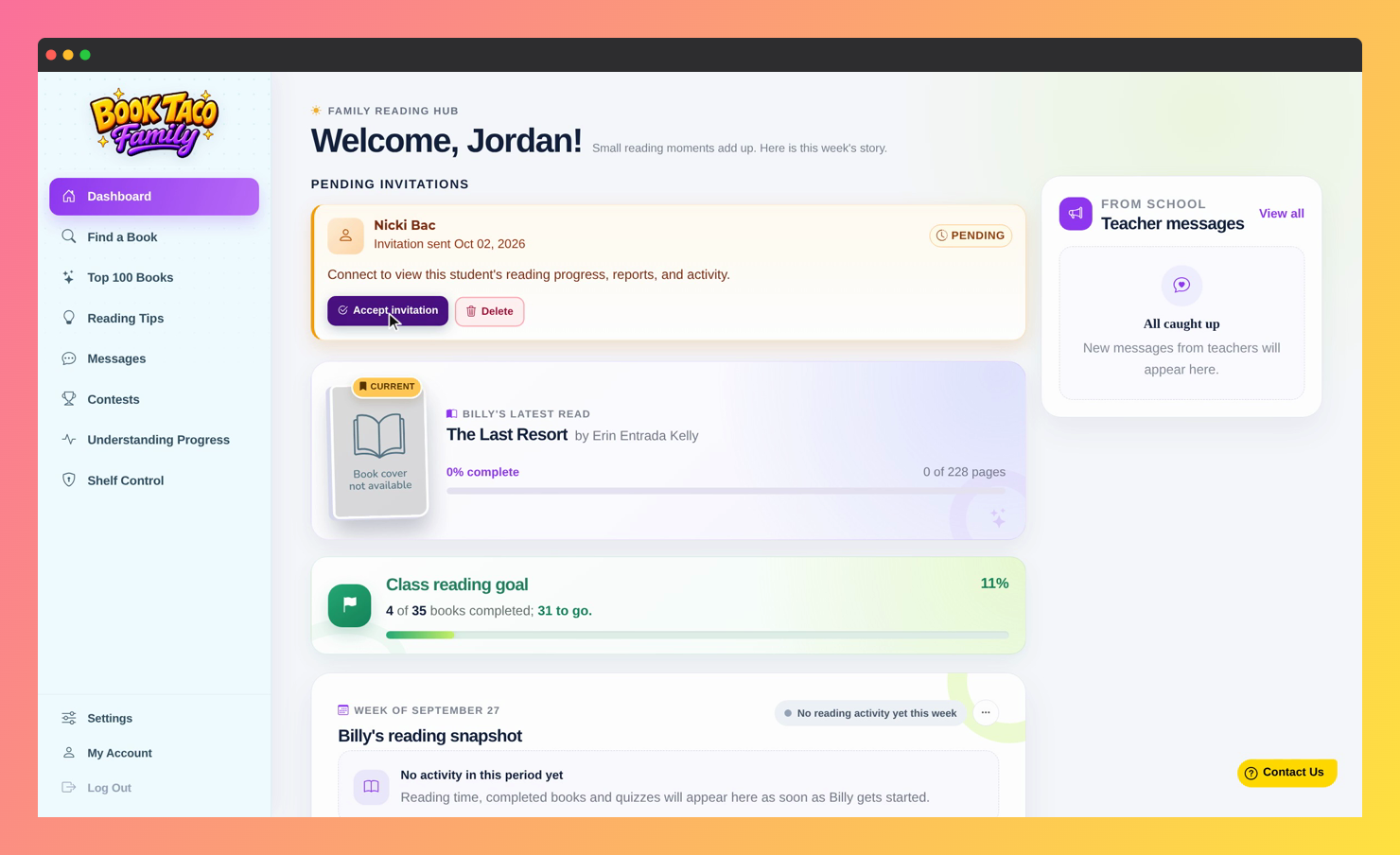 Screenshot of the Family Dashboard, with a pending invitation and the Accept invitation and Delete buttons.
Step 4: Log in next time
- Go to the Book Taco login page and click Parent Login.
- Type your Email address and Password and log in.
- If you forgot your password, click Forgot your password? and follow the link sent to your email.
Troubleshooting
- “Invitation Not Found” The link is incomplete. Open it again from the email, or scan the QR code again.
- “This invitation has already been accepted.” Your account is already connected. Go to Parent Login and log in.
- “This invitation has been cancelled.” Ask your child’s teacher to send a new one.
- “Password must be at least 6 characters.” or “Passwords do not match.” Fix the password fields and try again.
- “An account with this email already exists.” You already have a Family account with that email. Type that account’s password to connect the child to it.
- “Please log in with the account linked to this invitation.” You are logged in with a different email from the one that was invited. Log in with the invited address.
Was this article helpful?
That’s Great!
Thank you for your feedback
Sorry! We couldn't be helpful
Thank you for your feedback
Feedback sent
We appreciate your effort and will try to fix the article