The Parents tab shows every parent invitation for your class in one place. Use it to see who is linked, who has not accepted yet, and to resend, cancel or remove an invitation. It is on the Students page of your Teacher account.
Before you start
- The Parents tab lists the students who have a parent invitation. Students you have not invited do not appear in it.
- Each student shows only the most recent invitation.
- Only the teacher who sent the invitation can resend, cancel or remove it.
Step 1: Open the Parents tab
- In the left sidebar, under Classroom, click Students.
- Click the Parents tab, next to Active Students.
- Under Parent invitations, the summary shows how many invitations are linked, pending and declined.
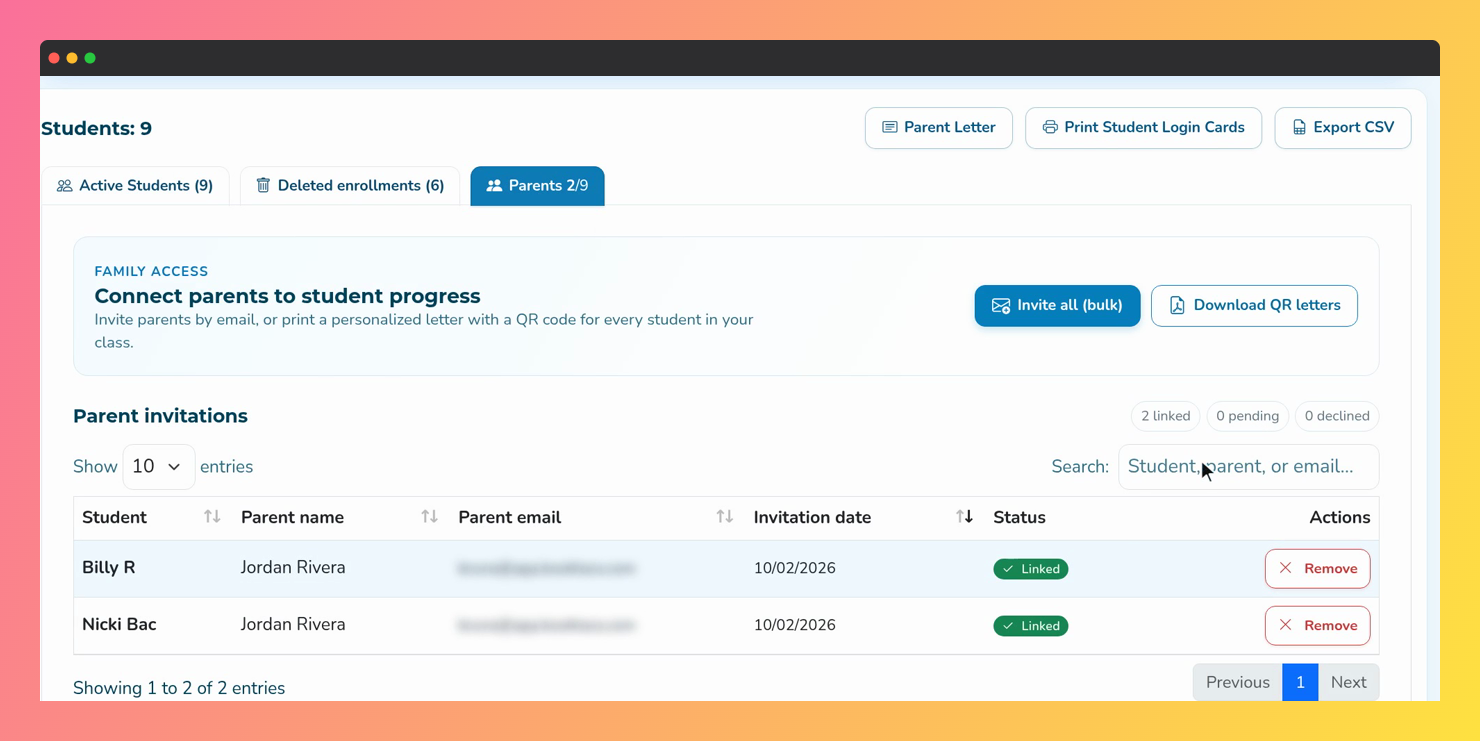 Screenshot of the Parents tab, with the Parent invitations table and the linked, pending and declined counters.
Step 2: Read the invitation status
The table shows the Student, Parent name, Parent email, Invitation date and Status of each invitation.
- Wait: the invitation was sent and the parent has not accepted it yet.
- Linked: the parent accepted and can see the student’s reading activity.
- Declined by parent: the parent deleted the invitation.
- Removed by parent: the parent was linked and removed their own access.
On the Active Students tab, the same information appears in the Parent column as Invite, Pending or Linked.
Step 3: Resend a pending invitation
- Find the invitation with the Wait status.
- Click Resend.
- A message confirms Invitation resent. The parent receives a new link at the same address.
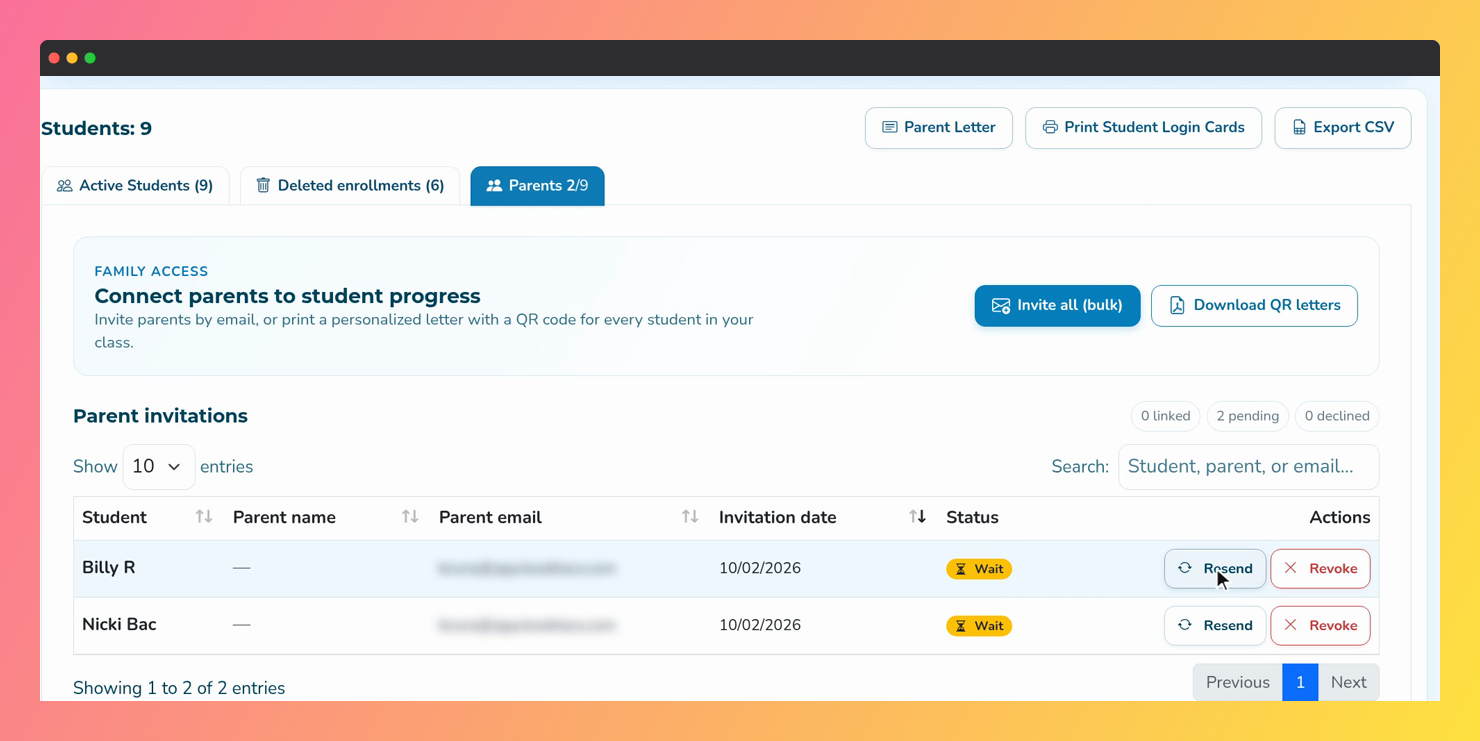 Screenshot of the Parents tab, with two invitations in the Wait status and the Resend and Revoke buttons.
Note: A resent invitation creates a new link. The link from the earlier email stops working.
Step 4: Cancel a pending invitation
- Click Revoke on the pending invitation.
- In Cancel this invitation?, click Yes, cancel invitation.
- The link that was sent stops working. You can then invite a different address for that student.
Step 5: Remove a linked parent
- Click Remove on the linked invitation.
- In Remove parent link?, click Yes, remove link.
- The parent loses access to that student’s reading activity. Book Taco sends the parent an email about the change.
You can also do this from the Active Students tab: click Linked in the Parent column and then Remove Link, or click Actions and choose Remove Parent Link.
Tip: To connect the same parent again later, send a new invitation.
Troubleshooting
- The Resend button is not showing. Resend only appears for invitations in the Wait status that have an email address.
- “This invitation is no longer pending.” The parent already accepted, or the invitation was cancelled. Reload the page to see the current status.
- You need to change the email of a pending invitation. Click Revoke to cancel it, then send a new invitation to the correct address.
- The invitation could not be delivered. Check the address. If it is wrong, cancel the invitation and send a new one.
Was this article helpful?
That’s Great!
Thank you for your feedback
Sorry! We couldn't be helpful
Thank you for your feedback
Feedback sent
We appreciate your effort and will try to fix the article