The Invite All Families feature lets you invite the parents or guardians of your whole class in one step. You can type the emails in a list, upload them from a spreadsheet, or print a letter with a QR code for every student. It is available in your Teacher account, on the Students page.
Before you start
- The list only shows your active students.
- Students who are already Linked stay linked. You do not need to invite them again.
- Leave the email blank for any student you do not want to invite yet.
- The invitation email only contains a secure link. No personal student data is included in the email.
Step 1: Open the Invite Parents window
- In the left sidebar, under Classroom, click Students.
- At the top of the Active Students list, find Invite Your Families. It shows how many families are already connected.
- Click Invite All Families.
- You can also open the Parents tab and click Invite all (bulk).
- The Invite Parents — All Students window opens.
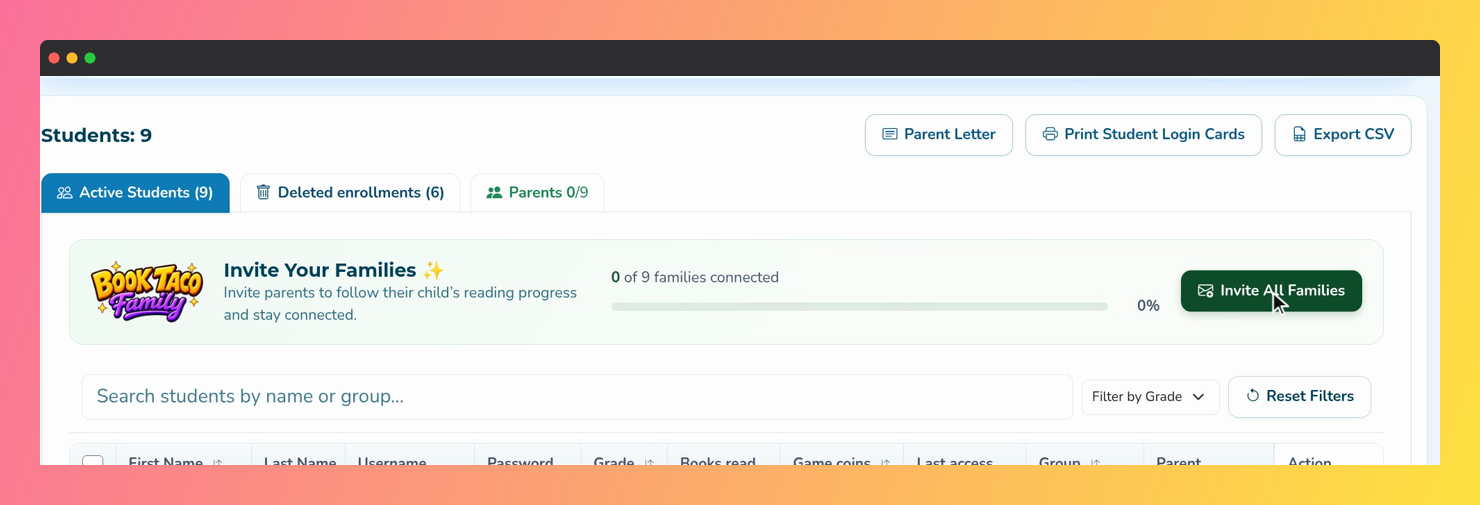 Screenshot of the Invite Your Families banner on the Students page, with the families connected counter and the Invite All Families button.
Step 2: Enter the parent emails
- Type an address in Parent Email for each student you want to invite.
- Leave a row blank to skip that student.
- The Invitation Status column shows Not invited, Pending, Linked or Declined for each student.
- The counter at the bottom shows how many invitations are ready to send.
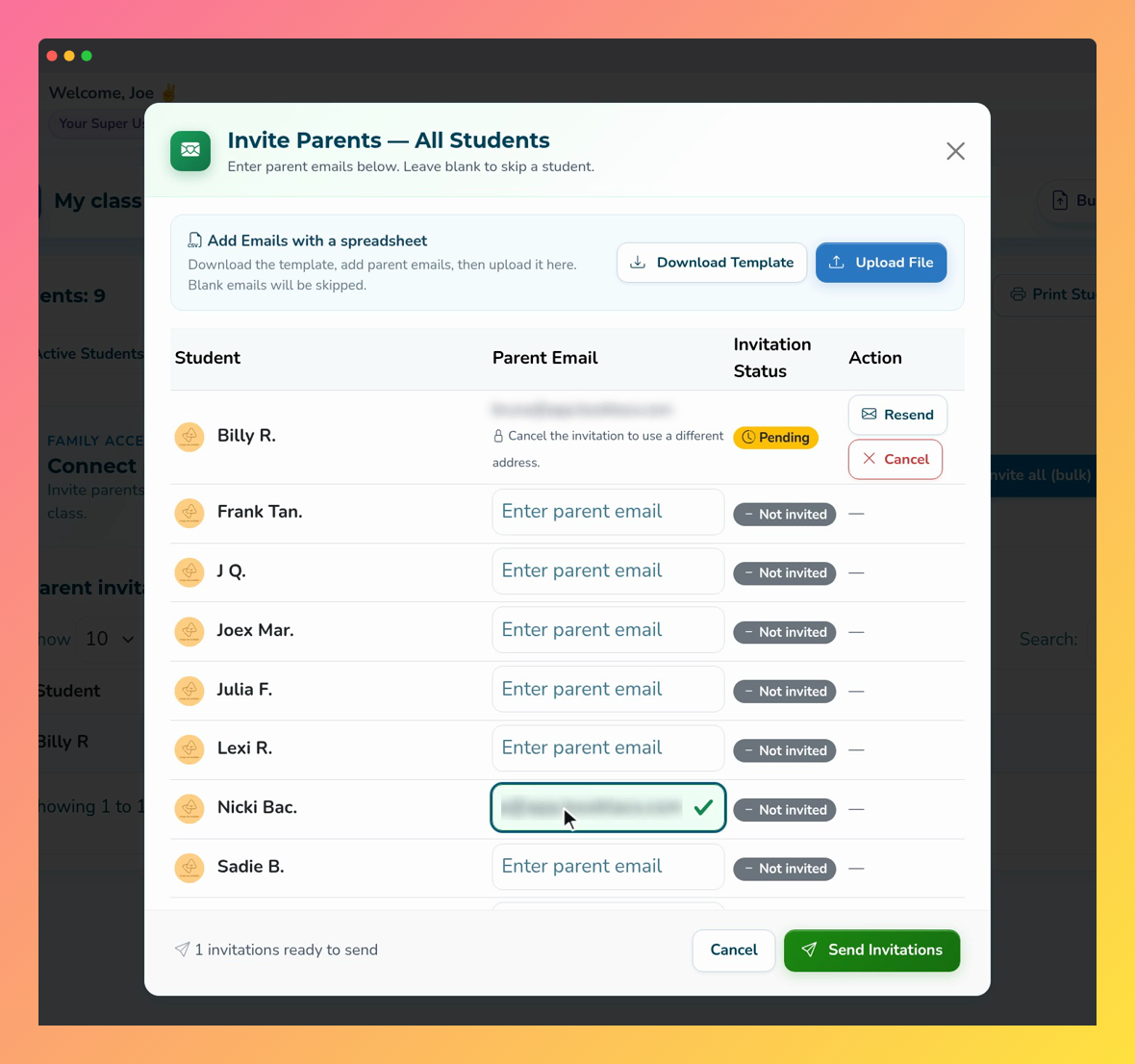 Screenshot of the Invite Parents - All Students window, with one parent email filled in and the Send Invitations button.
Note: A student with a Pending invitation shows the address as locked, with Resend and Cancel buttons. Click Cancel first if you need to invite a different address.
Step 3: Or add the emails with a spreadsheet
- In Add Emails with a spreadsheet, click Download Template. A CSV file with your students is downloaded.
- Open the file and fill in the parent_email column. Do not change the username column.
- Save the file as CSV, click Upload File and select it.
- The emails are filled in the list, and a message shows how many emails were imported and how many blank rows were skipped.
Step 4: Send the invitations
- Click Send Invitations.
- Book Taco sends the invitations in batches and shows a progress bar.
- When it finishes, a Done! message shows the result and the page reloads.
- The invited students now show Pending in the Parent column.
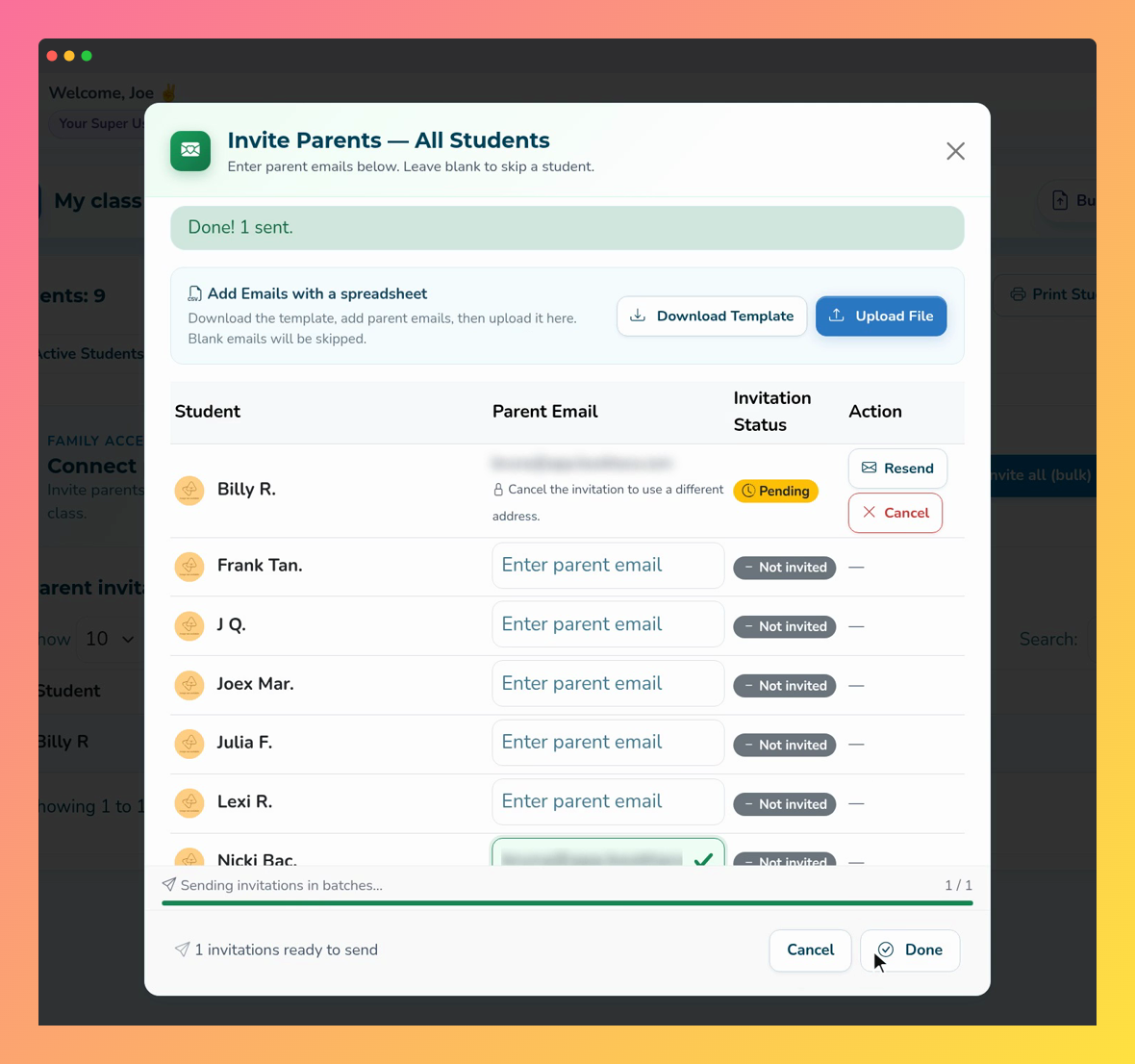 Screenshot of the Invite Parents - All Students window after sending, with the Done message and the progress bar.
Step 5: Or print QR letters for the class
- Open the Parents tab and click Download QR letters.
- In Download Parent Letters, choose the Language: English or Spanish.
- Choose the Format: Single PDF (one document, 2 letters per page) or Individual PDFs (ZIP) (one PDF per student).
- Click Download, then print the letters and send them home.
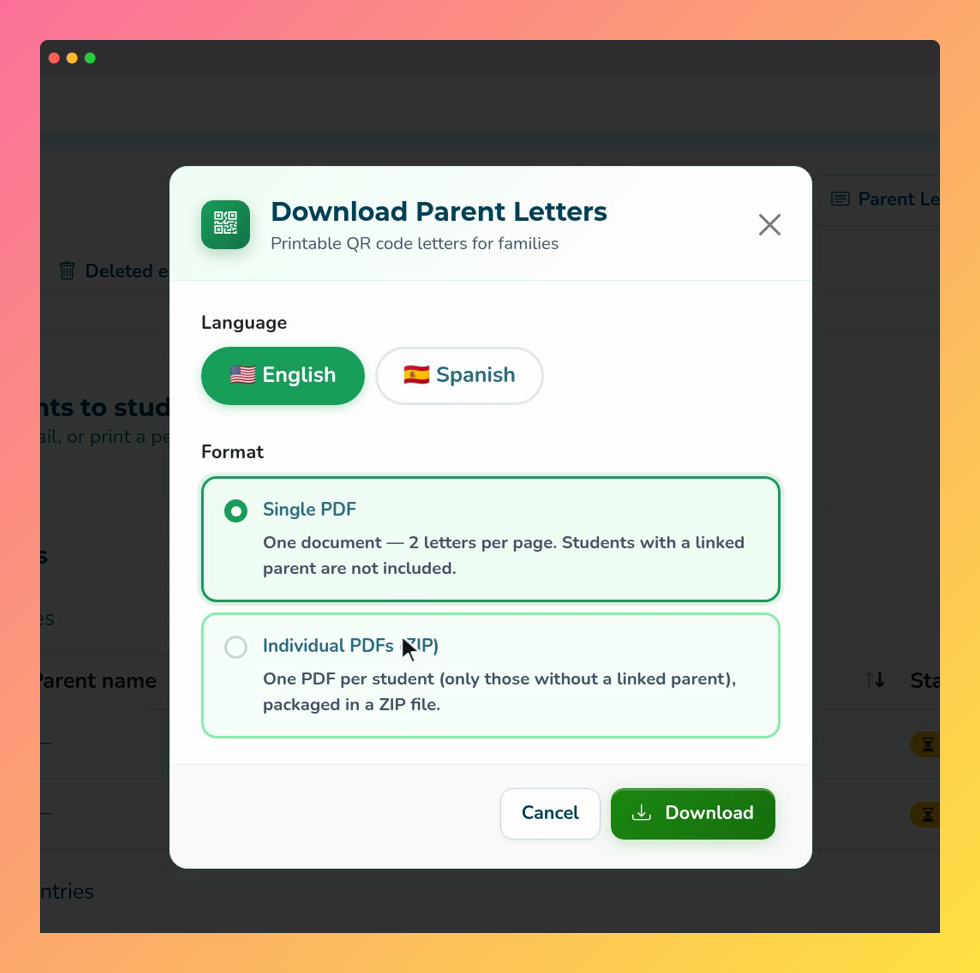 Screenshot of the Download Parent Letters window, with the Language and Format options and the Download button.
Tip: Letters are only created for students who do not have a linked parent yet.
Troubleshooting
- “Invalid email format” appears under a field. Fix the address in that row before sending.
- “Please correct invalid email address(es) before sending invitations.” At least one row has an invalid address.
- “Please enter at least one valid parent email address.” All rows are blank. Type at least one email.
- “The CSV must contain username and parent_email columns.” The uploaded file is missing a column. Download the template again and fill in only the parent_email column.
- “All active students already have a linked parent. There are no letters to generate.” Every student is already linked, so there is nothing to print.
Was this article helpful?
That’s Great!
Thank you for your feedback
Sorry! We couldn't be helpful
Thank you for your feedback
Feedback sent
We appreciate your effort and will try to fix the article