The Book Taco Family portal shows parents and guardians how their child is reading on Book Taco. From the left menu you can follow reading progress, look for books, read messages from the teacher, see contests and decide which books your child can open. This article walks through each area.
Before you start
- You need a Book Taco Family account that is connected to at least one child. The connection comes from an invitation sent by your child’s teacher.
- To log in, open the Book Taco login page and click Parent Login.
- You only see information about your own children.
Step 1: Read the Dashboard
After you log in, you land on the Dashboard. For the selected child it shows:
- The latest book your child is reading, and how far they are.
- The Class reading goal, with the number of books completed.
- The reading snapshot for the current week.
- School year activity: Books read, Word count, Pages read, Reading logged and Quizzes passed.
- Teacher messages from school.
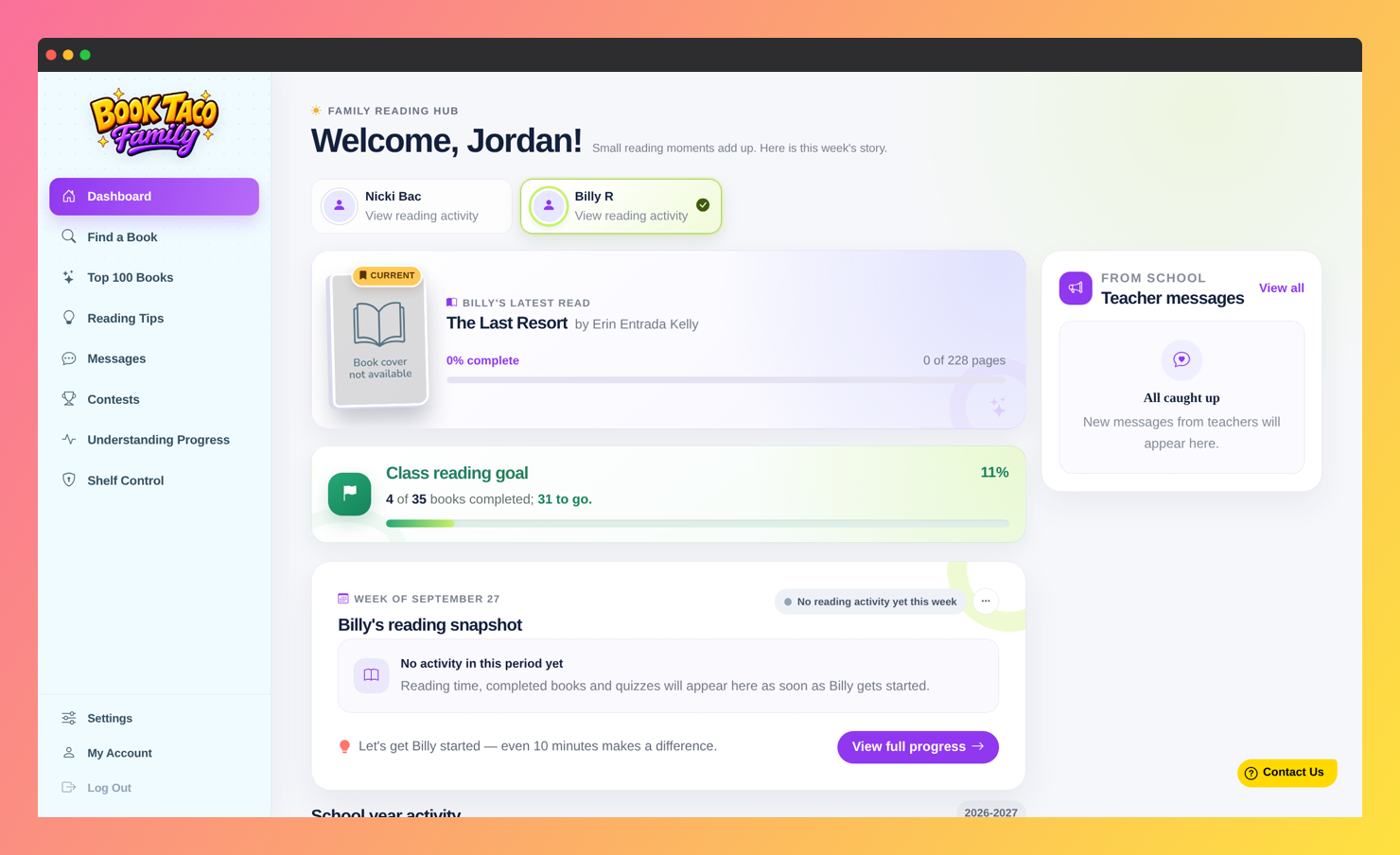 Screenshot of the Family Dashboard, with the child selector, the latest read, the class reading goal and the reading snapshot.
Step 2: Switch between children and open the details
- If more than one child is linked, their names appear at the top of the Dashboard. Click a name to see that child.
- Click View full progress to open the child’s details page.
- On the details page, click Custom period to choose your own dates.
- Click Back to Dashboard to return.
Step 3: Find books
- Click Find a Book to search by title, author or series. You can filter by Fiction, Nonfiction, Quiz Only and by reading level.
- Click Top 100 Books to see popular picks. Filter them by reading level, Student Picks, Teacher Picks or New Releases.
Step 4: Read messages and follow contests
- Click Messages to read announcements from your children’s teachers and from Book Taco.
- Click Contests to see the reading contests your child is in, with goals, dates and results.
- In a contest with a ranking, only your child’s position is shown.
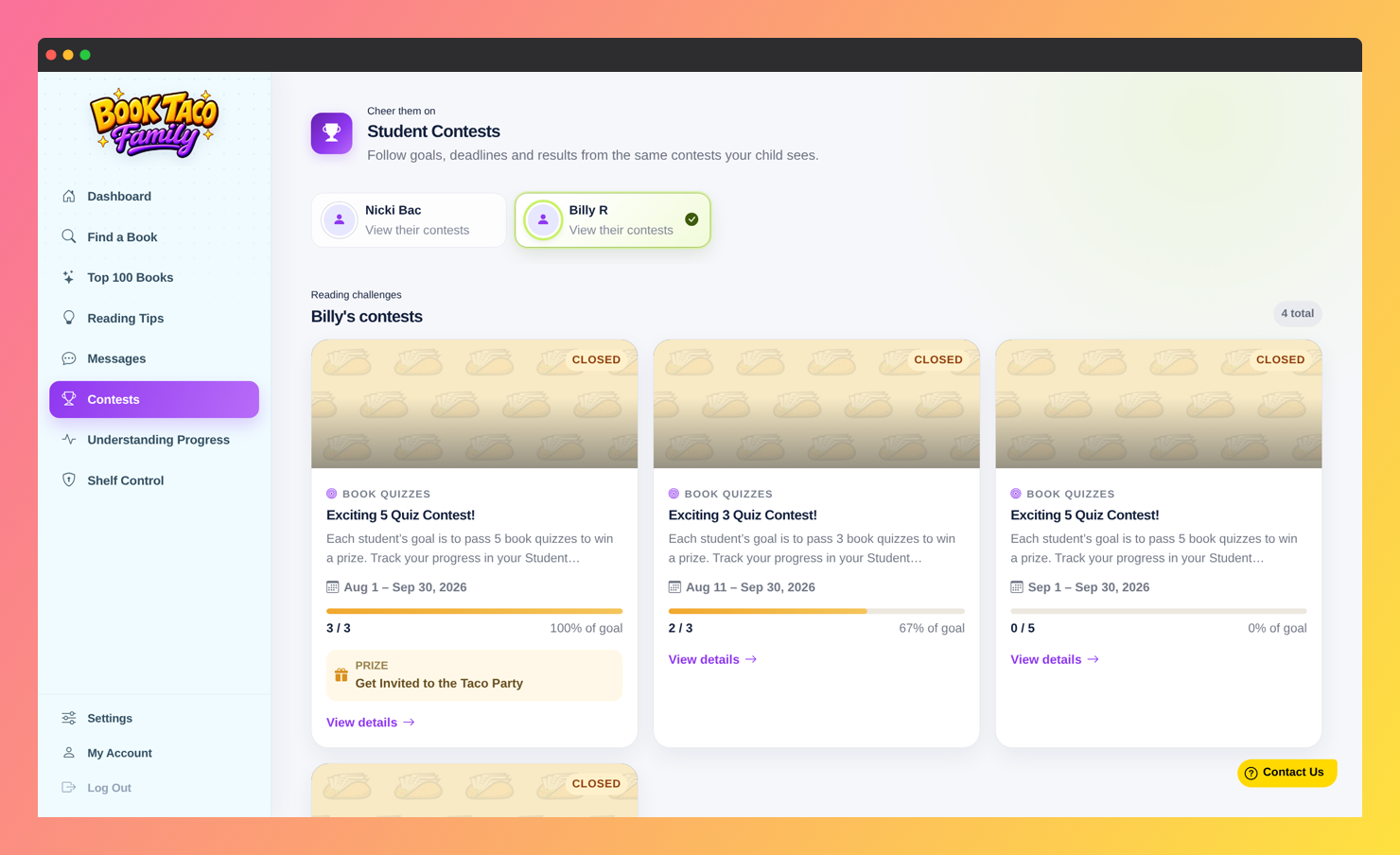 Screenshot of the Student Contests page, with a child's contests and their progress toward each goal.
Step 5: Use Shelf Control
Shelf Control lets you choose which books your child cannot access on Book Taco.
- Select the child at the top of the page.
- In Search books, search by title, author or ISBN and click Lock on a book.
- The book moves to Locked books. Click Unlock there whenever you want to allow it again.
- If your child’s school uses the Book Taco Library, you can also turn a reading level or a category On or Off.
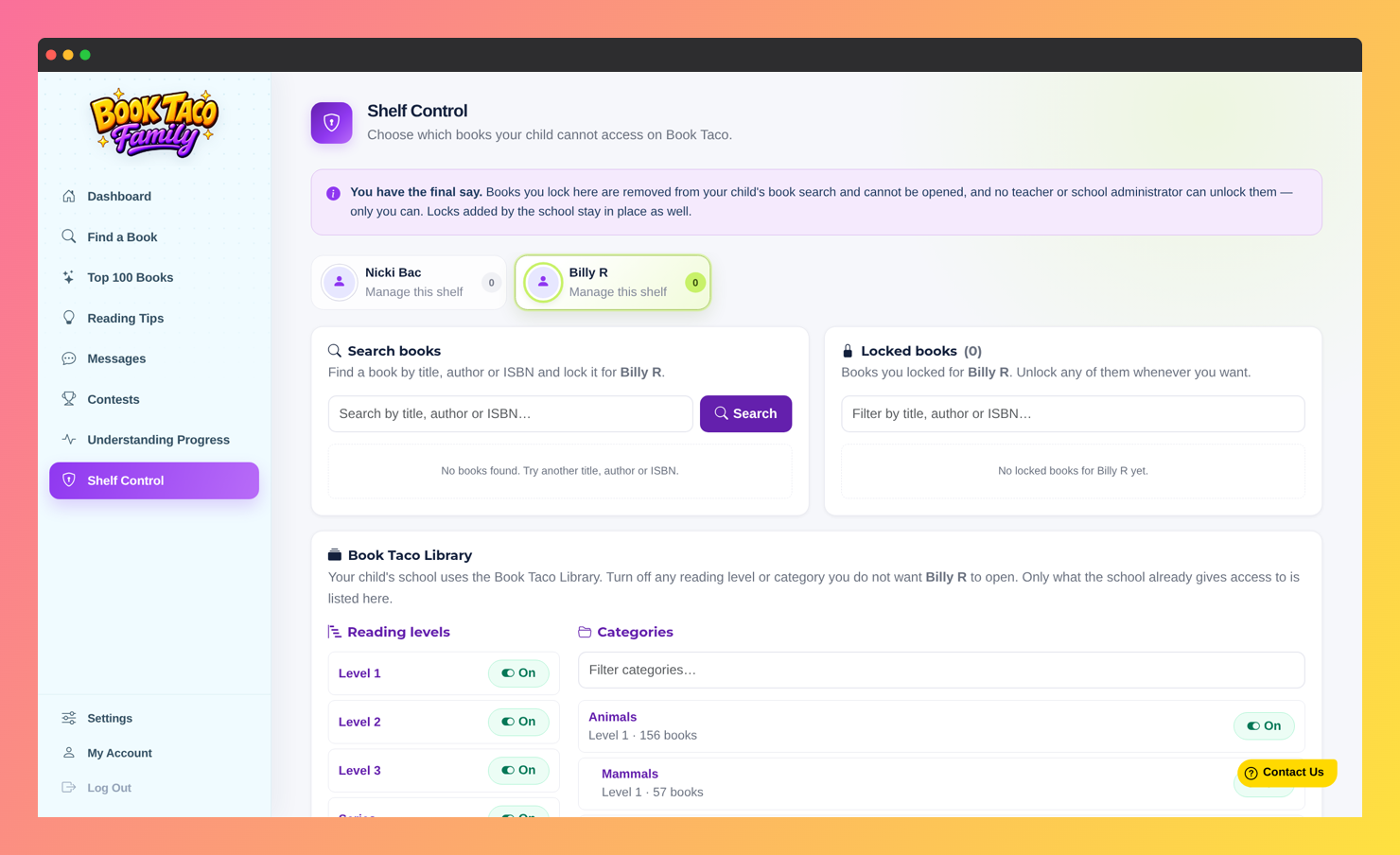 Screenshot of the Shelf Control page, with the Search books and Locked books panels and the Book Taco Library reading levels and categories.
Note: A book you lock is removed from your child’s book search and cannot be opened. No teacher or school administrator can unlock it. Only you can. Locks added by the school stay in place as well.
Step 6: Manage your account and email reports
- Click Settings to turn Enable report emails on or off and choose how often you receive them: Weekly, Every 2 Weeks or Monthly. Click Save Settings.
- Click My Account to update your name, email address or password. Click Save Changes.
- Click Log Out when you finish.
Troubleshooting
- “No children linked yet” Your account is not connected to a child. Ask your child’s teacher to send you an invitation.
- “No reading activity for this period.” Your child has no reading logged in the selected dates. Choose a different period.
- A child is missing from your Dashboard. The teacher may have removed the link, or the invitation is still waiting under Pending invitations. Accept it, or ask the teacher for a new one.
- You want to stop following a child. On the Dashboard, open the … menu on that child’s reading snapshot and click Remove access. You would need a new invitation from the teacher to reconnect.
Was this article helpful?
That’s Great!
Thank you for your feedback
Sorry! We couldn't be helpful
Thank you for your feedback
Feedback sent
We appreciate your effort and will try to fix the article