The Students page is where you build your class roster. Once students are added, they can log in to Book Taco and start reading, taking quizzes, and completing activities. You can add students one at a time or upload your entire class in a single file.
Clever or ClassLink users: If your school uses Clever or ClassLink, your roster is synced automatically — you do not need to add students manually. Open Book Taco through your Clever or ClassLink portal and your students will appear. Use the Resync student rostering button on the Students page whenever your roster changes.
Step 1: Go to My Class
- From your Teacher Dashboard, click Students in the left sidebar.
- The page shows all students currently in your class, along with a count of active students and available seats in your plan.
Step 2: Add a student individually
- Click Add new student in the top-right corner.
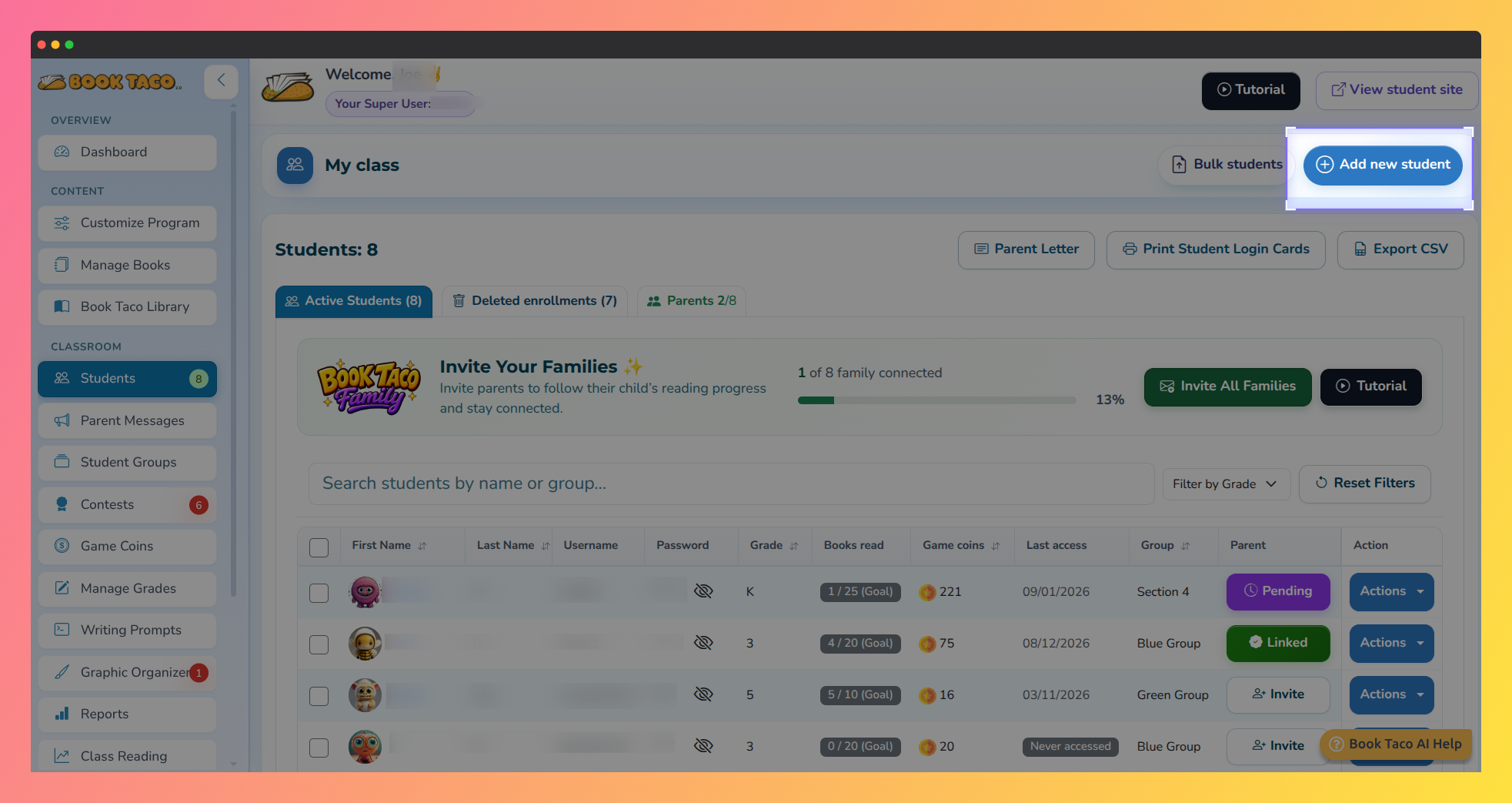 My Class page with the Add new student button highlighted.
- Fill in the student's personal information:
- First Name and Last Name (or last initial)
- Parent Email — optional, used for parent communication
- Grade — select K through 12
- Student Group — optional, assign the student to an existing group
- Fill in the student's access information:
- Username — must be unique across the platform. The field checks availability in real time as you type.
- Password — minimum 3 characters. The student will use this to log in.
- Click Save. The student is added to your class immediately.
Step 3: Upload multiple students at once
- On the Students page, click Bulk students.
- In the modal that opens, either:
- Upload a file in .xlsx, .xls, or .csv format, or
- Paste your data directly into the text area, one student per line, in this order:
firstname, lastname, username, grade, password
- Click Process Data. Book Taco adds all valid rows and reports any errors (such as a duplicate username) in the results summary.
Pro Tip: Download the template file from the bulk upload modal to get a pre-formatted spreadsheet. Fill it in with your roster and upload it directly — no formatting guesswork needed.
Step 4: Share login credentials with students
- Click Print Student Login Cards to generate a printable sheet with each student's username and password — one card per student, ready to hand out in class.
- Alternatively, click Parent Letter to generate a printable letter for each student's family with their login information and instructions for accessing Book Taco at home.
- Students log in at the Book Taco student portal using the username and password you set.
Q: How many students can I add?
A: The number of students is limited by the seats included in your plan. Your current student count and available seats are displayed at the top of the Students page. If you need more seats, go to Membership in the left sidebar to upgrade your plan.
Was this article helpful?
That’s Great!
Thank you for your feedback
Sorry! We couldn't be helpful
Thank you for your feedback
Feedback sent
We appreciate your effort and will try to fix the article