Quiz Settings control how Book Taco counts a book as completed — whether a quiz is required, what score students need to pass, which days the quiz is available, and how many attempts they get. All changes save automatically as soon as you make them.
Managed accounts: If your school's Super User has locked customization for your account, you will not be able to access this page. Contact your Super User to request changes.
Step 1: Go to Customize Program
- From your Teacher Dashboard, click Customize Program in the left sidebar.
- The page opens on the Settings tab. The Quiz Settings fieldset is at the top of the page.
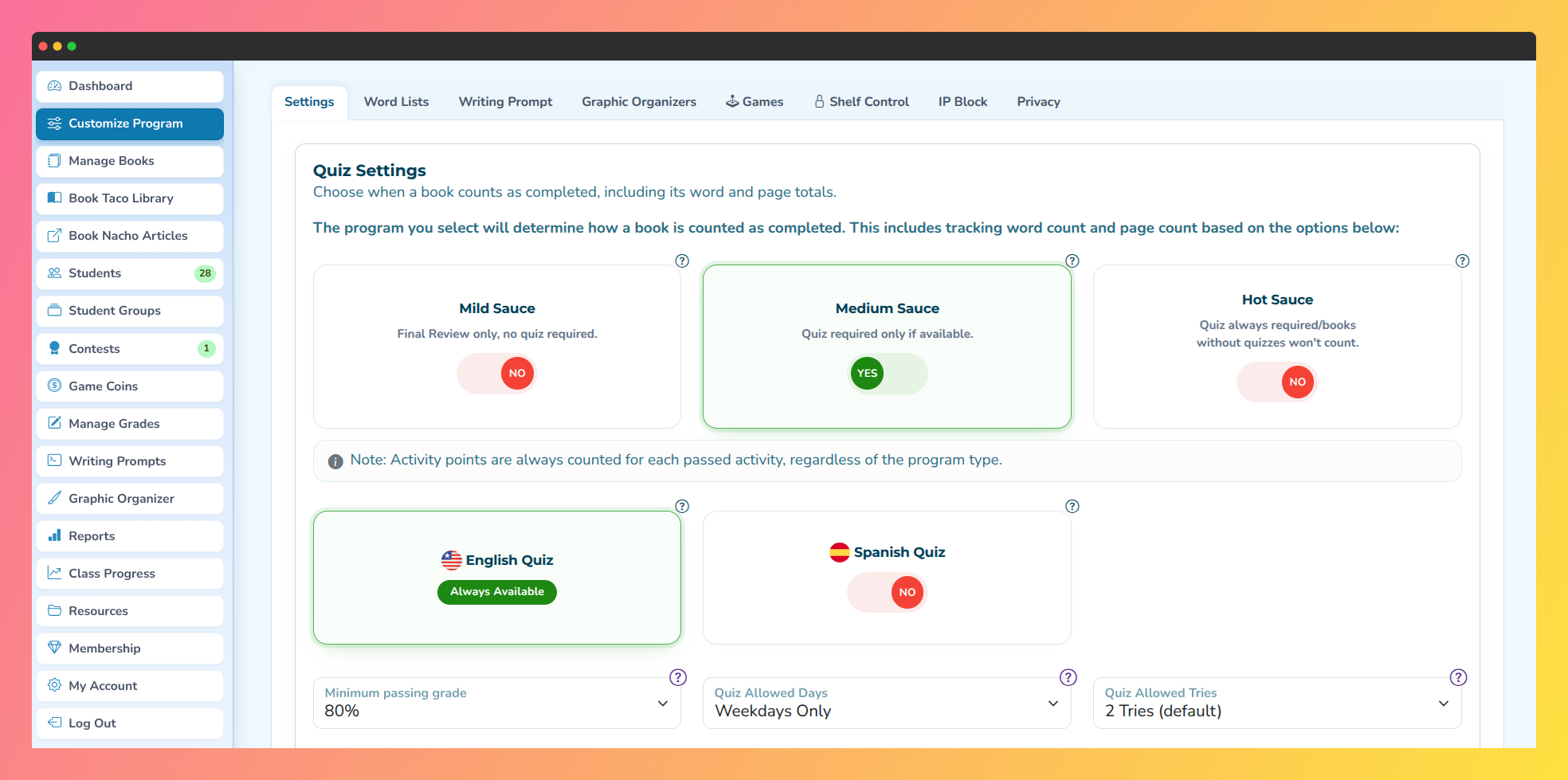
Screenshot of the Customize Program, where quiz settings can be edited.
Step 2: Choose your quiz mode
- The quiz mode determines how a book counts as completed and when word count and page count are awarded. There are three options:
- Mild Sauce — No quiz required. Students complete a Final Review at any time, with or without taking a quiz. Word count and page count are earned once the Final Review is submitted.
- Medium Sauce — Quiz required only when available. If a book has a quiz, students must take and pass it to earn word count and page count. If the book has no quiz, students can still complete the Final Review and the book counts as read.
- Hot Sauce — Quiz always required. Students must pass a quiz for any book to count as read. Books without quizzes do not contribute to word count or page totals.
- Click the toggle next to the mode you want to activate. A confirmation modal will appear showing the mode's description and a reminder that the change is not retroactive — it applies to books going forward, not books already completed. Click Confirm to apply.
Activity points are always counted for each passed activity, regardless of the quiz mode selected. Only word count, page count, and book completion are affected by this setting.
Step 3: Set passing grade, allowed days, and tries
- Use the three dropdowns below the quiz mode toggles to fine-tune quiz behavior:
- Minimum passing grade — the score a student must reach to pass the quiz. Options range from 10% to 100%.
- Quiz Allowed Days — restricts the days on which students can take quizzes. Options include Always Available (default), Weekdays Only, individual days (Monday through Friday), Friday and Weekend, and Weekends Only.
- Quiz Allowed Tries — the maximum number of attempts a student gets per quiz. The default is 2 tries. Options go up to 99.
- Each selection saves automatically the moment you change it. A Successfully changed data toast notification confirms the save.
Pro Tip: Combining Quiz Allowed Days with the IP Block setting (available in the IP Block tab) gives you two layers of control — you can restrict quizzes to school days and to the school network at the same time.
Step 4: Enable the Spanish quiz
- Below the three dropdowns you'll see two language toggles: English Quiz and Spanish Quiz.
- The English quiz is always enabled and cannot be turned off.
- To allow students to take quizzes in Spanish, turn on the Spanish Quiz toggle. The change saves automatically.
Q: Can I give a specific student extra quiz attempts or let them retake a quiz they already passed?
A: Yes. Use the Override Pin setting, also in the Settings tab of Customize Program. You set a PIN of up to 4 characters, and when a student needs an exception, you enter the PIN on their device to unlock extra retries or reopen a passed quiz.
Q: Will changing the quiz mode affect books my students have already read?
A: No. The change is not retroactive. Books already marked as completed remain as they are. The new mode applies only to books students start or finish after the change is made.
Was this article helpful?
That’s Great!
Thank you for your feedback
Sorry! We couldn't be helpful
Thank you for your feedback
Feedback sent
We appreciate your effort and will try to fix the article