The Teacher Dashboard is the first screen you see after logging in. It gives you a live overview of your class activity and quick access to every tool in Book Taco. This article walks through each section so you know exactly where to find what you need.
- Step 1: The header bar
- Step 2: The left sidebar
- Step 3: The quick-access widgets
- Step 4: Class at a glance
- Step 5: Full Summary
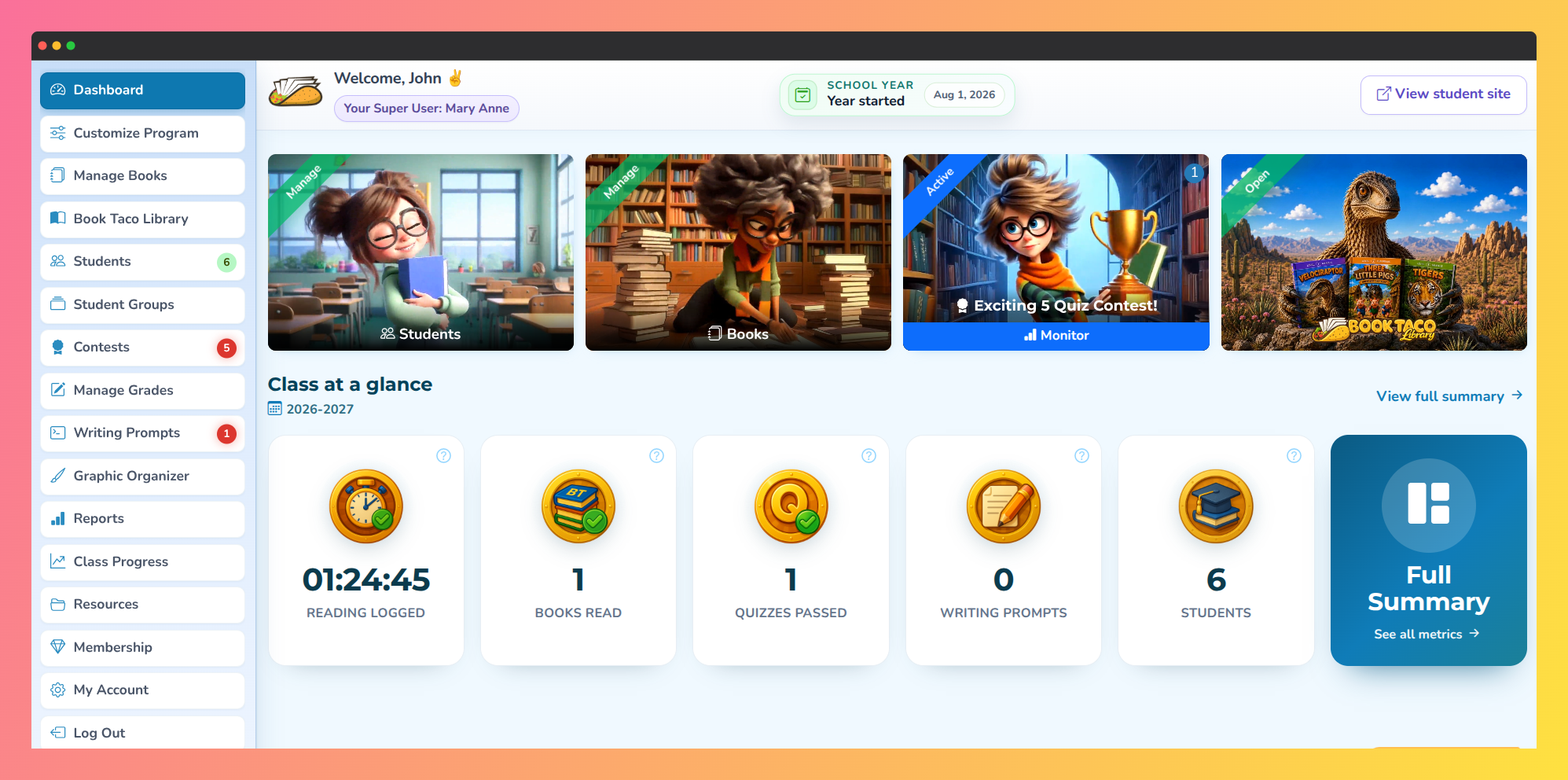
Screenshot of the Book Taco Teacher Dashboard.
Step 1: The header bar
- The header runs across the top of every page. On the left is the Book Taco logo — clicking it always returns you to the Dashboard.
- In the center you'll see your name, your current plan, and — if your school has a Super User — their email address linked to your account.
- On the right side, you'll find account settings and the ability to log out.
Step 2: The left sidebar
- The sidebar is your main navigation and stays visible on all pages. The current page is highlighted in the menu. Some items show a counter badge when something needs your attention — pending grades, new submissions, or unlocked badges.
- The full list of sidebar items, in order:
- Dashboard · Customize Program · Students · Student Groups · Contests · Contest Prize Ideas · Manage Books · Top 100 Books · Shelf Control · Manage Grades · Writing Prompts · Graphic Organizer · Classroom Badges · Log Group Reading · Games and Coins · Reports · Printables · News · Membership · My Subscription · My Account · Log Out
Expired plan: If your subscription expires, most sidebar items are locked and cannot be clicked. Only Membership, My Subscription, and My Account remain accessible so you can renew.
Step 3: The quick-access widgets
- Below any system notifications, you'll find four visual cards. Each one is clickable and changes appearance based on your current state:
- Students — takes you to your class roster (Manage ribbon).
- Books — takes you to Manage Books (Manage ribbon).
- Contests— its ribbon and label change depending on the state of your latest contest:
- No contest yet: Create! ribbon with a green pulse — clicking opens the Contests page to create your first one.
- Active contest: Active ribbon — clicking opens the live monitor for that contest so you can watch activity in real time.
- Closed contest: Closed ribbon with a yellow pulse and a Set Winners button — use this to select and award winners.
- Finished contest: Finished ribbon — clicking opens the contest details.
- Book Taco Library— links to the Book Taco Library catalog. The ribbon shows the status of your Library access:
- Open — your Library access is active; click to browse and assign books.
- Preview — your Library trial is active or pending activation; click to explore titles.
- Disabled — your Super User has disabled Library access for your account; the card appears grayed out.
First time here? If you haven't added any students yet, the Dashboard shows a Setup Your Classroom card with a single task: Add Students. The card disappears automatically once your first student is added.
Step 4: Class at a glance
- Below the widgets is a row of featured statistics cards showing real-time totals for your entire class. The numbers load after the page opens — you may see spinners briefly while they fetch.
- The featured metrics include:
- Reading Logged — total reading time logged by the class
- Books Read — number of books finished by the class
- Quizzes Passed — number of quizzes passed
- Writing Prompts — writing prompt activities completed
- Students — total students in your class (clickable link to the Students page)
- On the right side of the featured metrics row, you'll see a Full Summary button. Click it to see all available metrics broken down by category.
- Each card shows the school year or period these totals reflect. If your school uses a semester system and it's currently summer break, the dashboard will note "summer break — showing current school year totals."
Spinners not loading? If the statistics cards show spinners that don't resolve, try refreshing the page. If the problem persists, check your internet connection or contact support.
Step 5: Full Summary
Click Full Summary from the dashboard, or navigate to it via the sidebar (Dashboard → summary link). This page shows all available class statistics organized by category:
- Reading: Reading Logged, Books Read, Page Count, Word Count, Quizzes Passed, Reading Book Goal
- Writing & Vocabulary: Writing Prompts, Graphic Organizers, Spelling Activities, Vocabulary Activities, Vocabulary Words
- Rewards & Engagement: Activity Points, Classroom Badges, Student Badges, Complete Album Pages, Game Coins, Students
Hover over the help icon on any card to see a tooltip explaining exactly what that metric counts.
Pro Tip: The Students and Complete Album Pages cards are clickable links — they take you directly to the relevant pages. Use them as shortcuts.
Was this article helpful?
That’s Great!
Thank you for your feedback
Sorry! We couldn't be helpful
Thank you for your feedback
Feedback sent
We appreciate your effort and will try to fix the article