Log Group Reading lets you record a shared reading session for your entire class — or any subset of students — in a single submission. Instead of logging reading individually for each student, you select the book, enter the session details, choose which students participated, and submit once.
Step 1: Go to Log Group Reading
- From your Teacher Dashboard, click Class Progress in the left sidebar.
- Click the Log Group Reading tab.
- The page is divided into three cards you fill out in order: Select a Book, Reading Session Details, and Select Students.
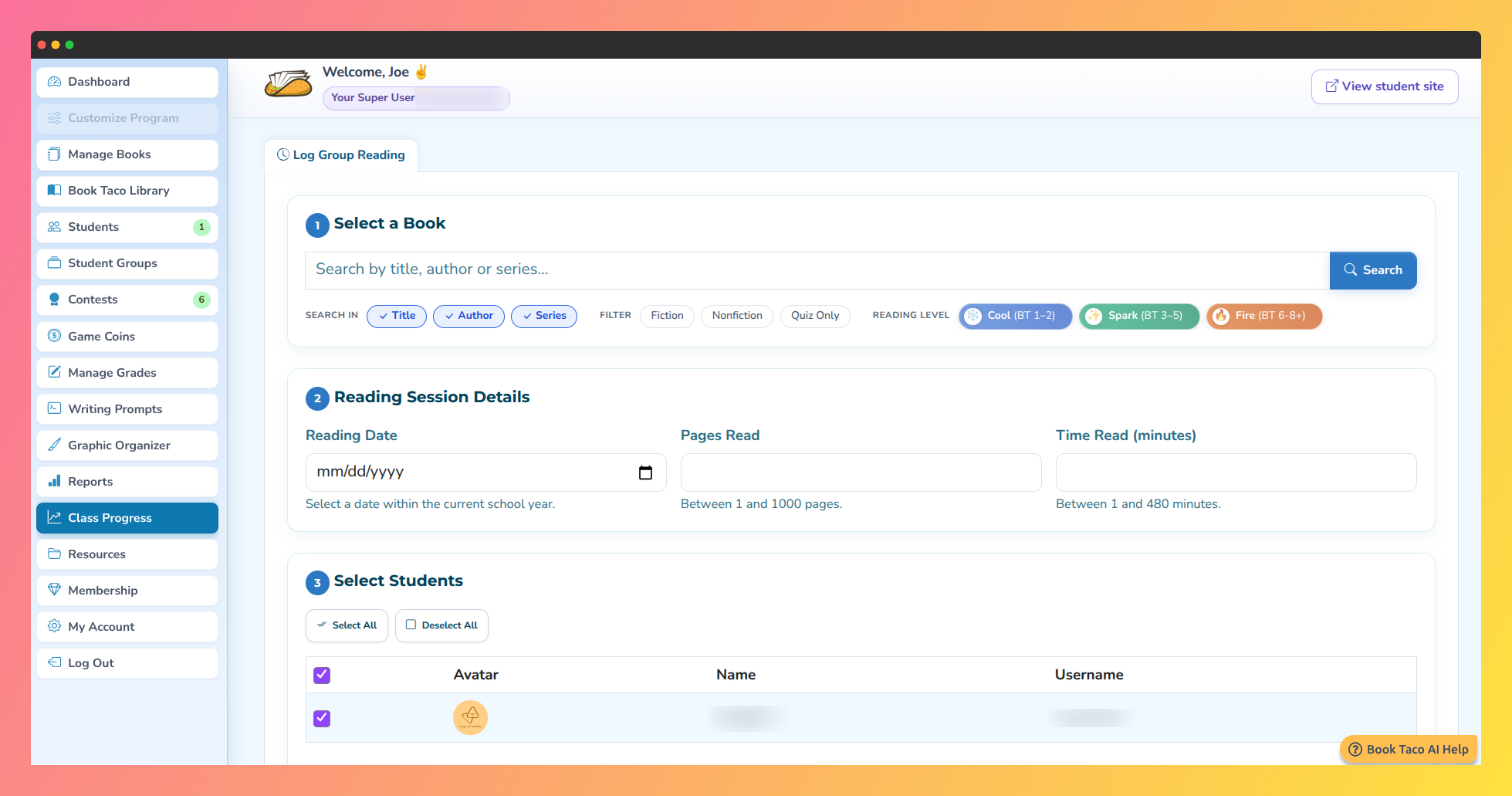
Screenshot of the Log Group Reading page for recording a group reading session.
Step 2: Select a book
- Type a book name in the search field and click Search, or press Enter.
- Use the Search in checkboxes to narrow the search to Title, Author, and/or Series (all three are checked by default).
- Use the Filter checkboxes to filter results by: Fiction, Nonfiction, or Quiz Only.
- Use the Reading level pills to filter by: Cool (BT 1–2), Spark (BT 3–5), or Fire (BT 6–8+).
- Each result shows the book cover, title, author, and ISBN. Click Use this to select the book.
- After selecting, a Selected Book summary appears showing the cover, title, author, ISBN, and details. Click Change Book to go back and pick a different one.
Step 3: Enter reading session details
- Fill in the three fields in the Reading Session Detailscard:
- Reading Date — the date the session took place. Must be within the current school year.
- Pages Read — how many pages were read during the session.
- Time Read (minutes) — how long the session lasted in minutes.
- Each field shows the valid range (e.g., "Between 1 and 1000 pages"). Enter a value within that range.
Step 4: Select students and submit
- The Select Students card shows a table of all students in your class with their avatar, name, and username. All students are pre-checked by default.
- Use Select All or Deselect All buttons to check or uncheck everyone at once, or click the master checkbox in the table header.
- To log a session for only part of the class, uncheck the students who did not participate.
- At least one student must be selected before you can submit.
- Click the Submit button at the bottom right.
- A confirmation dialog appears. Click Submit to confirm, or cancel to go back.
- On success, a confirmation message appears and the page refreshes, ready for the next session.
One submission, every student. The same book, date, pages, and time are logged for all selected students. If different students read different amounts, submit separate sessions for each group.
Q: Can I log a reading session for a date earlier this year?
A: Yes. The date field accepts any date within the current school year.
Q: What are the limits on pages and time?
A: The form shows the valid range for each field. Typically, pages range from 1 to 1,000 and time from 1 to 480 minutes (8 hours), but these limits may vary by configuration.
Q: Where can I see the reading sessions I have logged?
A: Go to Reports in the left sidebar. Your reading logs appear there broken down by student.
Was this article helpful?
That’s Great!
Thank you for your feedback
Sorry! We couldn't be helpful
Thank you for your feedback
Feedback sent
We appreciate your effort and will try to fix the article