The Import Lists feature lets you copy a custom book list created by a colleague into your own account. You find the list by searching for the colleague’s email address. It is available to teachers and Super Users, and only between accounts that share the same school or organization email domain.
Before you start
- You and the colleague must both use a school or organization email with the same domain, for example name@myschool.org.
- Personal email providers such as Gmail, Outlook, Hotmail, Yahoo and iCloud cannot share or import lists.
- The list must be set to Shareable by its owner. Lists are Private by default.
Step 1: Ask the owner to make the list Shareable
If you own the list you want to share, do this yourself. If a colleague owns it, ask them to:
- Go to Manage Books and open the list.
- Click the Private chip on the list, or turn on Shareable when creating a new list, so that it shows Shareable.
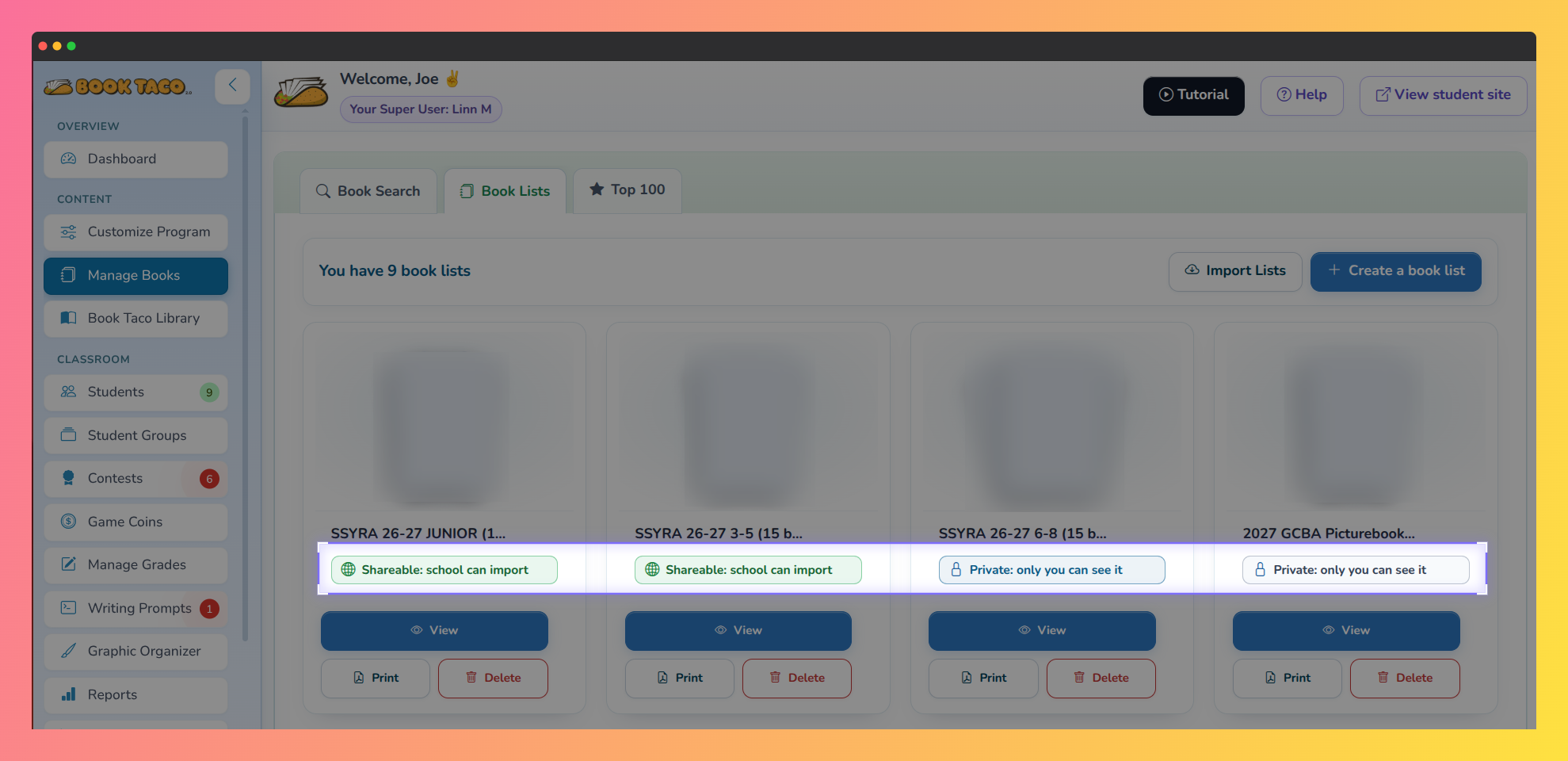
Screenshot of the Book Lists tab in Manage Books, with the Shareable and Private privacy labels highlighted on each list.
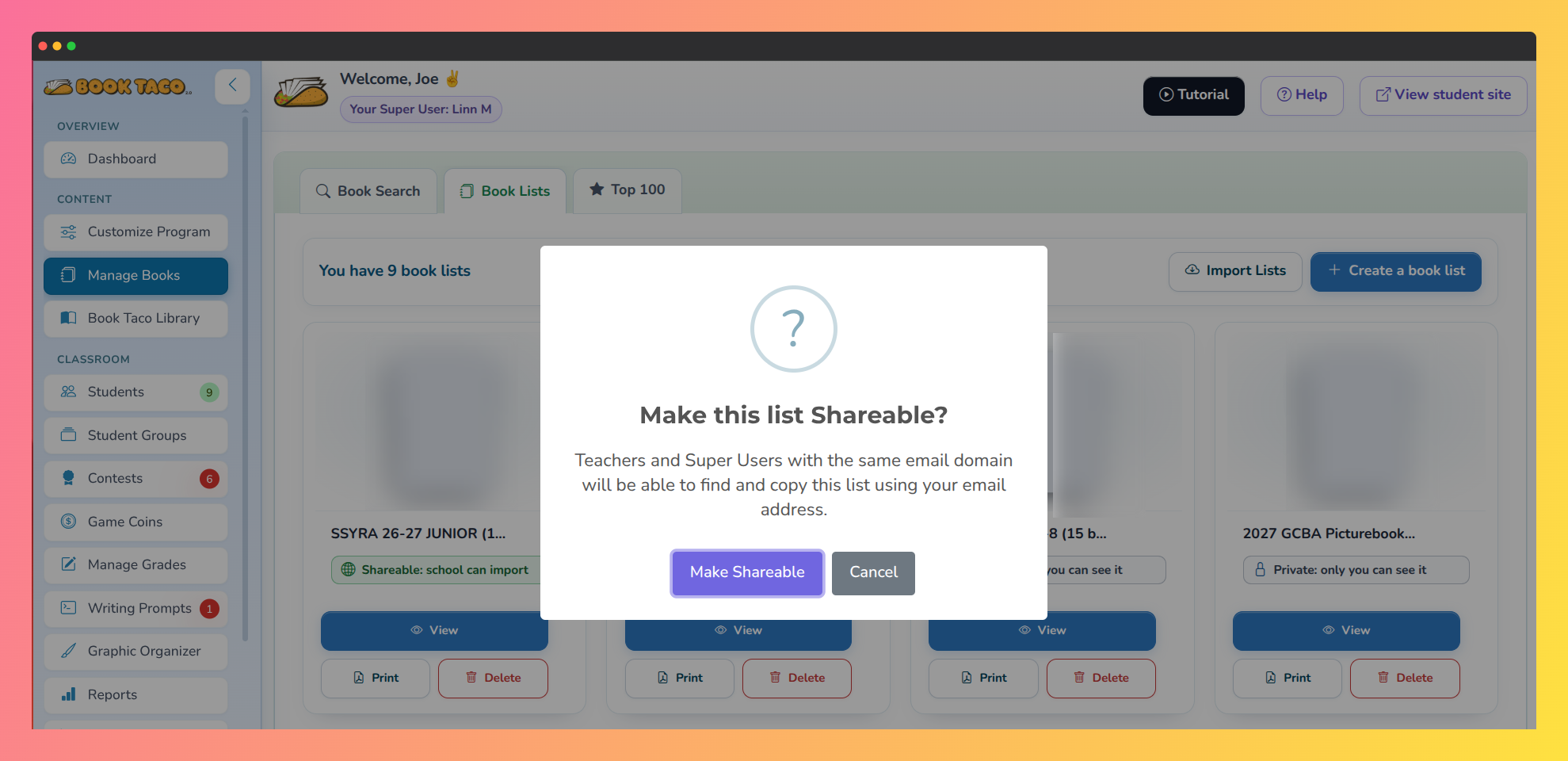 Screenshot of the "Make this list Shareable?" confirmation dialog in Manage Books, with the Make Shareable and Cancel buttons.
Tip: Change the list back to Private at any time. It stops showing up in Import Lists searches, but copies that colleagues already imported stay in their accounts.
Step 2: Open Import Lists
- In the left sidebar, click Manage Books.
- Click Import Lists. It is next to Create a book list, and it also appears on the “Start your first book list” screen if you have no lists yet.
- The Import Teacher Lists window opens.
Step 3: Search by email and select lists
- Type your colleague’s email in Teacher’s email and click Search lists (or press Enter).
- The Available book lists section shows each Shareable list with its name, number of books and cover previews.
- Check the lists you want, or check Select all.
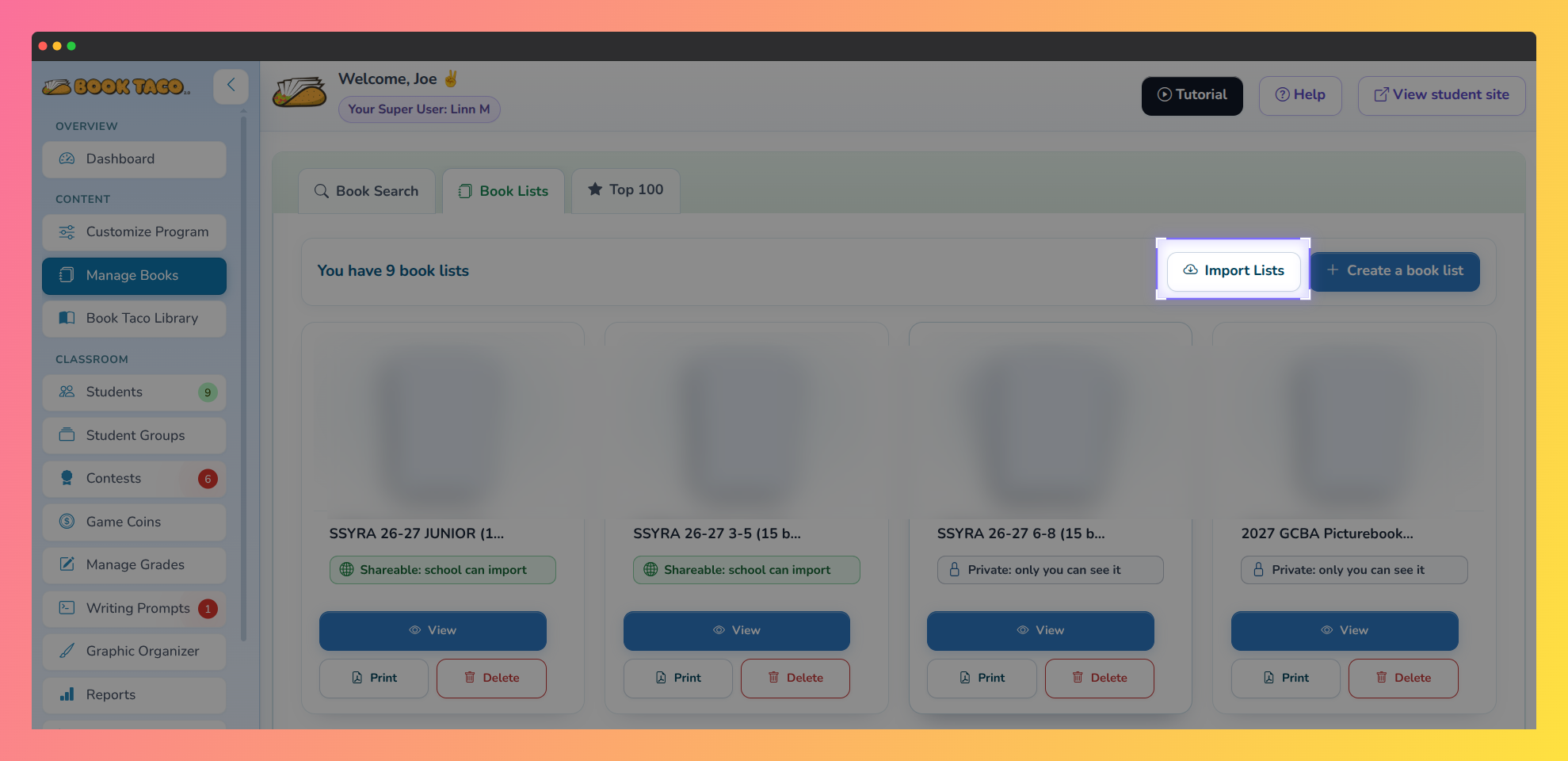 Screenshot of the Book Lists tab in Manage Books, with the Import Lists button highlighted.
Step 4: Import the lists
- Click Import Selected Lists. The button stays disabled until you select at least one list.
- A message confirms List imported (or how many lists were imported) and shows the names of the lists copied into your account.
- The new lists appear in Manage Books with the same name, the same books and the same order.
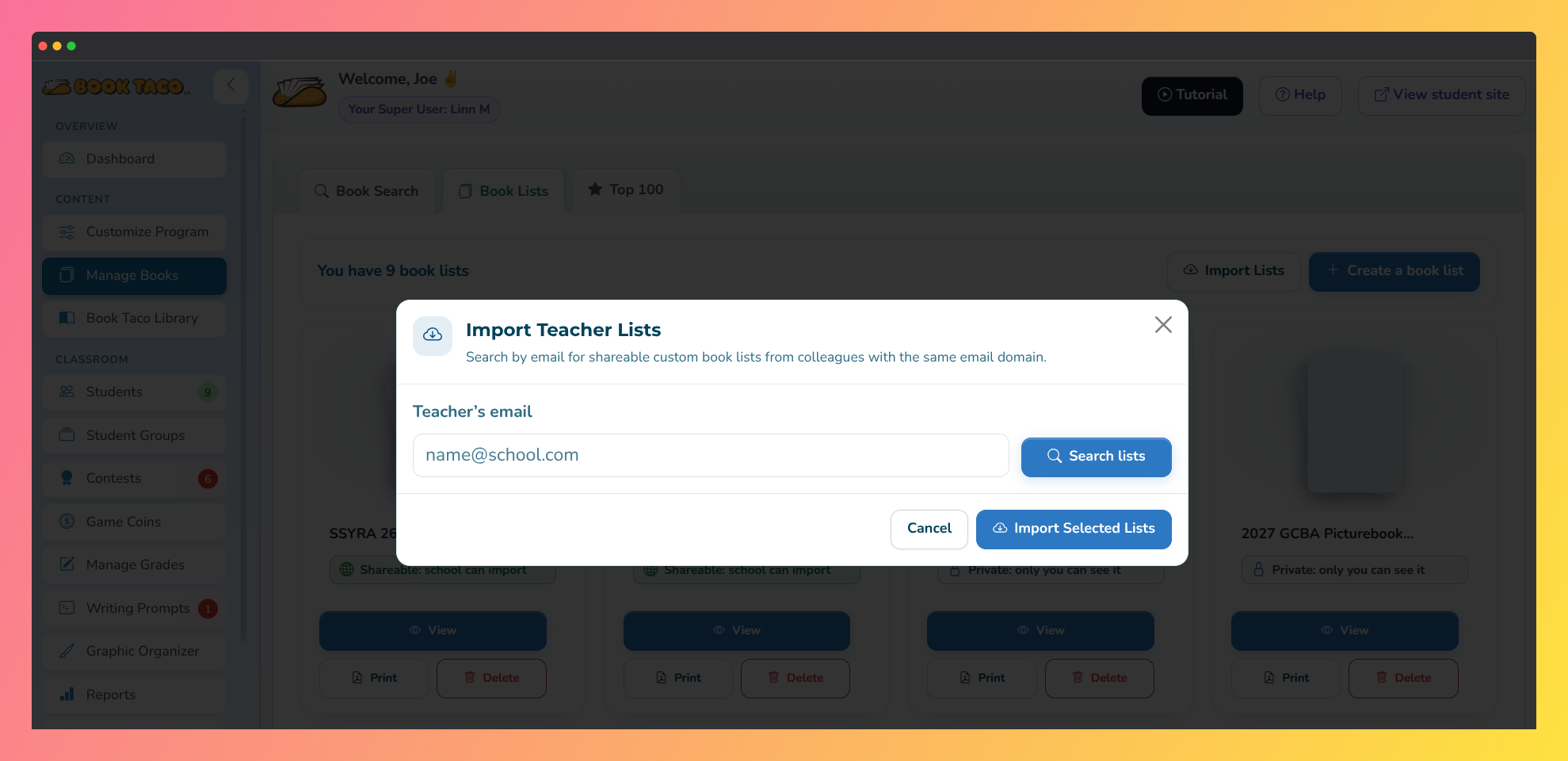 Screenshot of the Import Teacher Lists window, with the Teacher's email field and the Search lists button.
Note: An import creates a copy. The imported list belongs to you and is Private. Changes you make to it do not affect the original, and changes the owner makes later do not reach your copy.
Troubleshooting
- “Import Lists is only available for school or organization email accounts.” Your account uses a personal email provider. Sharing and importing require a school or organization email.
- “Same email domain required.” The colleague’s email is on a different domain from yours. You can only import from accounts on your own domain.
- “That’s your email.” You searched your own address. You cannot import your own lists.
- “No lists found.” The account has not created any lists yet, or the email does not match their Book Taco account.
- “No shareable lists found.” The account has lists, but none are Shareable. Ask the owner to change the list privacy to Shareable.
Was this article helpful?
That’s Great!
Thank you for your feedback
Sorry! We couldn't be helpful
Thank you for your feedback
Feedback sent
We appreciate your effort and will try to fix the article