Book lists live on your teacher account. From the Book Lists tab, you can download any list as a PDF — with covers, titles, authors, page counts, and word counts — so you can print it, share it, or keep a copy outside Book Taco.
Teacher account only: Book lists are not available for resource teacher accounts. If you have both, sign in as a teacher — not as a resource teacher — to see the lists you created and use Print.
Step 1: Go to Book Lists
- From your Teacher Dashboard, click Manage Books in the left sidebar.
- Click the Book Lists tab.
- You’ll see a card for each list you’ve created, with the list name and how many books it contains.
Direct link: You can also go straight to Book Lists at app.booktaco.com/teacher/manage-books#custom-book-lists.
Step 2: Find the list you want to print
- On the list card, you’ll see three buttons: View, Print, and Delete.
- You do not need to open the list first. Print works from the card.
- If you don’t see any lists, create one first: click Create a book list, then add titles from the Book Search tab.
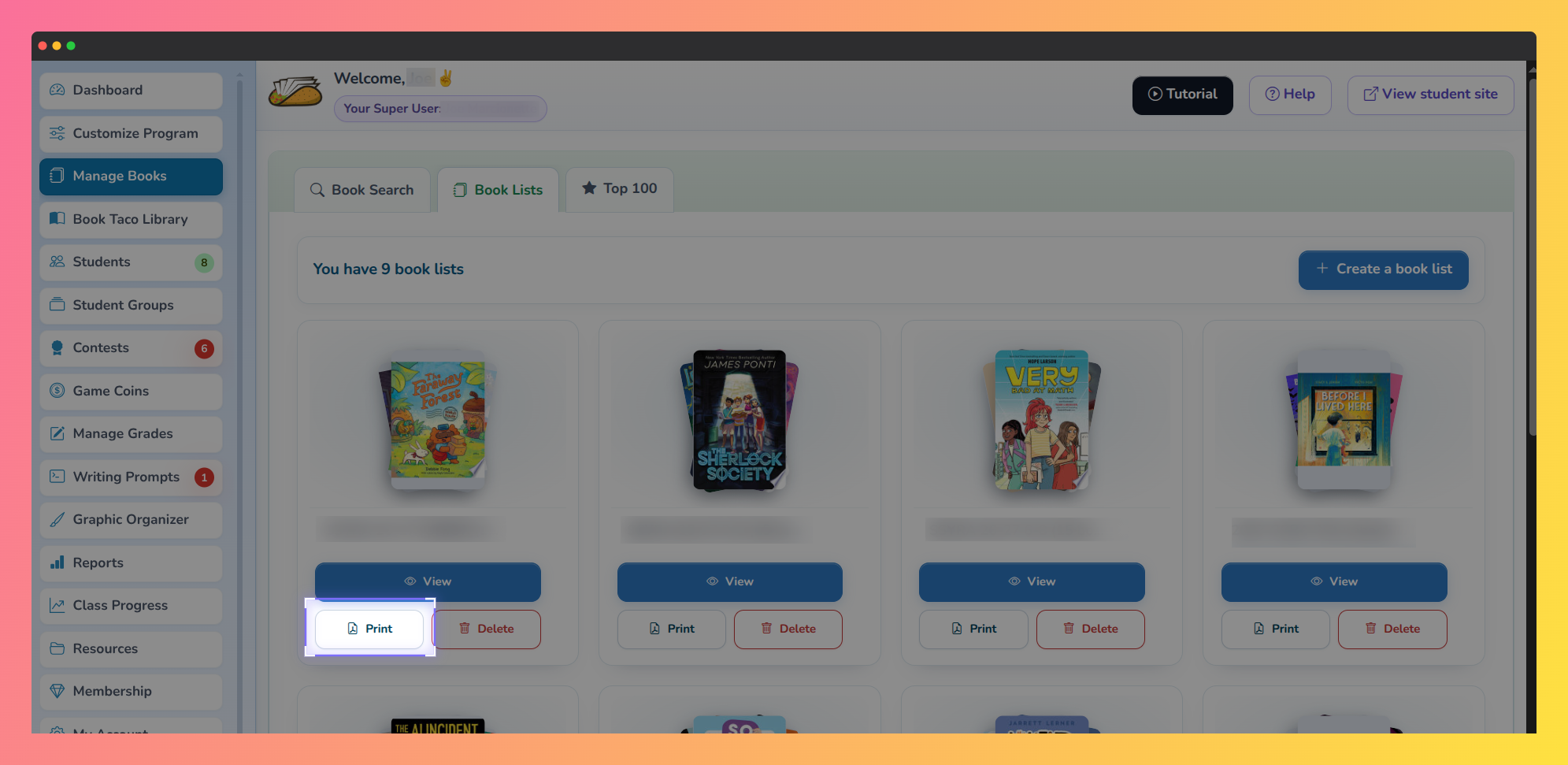
Book Lists tab in Manage Books. Each list card shows View, Print, and Delete. The Print button is highlighted.
Pro Tip: Use View if you want to check or reorder the books before you print. Use Print when you’re ready to download the PDF.
Step 3: Click Print
- Click Print on the list card.
- Book Taco prepares the PDF. When it’s ready, the file downloads to your computer as
book-list-<list-name>.pdf. - Open the file and print it from your browser or PDF reader, or share it as needed.
What’s in the PDF: the Book Taco logo, the list name, the number of books, and the date. Each book appears in a table with cover, title, author, pages, and word count. The footer includes “Presented by BookTaco.com. All rights reserved.” and page numbers.
Pro Tip: If the download doesn’t appear, check your browser’s downloads folder — some browsers save PDFs there instead of opening them automatically.
Q: I click Print and see “No books found in this list.” What does that mean?
A: The list exists, but it doesn’t have any titles yet. Open Book Search, choose that list as your current book list, add books, then click Print again.
Q: I can’t find my book lists or the Print button.
A: Confirm you’re signed in as a teacher, not a resource teacher. Book lists (and Print) are only on the teacher account. If you have both accounts, switch to teacher, then go to Manage Books → Book Lists.
Was this article helpful?
That’s Great!
Thank you for your feedback
Sorry! We couldn't be helpful
Thank you for your feedback
Feedback sent
We appreciate your effort and will try to fix the article