Teacher Groups let you organize the teachers linked to your Super User account into named groups, such as a grade level, a team or a building. You can then filter your Reports by group instead of selecting teachers one by one.
Note: Teacher Groups are different from the Student Groups that teachers use inside their classrooms. They are only for organizing teachers, and they do not change your seats, school periods or student enrollments.
Step 1: Create a teacher group
- In the left sidebar, click Teacher Groups.
- Click Add new group. If you don’t have any groups yet, click Create first group instead.
- In Group name, type a name, for example 2nd Grade.
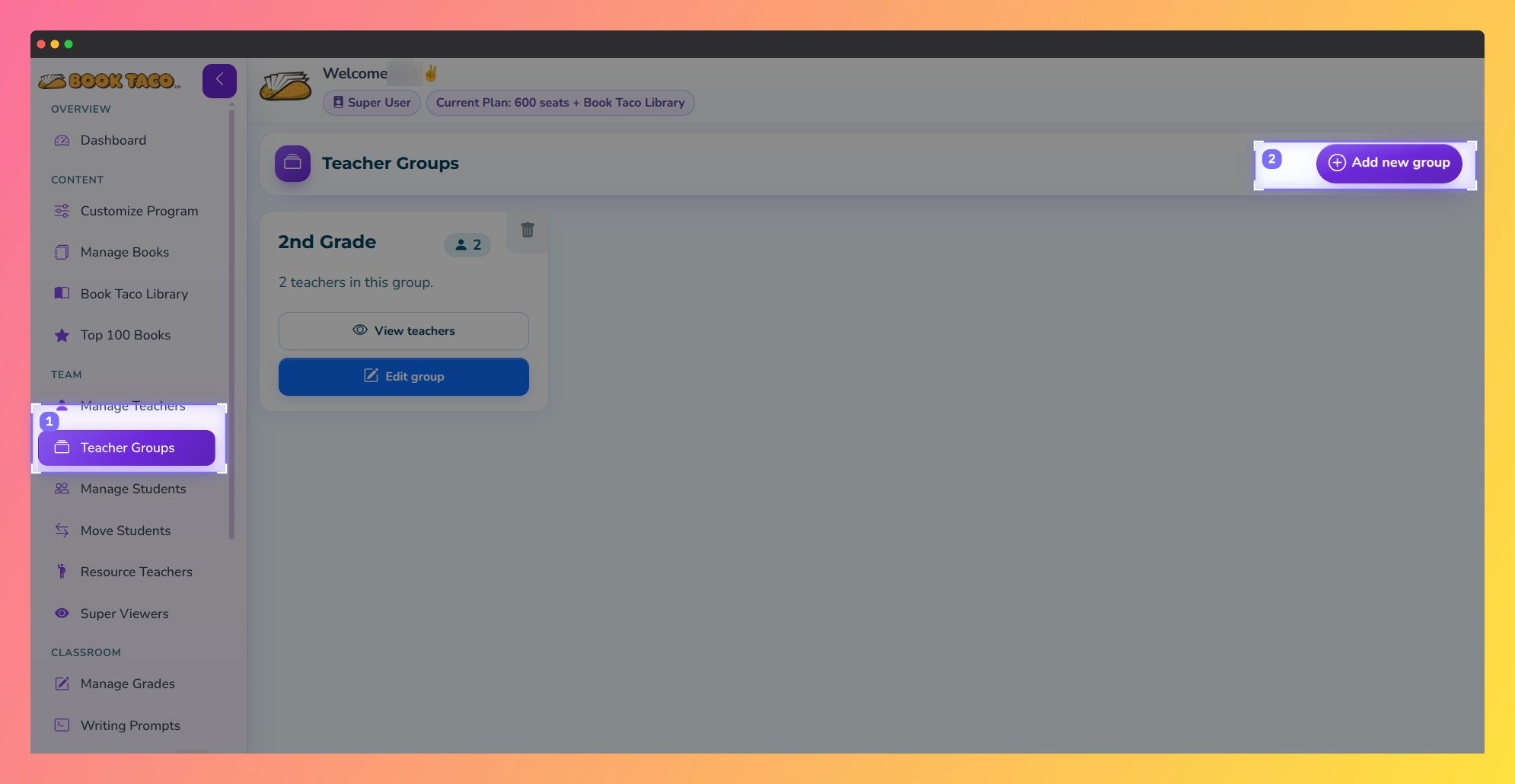 Screenshot: Teacher Groups — 1 Teacher Groups in the sidebar, 2 Add new group.
Step 2: Choose the teachers
- The table lists the teachers currently linked to your account, with their email, how they sign in (Book Taco, Clever or ClassLink), last access and current group.
- Check the box next to each teacher you want in the group. Use All at the top to check every teacher, or use Search to find a teacher by name or email.
- Click Save group.
One group per teacher: A teacher can belong to only one group. If you check a teacher who is already in another group, saving moves them to this group and removes them from the previous one.
Step 3: Assign a group when adding or editing a teacher
- You can also set the group from the teacher’s own page. In Manage Teachers, add a new teacher or edit an existing one.
- Use the optional Teacher group field to pick a group, or leave it on None. Each option shows how many teachers are in the group.
The Teacher group field only appears after you have created at least one group.
Step 4: Filter reports by group
- Open Reports and choose a report, for example Quiz, Reading Log, Word Count or Writing Prompts.
- In Teacher filter, change By Teachers to By Groups.
- In Teacher group, choose a group. The report updates right away and shows only the teachers in that group.
- Choose All to see all of your linked teachers again. This is the same as leaving Teacher(s) blank.
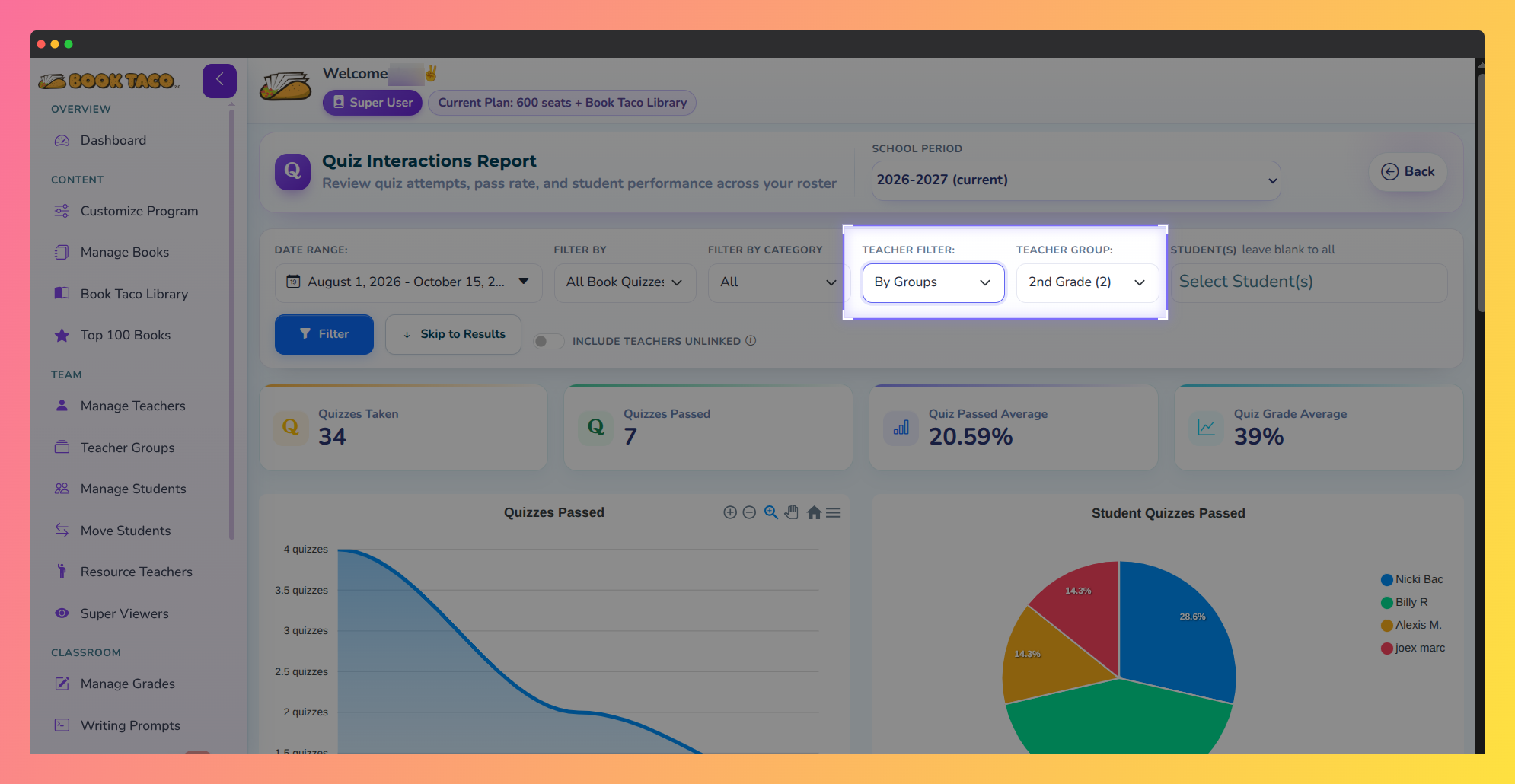
Screenshot: Quiz Interactions Report — Teacher Filter By Groups and Teacher Group 2nd Grade.
Note: The Teacher filter option only appears when you have at least one teacher group. A group with no teachers shows an empty report, not all teachers. The student list in the same report also narrows to the selected group.
Manage your groups
- See who is in a group: On the Teacher Groups page, each card shows the number of teachers. Click View teachers to see their names, emails, sign-in method and last access.
- Change a group: Click Edit group to rename it or to add and remove teachers, then click Save group.
- Delete a group: Click the trash icon on the card. The teachers stay linked to your account and are simply no longer in a group.
- When a teacher is unlinked: They are removed from their group automatically.
Tip: After you change a group’s members, reload the report page before filtering so the group filter uses the latest list of teachers.
Was this article helpful?
That’s Great!
Thank you for your feedback
Sorry! We couldn't be helpful
Thank you for your feedback
Feedback sent
We appreciate your effort and will try to fix the article