The Remove book from student’s history option lets you permanently delete a book from a student’s account, together with everything the student did on it. Use it when a book should not stay on the student’s record. It is available to teachers, on the Books tab of the student’s View progress page.
Before you start
- The removal is permanent. It cannot be undone.
- It deletes the book from this student only. Other students who read the same book are not affected.
- Everything linked to the book is deleted: reading logs, quiz results and attempts, activity results, writing prompts, graphic organizers, the rating and notifications.
- Coins and points the student already earned are kept. They are no longer linked to the book.
- You can only remove books for students in your own class.
Step 1: Open the student’s progress
- In the left sidebar, under Classroom, click Students.
- On the Active Students tab, find the student.
- Click Actions on the student’s row and choose View progress.
- The Student progress page opens with the student’s name.
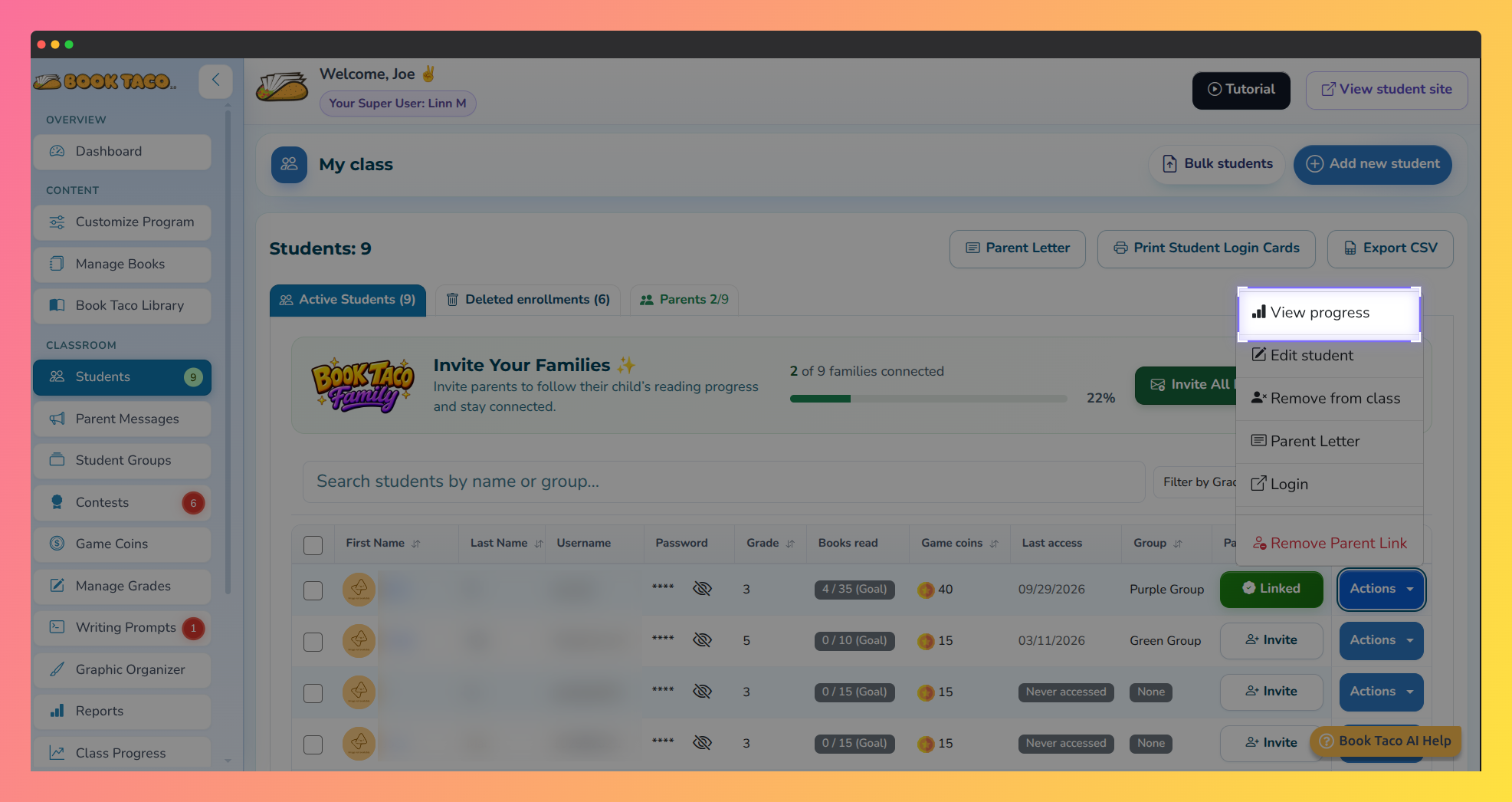 Screenshot of the Active Students table on the Students page, with the Actions menu open on a student's row and the View progress option highlighted.
Step 2: Find the book on the Books tab
- Click the Books tab, next to Progress and Notifications.
- Type part of the title in Type to filter books... to find the book faster.
- If the book was read in an earlier school year, change School year to that year, or choose All school years.
- Click the book to open it. You see its reading log, quiz information and activities.
Note: The School year list only appears when the student has more than one school year on record.
Step 3: Remove the book
- Scroll to the end of the open book.
- Click Remove book from student’s history.
- A confirmation window opens with the book title. Nothing is deleted yet.
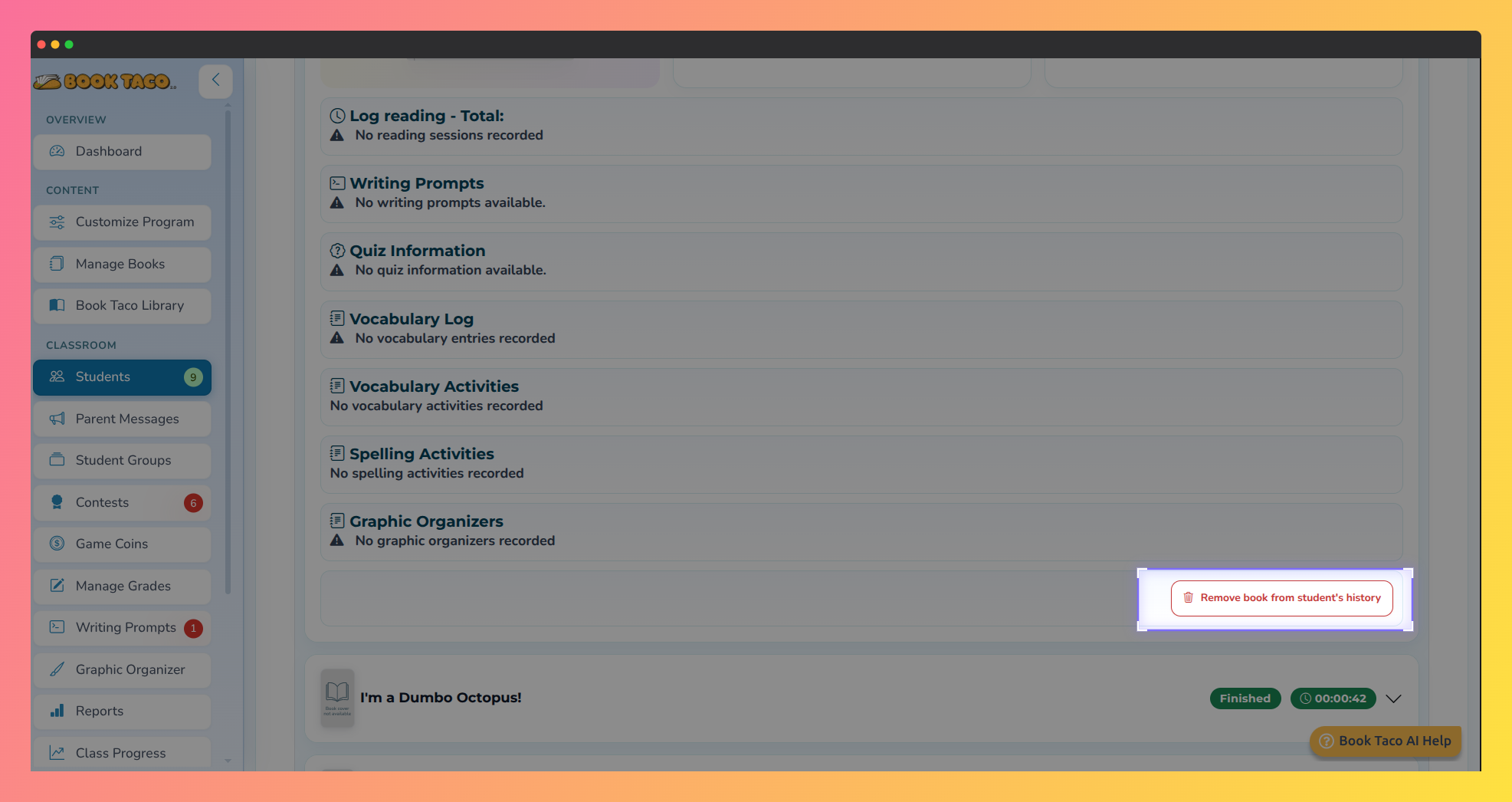 Screenshot of an open book on the Books tab of the Student progress page, with the Remove book from student's history button highlighted at the end of the book's details.
Step 4: Confirm the removal
- Read the list in the confirmation window. It shows what will be deleted for this book, for example how many reading logs, quiz results and writing prompts.
- Click Remove permanently to delete, or Cancel to keep the book.
- A Removed message confirms that the book was removed from the student’s history.
- The book disappears from the Books tab and from the student’s bookshelf, including the Archived tab.
Note: Removing the history does not block the book. The student can add it again later.
Was this article helpful?
That’s Great!
Thank you for your feedback
Sorry! We couldn't be helpful
Thank you for your feedback
Feedback sent
We appreciate your effort and will try to fix the article