Game coins are the in-game currency students use to purchase items while playing. As a teacher, you can set each student's coin balance directly — updating one student at a time or adding and removing coins for the entire class in a single action.
Step 1: Go to Game Coins
- In the left sidebar, click Games and Coins.
- Click the Game Coins tab.
- The table shows all your students with their avatar, name, username, and current coin balance.
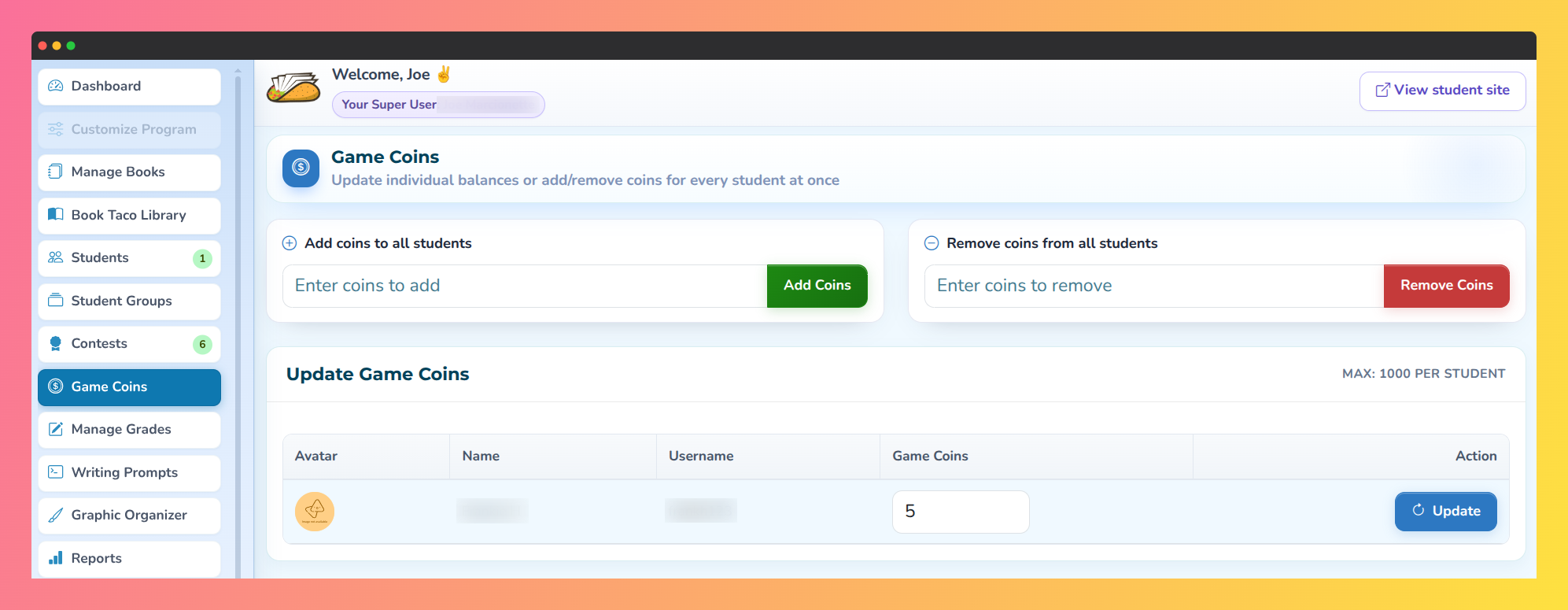
Step 2: Update a single student's coins
- Find the student in the table and edit the number in their Game Coins field. The value must be between 0 and 1,000.
- Click Update in that student's row.
- A toast confirms: "Game coins updated successfully." The new balance is applied immediately.
Step 3: Add or remove coins for all students
- Below the student table, there are two batch fields for updating the whole class at once:
- Add Coins to All Students — enter the number of coins to add and click Add Coins. Students whose balance would exceed 1,000 after the addition are skipped.
- Remove Coins from All Students — enter the number of coins to remove and click Remove Coins. Students whose balance would drop below 0 are skipped.
- A toast confirms how many students were updated: "Game coins added for X students successfully."
- The table updates in place — you can see each student's new balance without reloading the page.
Use batch removal to reset coins. To bring all students back to 0, enter 1000 in the Remove Coins from All Students field and click Remove Coins. Students already below 1,000 will be reduced by whatever they have; none will go below 0.
Q: What is the maximum coin balance a student can have?
A: 1,000 coins. You cannot set or add a value that would push a student above this limit.
Q: Where can I see how students are spending their coins?
A: Go to Reports in the left sidebar. The Game Coins report shows coin activity broken down by student.
Was this article helpful?
That’s Great!
Thank you for your feedback
Sorry! We couldn't be helpful
Thank you for your feedback
Feedback sent
We appreciate your effort and will try to fix the article