Shelf Control lets you remove specific books from student searches across your entire school. Any book you lock here is hidden for all teachers and students linked to your Super User account. Teachers cannot override a Super User lock.
Step 1: Open Shelf Control
- From your Super User Dashboard, click Customize Program in the left sidebar.
- Click the Shelf Control tab.
- The page opens with two panels side by side: Search Books on the left and Locked Books on the right.
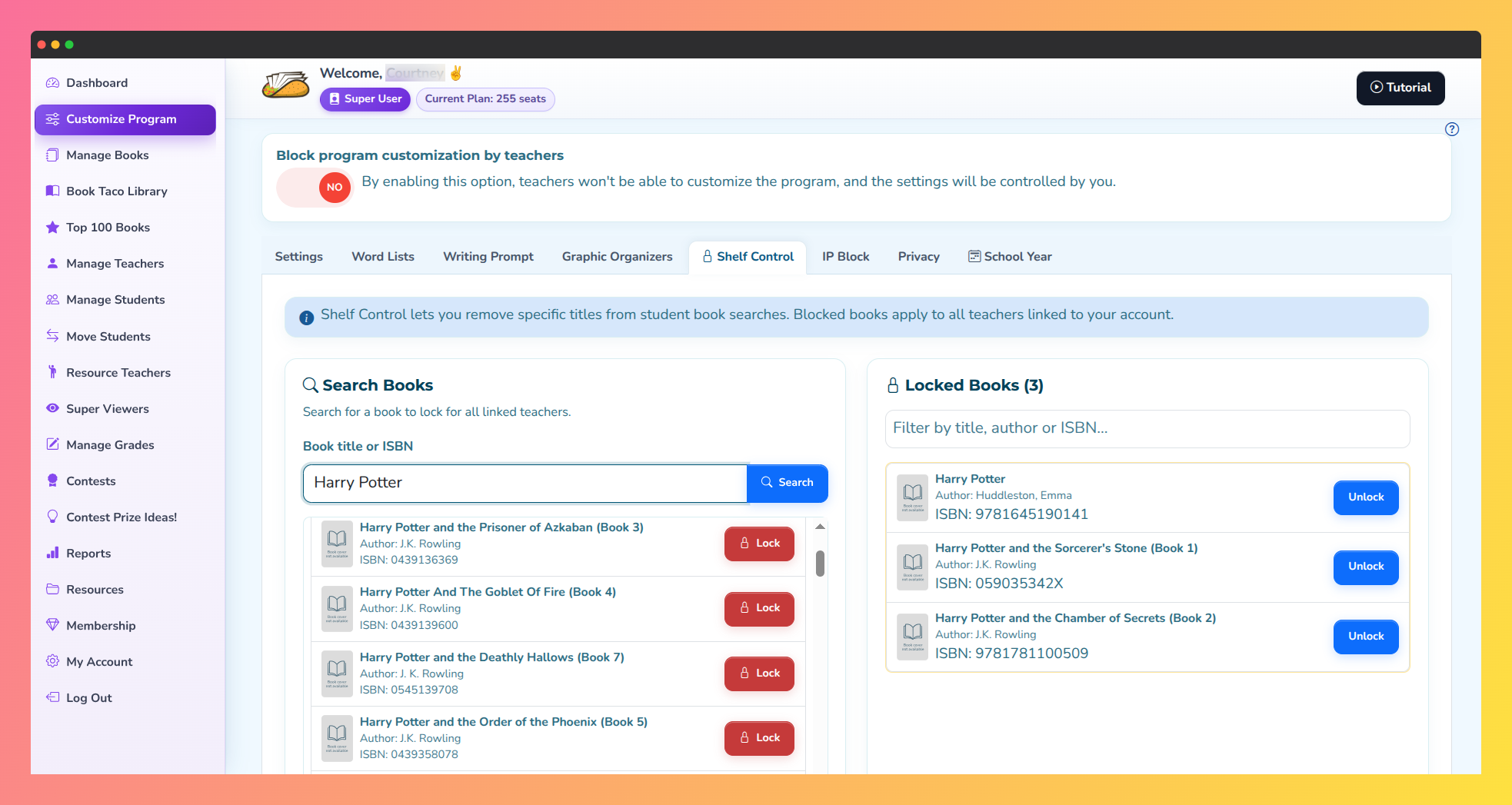
Screenshot of Shelf Control on the superuser account.
Step 2: Search for and lock a book
- In the Search Books panel, type a book title, author name, or ISBN in the search field.
- Click Search or press Enter.
- Matching books appear below, each showing the cover, title, author, ISBN, and a Lock button.
- Click Lock on any book to block it school-wide. The book is locked instantly and a confirmation toast appears.
- If a book is already locked by you, its Lock button will be disabled.
- Locked books are immediately hidden from all teachers' and students' book searches across your school.
Super User locks apply to everyone. When you lock a book at the Super User level, no individual teacher can override it or unlock it. Teachers can only see locked books in their own Shelf Control, marked as "locked by Super User."
Step 3: Manage your locked books
- The Locked Books panel shows all books currently locked, with a count of total locked books.
- Use the filter field at the top to search your locked books by title, author, or ISBN.
- To restore a book to searches, click Unlock on any entry.
- The book is unlocked instantly and immediately becomes visible in all student searches again.
- A confirmation toast appears after each unlock.
Lock books proactively. Identify books with mature content, accuracy issues, or other concerns that don't align with your school's curriculum, and lock them before students see them.
Q: Can teachers lock books for their own classes?
A: Yes. Teachers have their own Shelf Control in Customize Program. Teacher locks only apply to their class. Super User locks apply school-wide and override teacher locks.
Q: Can a teacher unlock a book I locked at the Super User level?
A: No. Super User locks cannot be overridden by teachers. Teachers will see these books marked as "locked by Super User" in their Shelf Control and cannot unlock them.
Q: Can I see which books individual teachers have locked?
A: No. You can only see and manage books locked at the Super User level. Teacher-level locks are private to each teacher's Shelf Control.
Q: What happens to reading logs if I unlock a previously locked book?
A: Any reading activity already recorded remains intact. Unlocking only affects future searches—past data is not affected.
Was this article helpful?
That’s Great!
Thank you for your feedback
Sorry! We couldn't be helpful
Thank you for your feedback
Feedback sent
We appreciate your effort and will try to fix the article