After logging in, you land on your Dashboard — the home base for your Book Taco experience. From here you can jump straight into reading, check your progress, track contests, and access every section of the platform.
- Sidebar Navigation
- Quick Shortcuts
- Reading Widgets
- Active Contest
- Reading Center
- Pookie Daily Missions and My Garden
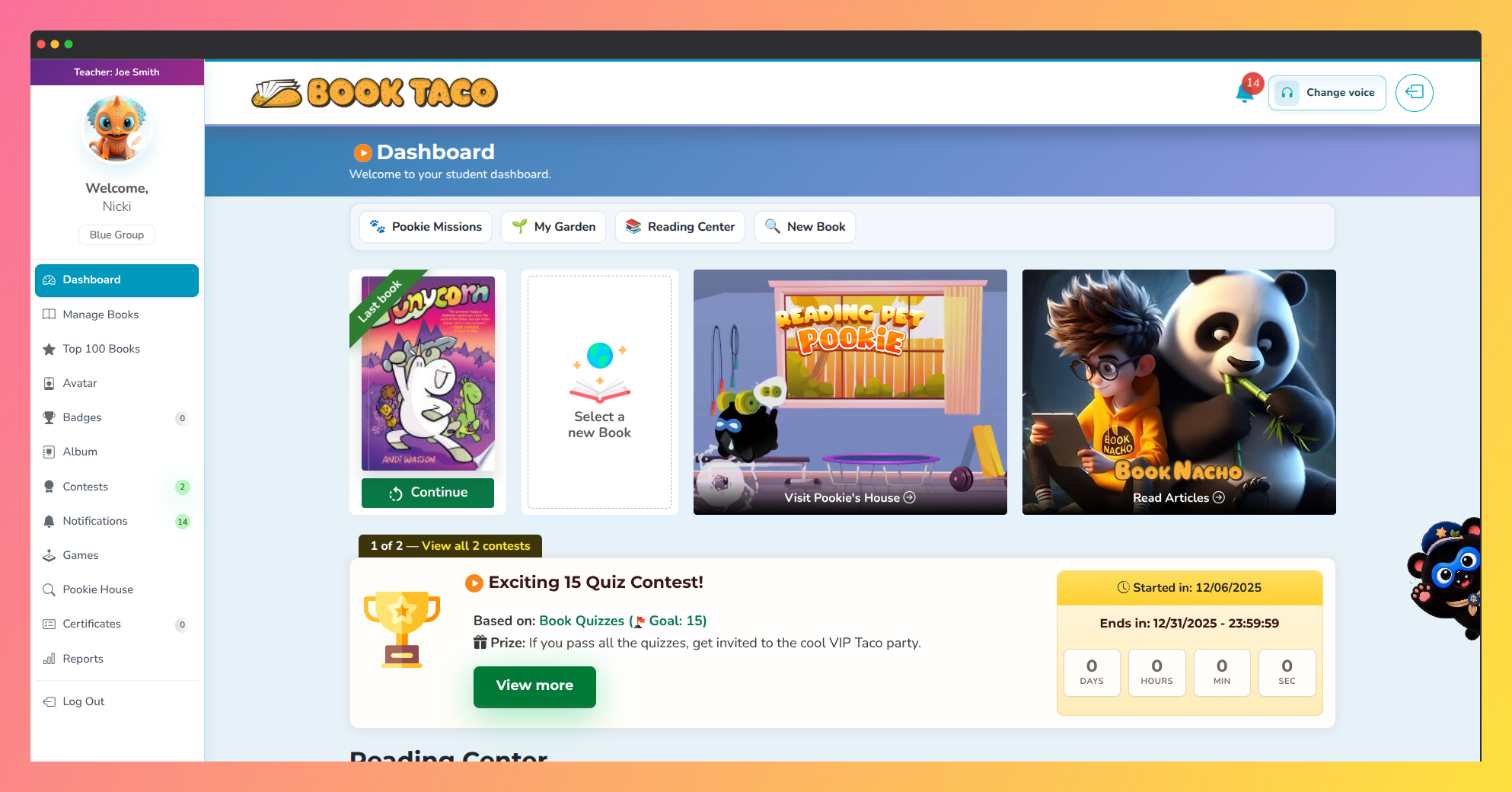
Screenshot of the Book Taco Student Dashboard featuring reading activities, contests, badges, games, reading progress tools, and interactive learning sections.
Sidebar Navigation
The sidebar on the left shows your teacher's name, your avatar, and your student name. Click your avatar to change it at any time. The menu links are:
- Dashboard — returns you to this page.
- Manage Books — browse and select books to read.
- Top 100 Books — explore the Book Taco Top 100 list.
- Avatar — customize your profile avatar.
- Badges — see the badges you've earned. A counter shows how many you have.
- Album — view your reading album pages.
- Contests — see active and past contests. A pulsing counter appears when you have an active contest.
- Notifications — view messages from your teacher. A counter appears when you have new notifications.
- Games — play Book Taco games.
- Pookie's House — visit your Pookie pet. This link only appears when your teacher has enabled access.
- Certificates — view the certificates you've earned. A counter shows how many you have.
- Reports — see a summary of your reading activity.
- My Teachers — switch between teachers if you are linked to more than one. This link only appears when you have multiple active teachers.
- Log Out — sign out of your account.
Quick Shortcuts
Just below the page header, a row of shortcut buttons lets you jump to key sections without scrolling:
- Pookie Missions — scrolls to the Pookie Daily Missions panel.
- My Garden — scrolls to the My Garden panel.
- Reading Center — scrolls to your reading stats.
- New Book — takes you to Manage Books to pick your next read.
Reading Widgets
The main area of the dashboard shows four feature widgets:
- Last Book — displays the cover of the book you were last reading. Click it to continue where you left off. This card only appears if you have already started a book.
- Select a new Book — a quick link to Manage Books to find something new to read.
- Pookie's House — a large widget with a looping video preview. Click it to visit your pet. If your teacher has disabled Pookie's House for the day, the widget shows a Disabled ribbon and cannot be clicked.
- Book Nacho — a large widget that opens the Book Nacho article reader in a new tab. If your teacher has restricted access, the widget shows a Disabled ribbon.
Active Contest
If your teacher has an active contest, a contest card appears below the reading widgets. It shows:
- The contest name, what it's based on (books read, quizzes passed, etc.), the goal, and the prize.
- The linked book lists, if the contest is limited to specific lists.
- A live countdown showing days, hours, minutes, and seconds remaining.
- A View more button to see full contest details and your progress.
If you have more than one active contest, a link at the top of the card lets you view all of them.
Reading Center
The Reading Center section shows all your accumulated reading stats as individual cards:
- Game Coins — coins earned through your activity.
- Pookie Minutes — total play time available for Pookie's House.
- Activity Points — points earned across all activities.
- Books Read — total books you have finished.
- Word Count — total words read across all books.
- Page Count — total pages read.
- Reading Logged — total reading time you have logged.
- Quizzes Passed — number of quizzes you passed.
- Quizzes Failed — number of quizzes you did not pass.
- Quiz Average — your average score across all quizzes, passed and failed.
- Vocabulary Words — total vocabulary words you have viewed.
- Reading Book Goal — the book reading goal set by your teacher.
- Complete Album Pages — album pages you have fully completed. Click this card to go to your Album.
- Student Badges — total badges earned. Click this card to go to your Badges page.
- Vocabulary Activities — vocabulary exercises completed.
- Spelling Activities — spelling exercises completed.
- Writing Prompts — writing prompt activities completed.
- Graphic Organizers — graphic organizer activities completed.
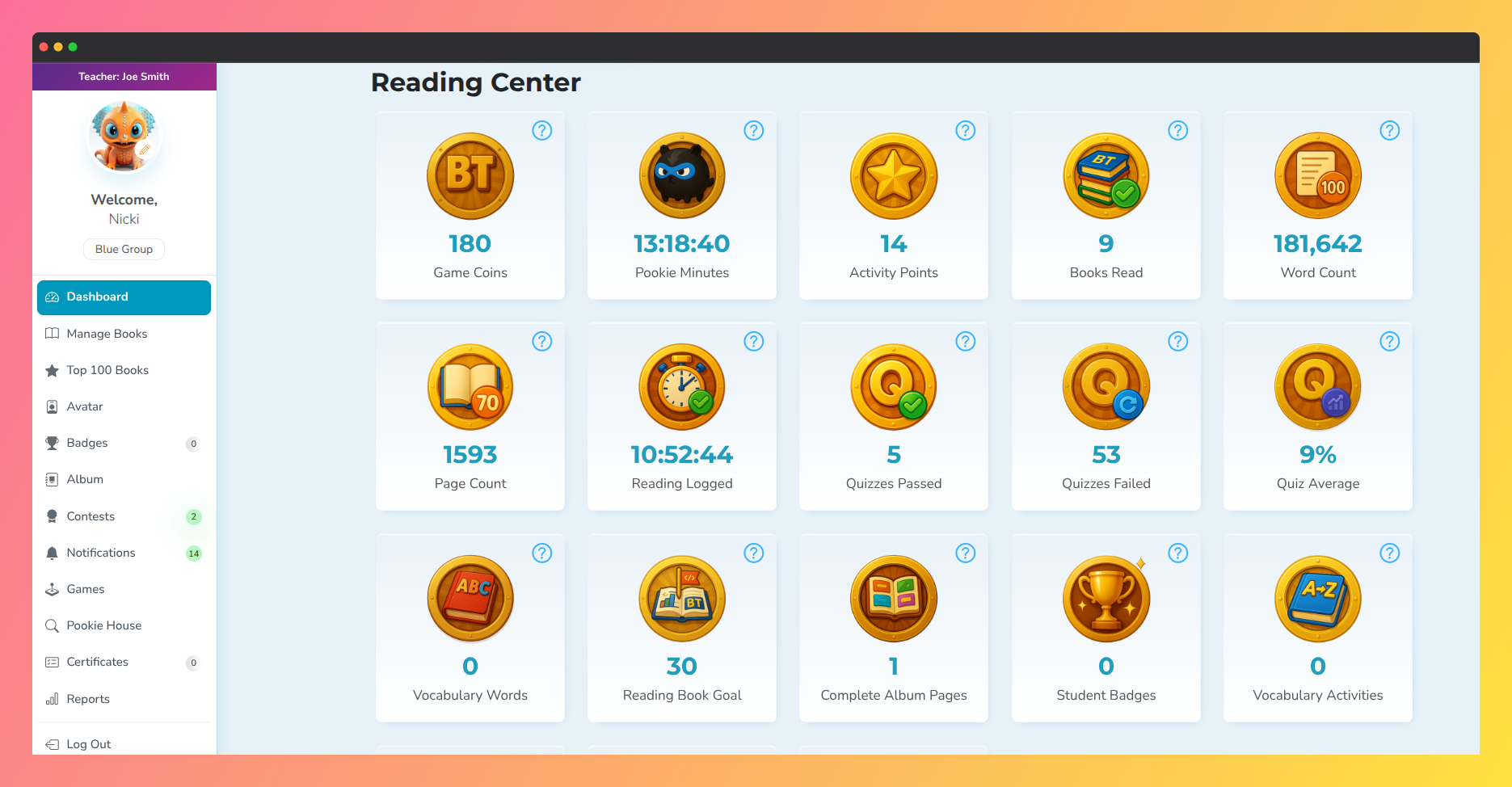
Screenshot of the Book Taco Reading Center displaying student reading statistics, quiz performance, word counts, reading time, badges, activity points, and literacy progress metrics.
Was this article helpful?
That’s Great!
Thank you for your feedback
Sorry! We couldn't be helpful
Thank you for your feedback
Feedback sent
We appreciate your effort and will try to fix the article