The Settings panel lets you choose a reading voice, adjust the reading speed, and pick a highlight color for text being read aloud. It is available on every page of the student area.
- Step 1: Open the Settings Panel
- Step 2: Choose a Voice
- Step 3: Set the Reading Speed
- Step 4: Pick a Text Highlight Color
Step 1: Open the Settings Panel
From the Dashboard, Manage Books, or any main page, click the Change voice button with the headphones icon in the top-right corner of the page.
If you are inside a book's activities, click the gear icon in the top-right corner instead. Both buttons open the same Settings panel, which slides in from the right side of the screen.
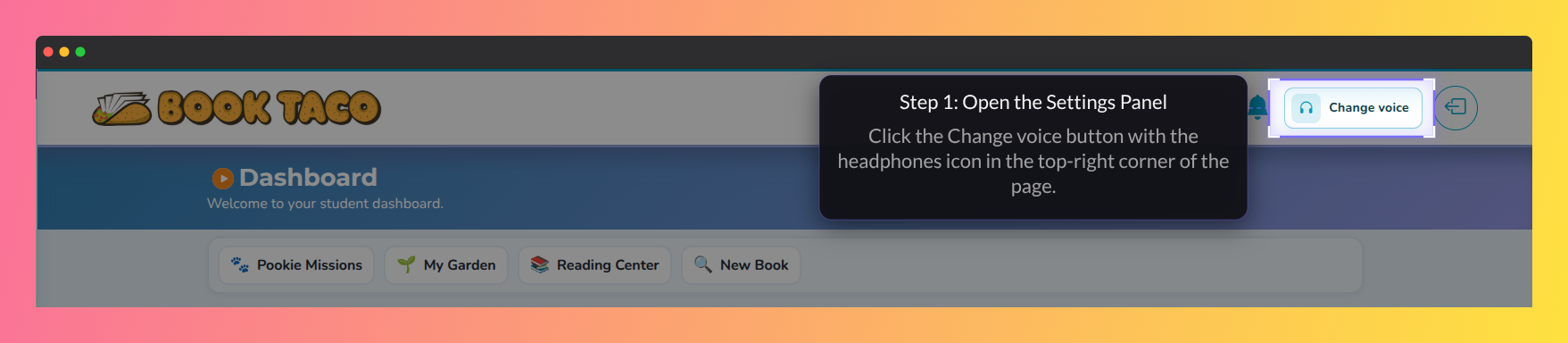
Screenshot of the Book Taco student dashboard highlighting the Change Voice accessibility feature, which allows students to customize audio narration and listening preferences directly from the top-right settings area.
Step 2: Choose a Voice
Open the Available voices dropdown and select a voice from the list. Then click the Read To Me button below the dropdown to hear a preview. Try a few options until you find a voice you like.
Step 3: Set the Reading Speed
Under Reading speed, choose one of three options:
- Slow — half speed, good for following along word by word.
- Normal — standard speed, selected by default.
- Fast — one and a half times the normal speed.
Step 4: Pick a Text Highlight Color
When Read To Me reads text aloud, each word is highlighted as it is spoken. Select your preferred color from the 12 color swatches shown under Text highlight color.
Your voice, speed, and highlight color preferences are saved in your browser. If you switch devices or clear your browser data, you may need to set them again.
Was this article helpful?
That’s Great!
Thank you for your feedback
Sorry! We couldn't be helpful
Thank you for your feedback
Feedback sent
We appreciate your effort and will try to fix the article