As a Super User, you can review and grade Writing Prompts submitted by students of every teacher linked to your account, without switching to each teacher’s account. This article shows where to find the submissions, how to grade them, and what to expect when a teacher has already graded the same work.
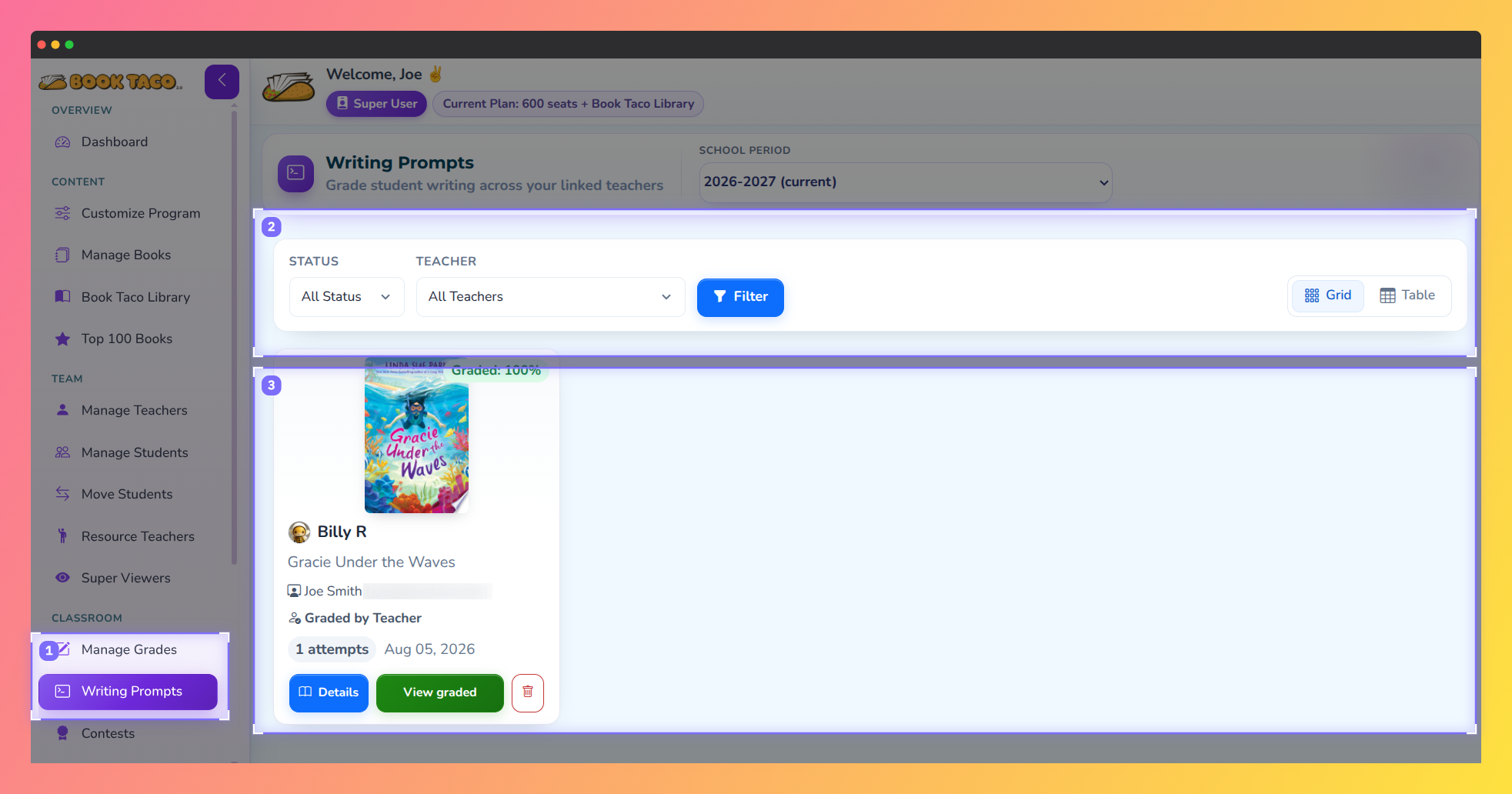 Screenshot of Book Taco showing the Super User writing prompts screen.
Step 1: Open Writing Prompts
- In the left sidebar, click Writing Prompts.
- The page lists the submissions from all teachers linked to your Super User account. Each submission shows its status: Needs grade, Graded with the score, or Redo.
- If your account has more than one school year, use the School period selector at the top. The page reloads as soon as you change it.
Step 2: Filter the submissions
- Status — choose All Status, Waiting (not graded yet), Approved or Redo.
- Teacher — choose All Teachers or a single teacher. Each option shows the teacher’s name and email.
- Click Filter, then switch between the Grid and Table views if you prefer.
Tip: Choose Waiting to see only the submissions that still need a grade. The same count appears as a badge next to Writing Prompts in the sidebar.
Step 3: Grade a submission
- On the submission you want to grade, click Grade now. The Grade Writing Activity page opens with the student’s text, the book, and the teacher’s name.
- Read the student’s response.
- Enter a Grade (%) from 0 to 100. The Min passing grade for that student is shown below the field.
- Write your Comments. The student sees them together with the grade. You can also use the ready-made comment chips.
- Click Save to send the grade and feedback to the student.
- Grade at or above the minimum: the submission is approved, and the student earns Game Coins and an activity point.
- Grade below the minimum: the student is asked to redo the activity. The browser asks you to confirm before it saves.
- Grade left blank: you must add a comment. The student is asked to redo the activity, and any previous grade and comment stay on record.
Redo and Save: the Redo and Save buttons do the same thing. Whether the work is approved or sent back is decided by the grade, so use Redo when you want to make your intention clear.
Step 4: Delete a submission
- On the list, click the trash icon on the submission, or open the submission and click Delete submission.
- Confirm the message. The submission disappears from the lists, reports and the student’s screen, and the student can send a new one for the same book.
Note: Deleting works for any submission, graded or not. A new submission that is approved later pays Game Coins and the activity point again.
Good to know
- You and the teacher can both grade. Nothing locks a submission. If a teacher has already graded it, you can grade it again and your grade is the one that counts. The last person to grade wins.
- “Graded by” badge. When the last grade was given by someone other than the person looking at the submission, a badge shows Graded by Teacher or Graded by Super User. Students never see who graded.
- Approved submissions open read-only. To change the grade of a submission that is already approved, use Manage Grades.
- Rewards are paid once. Game Coins and the activity point are given on the first approval of a submission. Regrading or approving again does not pay twice.
- Teachers are not notified. The student is notified of each grade, but the teacher does not receive a notice when you grade.
- Prompts are managed by teachers. Turning default prompts on or off, and creating custom prompts, is done by each teacher. Super Users grade and delete submissions only.
- Impersonating a teacher. If you log in as a teacher, the Writing Prompts page opens in read-only mode with a link back to your own Writing Prompts page, where you can grade.
Was this article helpful?
That’s Great!
Thank you for your feedback
Sorry! We couldn't be helpful
Thank you for your feedback
Feedback sent
We appreciate your effort and will try to fix the article