As a Super User, you can download a student’s Writing Prompt submission as a PDF for any classroom linked to your account. The file includes the student’s writing, book details, status, teacher name, and — when available — the grade and comments. Use it for conferences, portfolios, parent meetings, or keeping a printed record of student writing.
What’s included: The PDF shows the student name, submission date, teacher, book title, status, grade (if graded), the writing prompt, the student’s submission, and any teacher or Super User comments that were added.
Step 1: Open Writing Prompts
- From your Super User Dashboard, click Writing Prompts in the left sidebar.
- You’ll see student submissions from your linked teachers. Use the filters — including the teacher filter — to find the submission you want to export.
Pro Tip: You can also export from Manage Grades. Open the Actions menu for a Writing Prompt row and choose Export to PDF.
Step 2: Open the student submission
- On the submission card or table row, click the action button for that student:
- Grade now — opens a submission that still needs a grade
- View graded — opens a submission that was already graded
- Waiting student — opens a submission sent back for redo
- You’ll land on the Grade Writing Activity page for that submission.
Important: Export is available for both graded and ungraded submissions. You do not need to enter a grade before downloading the PDF. If a teacher already graded the work, you may see a Graded by Teacher label on the page.
Step 3: Export to PDF
- On the review page, click Export to PDF next to the student submission.
- Your browser downloads a PDF file named after the student (for example,
Jane-Doe-writing-prompt.pdf). - Open the file to print it, attach it to an email, or save it for your records.
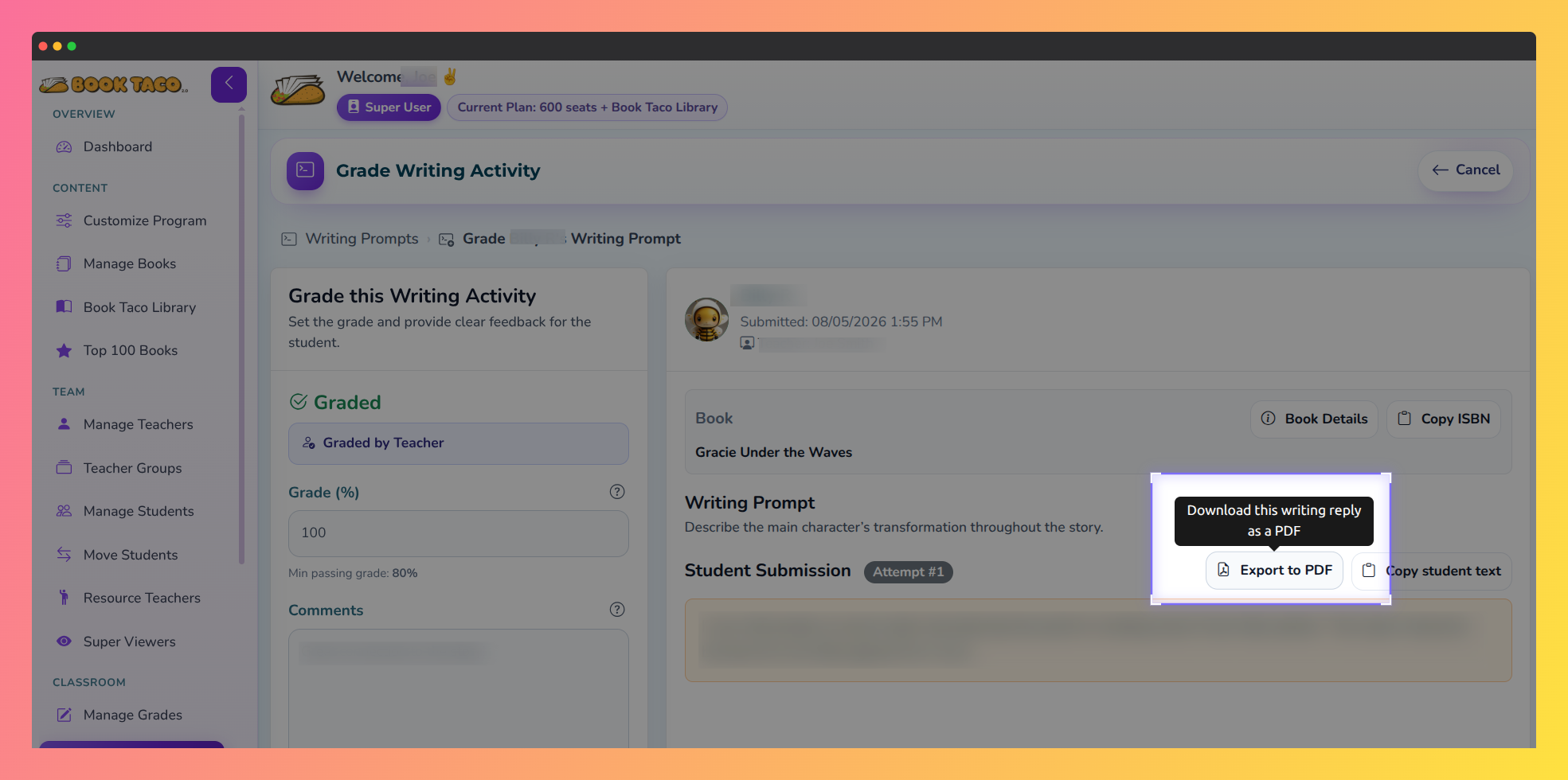 Super User Grade Writing Activity page with the Export to PDF button highlighted next to Copy student text.
Pro Tip: If you add or update a grade or comments, export again after saving — the PDF reflects the latest status, grade, and comments on that submission.
Q: Which classrooms can I export from?
A: Only Writing Prompt submissions from teachers linked to your Super User account. Use the teacher filter on the Writing Prompts page to narrow the list.
Q: Where is the Export to PDF button?
A: On the Grade Writing Activity page, next to the student submission (beside Copy student text). You can also find Export to PDF in the Actions menu on Manage Grades.
Q: Can teachers and Super Users both export the same submission?
A: Yes. Teachers export from their own Writing Prompts list; Super Users export from the Super User Writing Prompts list for linked classrooms. The PDF content is the same student work, with the teacher name included on Super User exports.
Was this article helpful?
That’s Great!
Thank you for your feedback
Sorry! We couldn't be helpful
Thank you for your feedback
Feedback sent
We appreciate your effort and will try to fix the article