From the Students page, you can download a CSV file containing all your students' information. This is useful for backup, record keeping, or for use in other school systems. The exported file includes each student's name, username, grade, and password.
How to export students
- From the Students page, select the students you want to export by checking the boxes next to their names. You can:
- Click individual student checkboxes to select them one by one.
- Use the checkbox in the table header to select or deselect all students at once.
- After selecting students, click the Export button that appears in the bulk actions toolbar.
- A CSV file will automatically download to your computer. The file name follows this format:
students-export-YYYY-MM-DD.csv(for example,students-export-2026-08-21.csv).
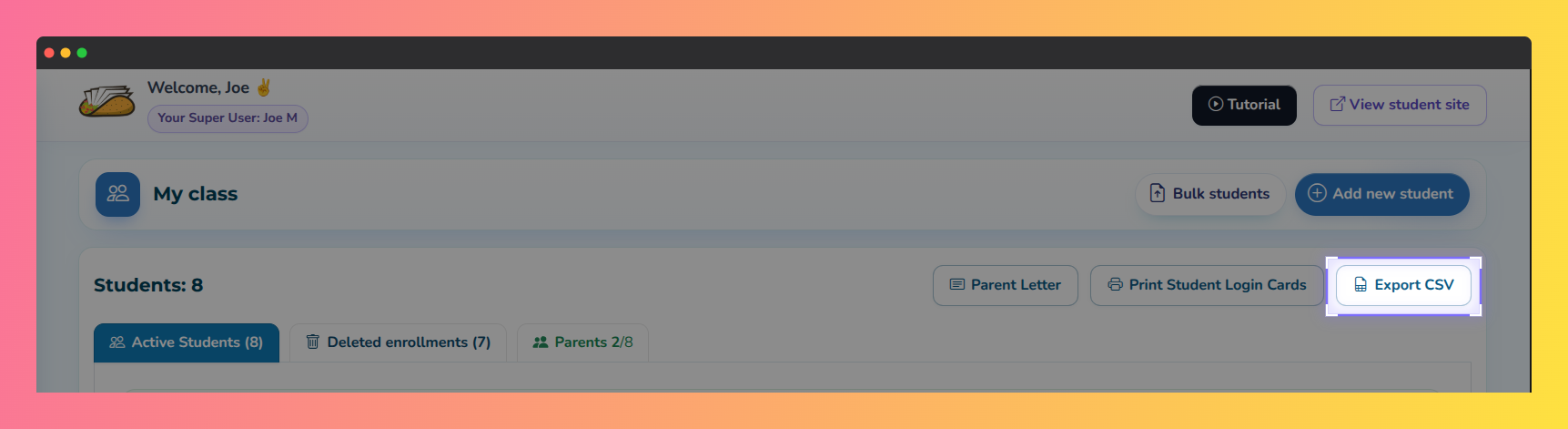 Book Taco screenshot highlighting the "Export CSV" button.
What the export includes
The CSV file contains one line per student with the following information in this order:
First Name, Last Name, Username, Grade, Password
Example:
Emma,Johnson,ejohnson27,3,Taco123
Marcus,Chen,mchen42,3,Read2026
The export includes:
- First Name — Student's first name
- Last Name — Student's last name
- Username — The username the student uses to log in
- Grade — The student's grade (K for Kindergarten, or a number like 1, 2, 3, etc.)
- Password — The student's password (decrypted and displayed as plain text)
The file contains no header row — it starts directly with student data.
Using the exported file
The exported CSV file is formatted the same way as the bulk student import template. You can:
- Back up student information — Save the file as a record of your roster and student credentials at a particular point in time.
- Share with administrators — Provide the file to your school's IT or administrative staff if they need a record of your current roster.
- Use for bulk import — If you edit the file (for example, to update grades or add new students), you can re-import it using the Bulk Upload feature in the Students page.
- Print for reference — Open the file in a spreadsheet application (Excel, Google Sheets, etc.) and print it for your records.
Important: The exported file contains passwords in plain text. Store it securely and do not share it with anyone who does not need access to student credentials. Delete the file once you're done using it.
For more information on importing students or managing your roster, see Bulk Upload Students.
Was this article helpful?
That’s Great!
Thank you for your feedback
Sorry! We couldn't be helpful
Thank you for your feedback
Feedback sent
We appreciate your effort and will try to fix the article