Some reports in Book Taco have an "Include other classes" option. This checkbox lets you see not just what your students did in your class, but also activity they completed in other teachers' classes. This is useful for getting a complete picture of each student's progress across the school.
What does "Include other classes" do
By default, reports show only activity your students completed in your class. When you check the "Include other classes" box, the report also includes activity those same students completed in other teachers' classes.
Example:
Emma is in your 5th grade math class. She's also in another teacher's reading class. By default, the Quiz report shows only quizzes she took in your class. If you check "Include other classes," the report will also show quizzes she took in the reading class.
Which reports have this option
The "Include other classes" option appears on these reports:
- Reading Log
- Quizzes
- Word Count
- Final Book Review
- Writing Prompts
- Activity Points
- Graphic Organizers
- Coins
How to use "Include other classes"
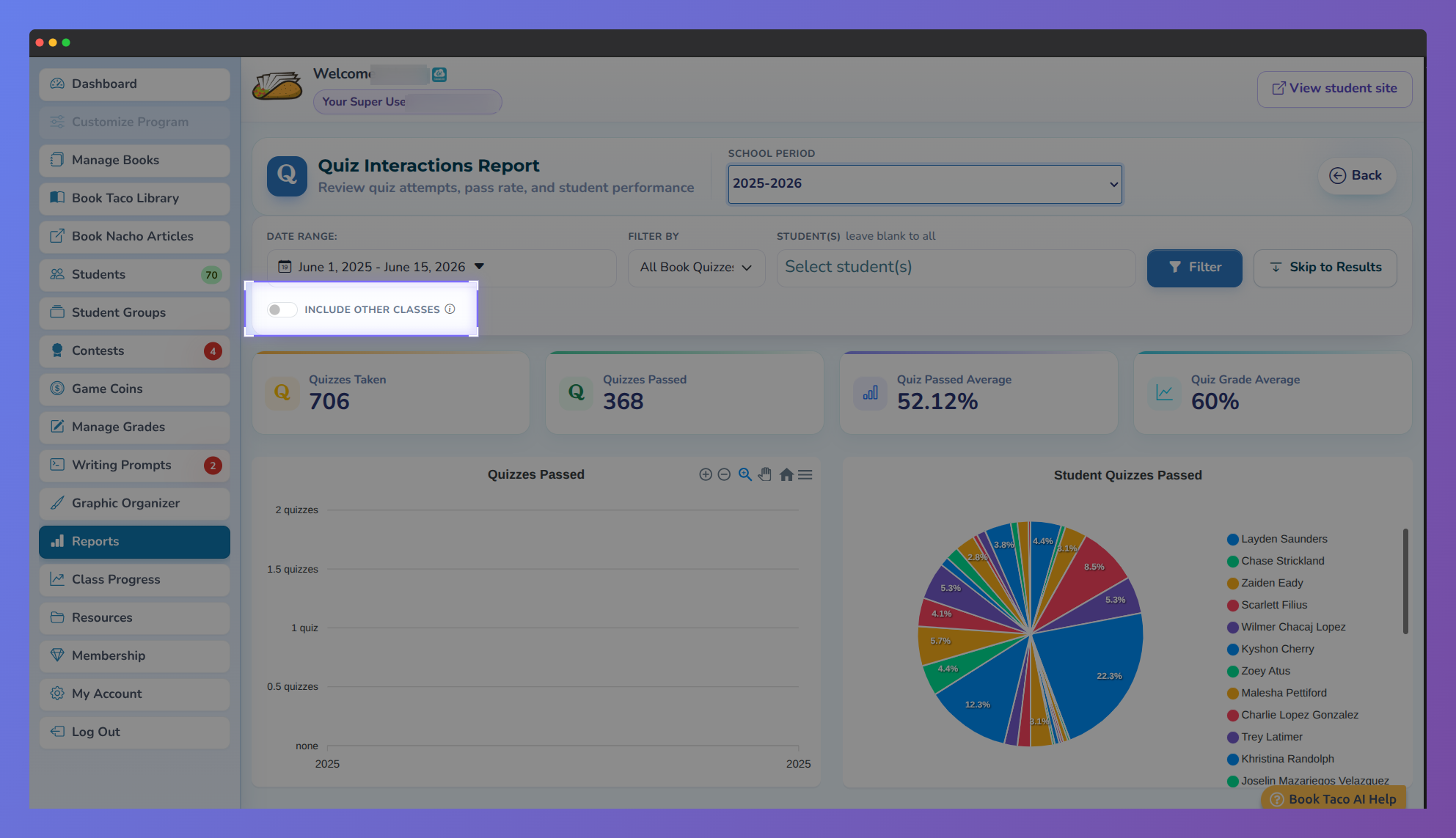
"Include other classes" toggle option highlighted in the Quiz Interactions Report filter panel.
- Open any report that shows this option (listed above).
- At the bottom of the filter panel, find the "Include other classes" checkbox.
- Check the box to include activity from other classes, or leave it unchecked to show only your class.
- Click Filter (if present) or the report will update automatically when you toggle the checkbox.
- The data in the report now includes activity from your class plus any other classes your students attend.
When is this useful
Use the "Include other classes" option when you want to:
- See a student's complete activity — Get the full picture of a student's reading, quiz performance, and engagement across all their classes, not just yours.
- Monitor reading goals across multiple subjects — If students take quizzes or read books in other classes, you can see how close they are to their overall reading goals.
- Understand student progress better — A student might be completing more activity than you realize if they're active in other teachers' classes.
- Coordinate with other teachers — If you notice a student has high quiz scores in another class but lower scores in yours, it can help you understand their strengths and discuss strategies with the other teacher.
When NOT to use it:
Leave the box unchecked if you only want to see activity that happened in your specific class. This is useful for:
- Grading students solely on your class work
- Assessing your own teaching methods and class engagement
- Comparing students fairly within the context of your class only
Note: The "Include other classes" setting only affects the current report view. It does not change the data in other reports or permanently change any settings. Each time you visit a report, the checkbox starts unchecked by default.
For more information on using specific reports, see the individual report guides (Reading Log, Quizzes, Word Count, etc.).
Was this article helpful?
That’s Great!
Thank you for your feedback
Sorry! We couldn't be helpful
Thank you for your feedback
Feedback sent
We appreciate your effort and will try to fix the article