The Daily quiz limit controls how many different books a student can take a quiz on each day. It stops students from rushing through quizzes on many books in one day. You can leave it unlimited or set a daily cap, and you can set a different cap for a student group.
How the limit works
- The limit counts different books, not quiz attempts. Retaking a quiz for a book the student already opened today does not use another slot.
- A slot is used the first time a student opens a book’s quiz that day, even if the student leaves without finishing it.
- Books outside the Book Taco Library and books inside the Book Taco Library are counted separately. With a limit of 3, a student can start quizzes on 3 outside books and 3 Library books each day.
- The number of tries per book is still controlled by Quiz Allowed Tries. The daily limit does not replace it.
- The default is Unlimited.
Step 1: Open Customize Program
- In the left sidebar, click Customize Program.
- Stay on the Settings tab and find the Quiz Settings section.
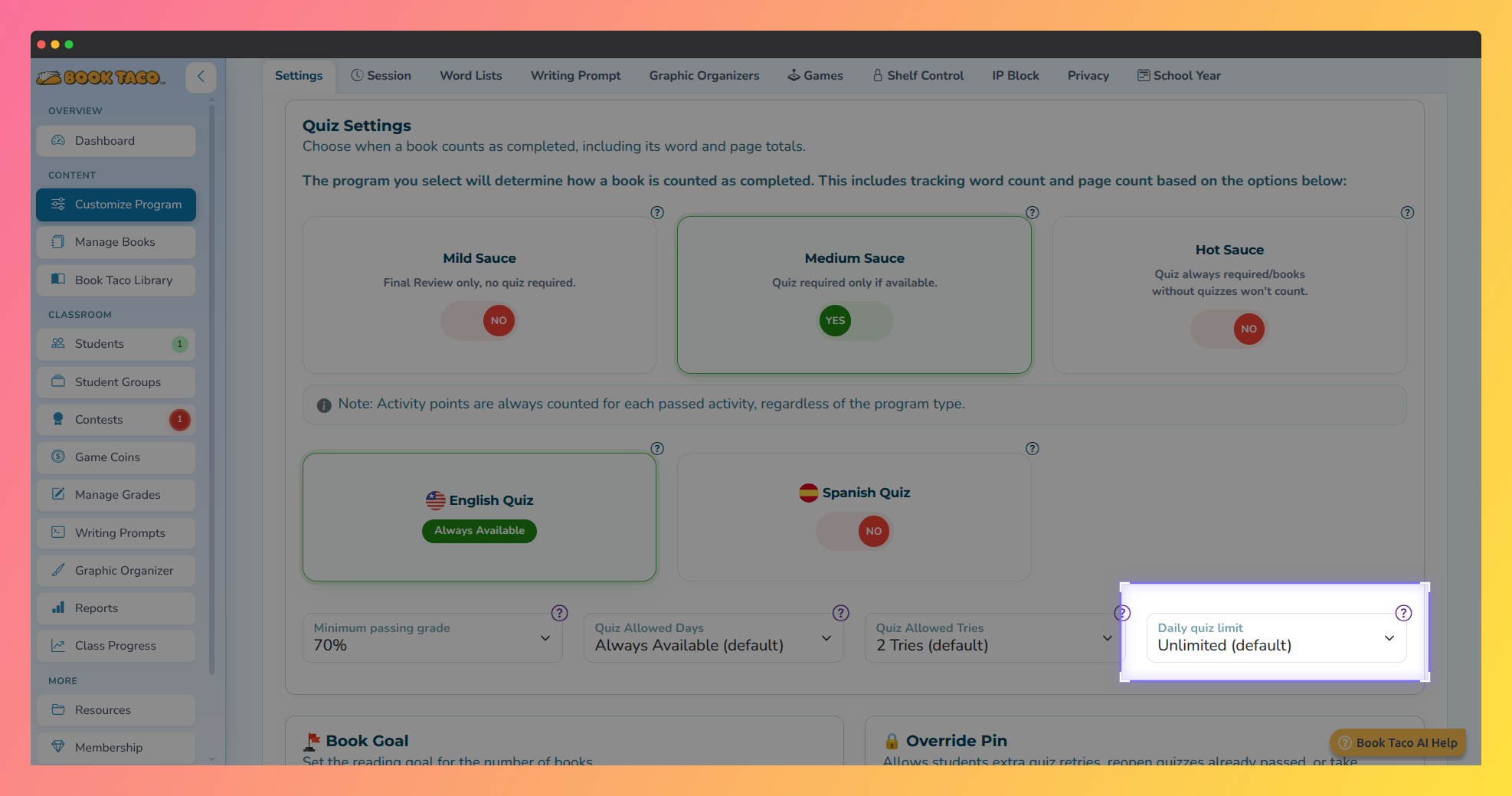 Screenshot of the Quiz Settings section in Customize Program, with the Daily quiz limit menu highlighted.
Step 2: Set the Daily quiz limit
- Next to Quiz Allowed Tries, open the Daily quiz limit menu.
- Choose Unlimited (default), or a number of books per day: 1 to 10, 15, 20, 25 or 30.
- The change is saved automatically and a “Successfully changed data” message appears.
Super Users: The Daily quiz limit is also in your own Customize Program. If you turn on Block program customization by teachers, your setting applies to all linked teachers and their students.
Step 3: Set a different limit for a group (optional)
- Open Student Groups and add or edit a group.
- In the group’s settings, find Daily quiz limit and choose a value, then save the group.
- The group’s value is used for the students in that group, instead of the value in Customize Program. On the group’s card, the limit shows as Unlimited or as a number such as 3 books / day.
What students see
- When a student tries to start a quiz on one more book than the limit allows, a Daily Quiz Limit Reached message appears: “You’ve reached your daily quiz limit. Come back tomorrow, or ask your teacher for the Override PIN.”
- The student can wait until the next day, when the count starts again, or ask you for the Override PIN.
Using the Override PIN: The same PIN you already use to give extra quiz tries, or to reopen a quiz the student passed, also lets that student take that one book past the daily limit for the rest of the day. You set the PIN in Customize Program under Override Pin. Super Users can set a school-wide PIN in My Account.
Note: The day is counted by the server’s local date, so the limit resets at the start of the next calendar day.
Was this article helpful?
That’s Great!
Thank you for your feedback
Sorry! We couldn't be helpful
Thank you for your feedback
Feedback sent
We appreciate your effort and will try to fix the article