As a Super User, you can download a student’s Final Review writing as a PDF from Manage Grades. The file includes the student’s review text, book details, star rating (when available), and the teacher’s name. Use it for conferences, portfolios, parent meetings, or keeping a printed record of student writing.
What’s included: The PDF shows the student name, submission date, teacher, book title, module (Final Review), star rating (when available), and the student’s written review.
Step 1: Open Manage Grades
- From your Super User Dashboard, click Manage Grades in the left sidebar.
- You’ll see grades across your linked teachers, students, and modules.
Step 2: Find the Final Review
- In the filters at the top, set Module to Final Review.
- Optionally filter by Teacher, or search by student name or book title.
- Click Filter to update the list.
Pro Tip: Filtering by Final Review first makes it much easier to find the row you want before opening the review.
Step 3: View the review and export to PDF
- In the Actions column for that Final Review row, click the view review button (magnifying glass icon).
- A window opens with the student name, book title, and the full written review.
- Click Export to PDF in the top-right of that window.
- Your browser downloads a PDF file named after the student (for example,
Jane-Doe-final-review.pdf).
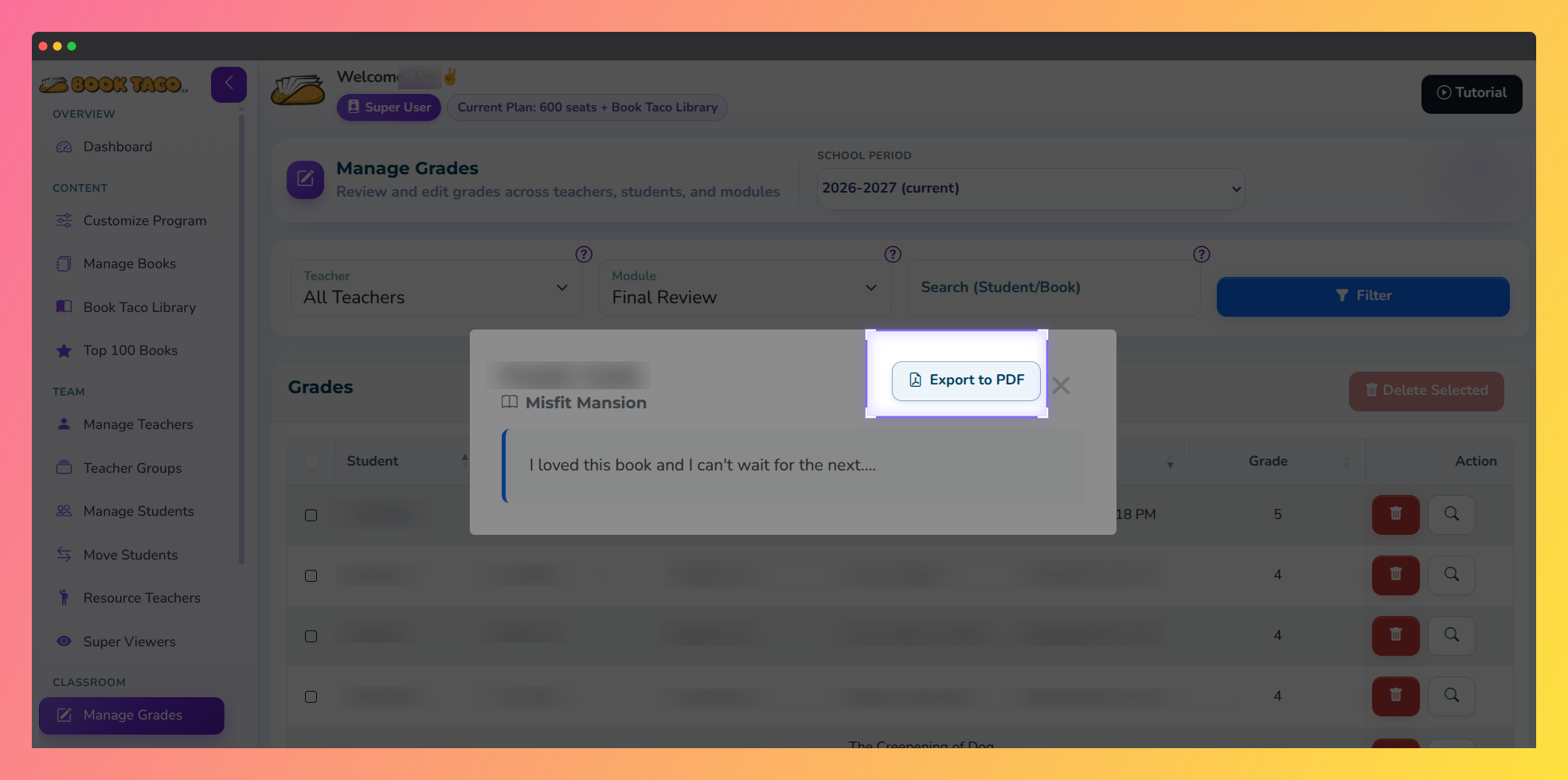 Super User Manage Grades Final Review window with the Export to PDF button highlighted.
Important: The view review button and PDF export appear only when the Final Review includes written text. If a student submitted stars without a written review, there may be nothing to open or export.
Pro Tip: Open the review first to confirm you have the right student and book, then export. The PDF always reflects the written review stored for that grade.
Q: Which Final Reviews can I export?
A: Only Final Reviews from teachers linked to your Super User account. Use the Teacher filter on Manage Grades to narrow the list.
Q: Where is the Export to PDF button?
A: It appears inside the Final Review window after you click the view review (magnifying glass) button on the Manage Grades row — not as a separate button directly in the table.
Q: Does the PDF include the star rating?
A: Yes, when a star rating was saved with the Final Review. The written review text is always the main content of the export.
Was this article helpful?
That’s Great!
Thank you for your feedback
Sorry! We couldn't be helpful
Thank you for your feedback
Feedback sent
We appreciate your effort and will try to fix the article