Need to clear seats for a new group of students? This article shows how to remove students from your Book Taco class. This is not permanent — removed students move to the Deleted enrollments tab and can be restored later if needed.
- Step 1: Open Students
- Step 2: Remove several students at once
- Step 3: Remove one student
- Step 4: Confirm the removal
- Step 5: Find or restore removed students
- Step 6: Add your new students
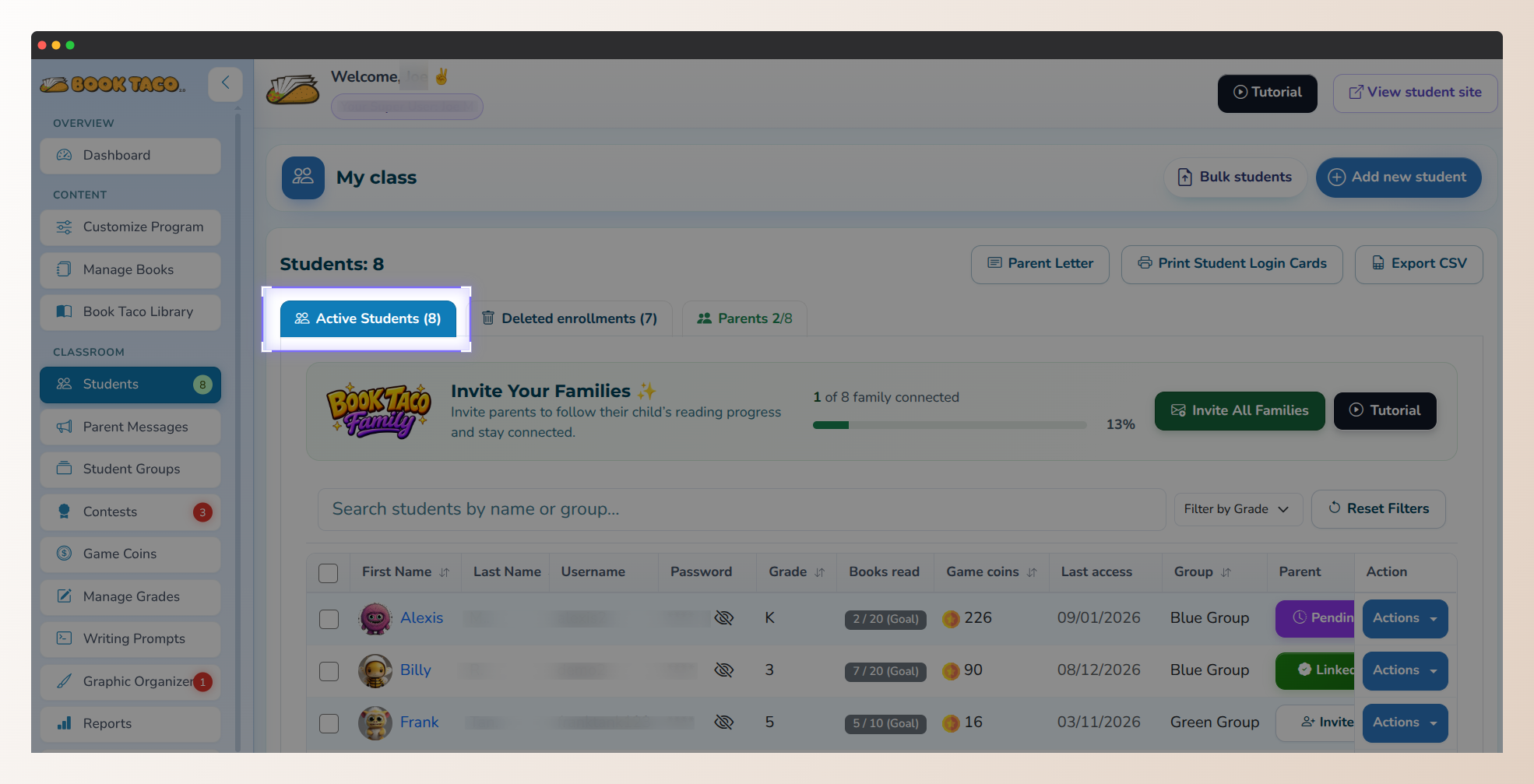
Screenshot of the Book Taco Students page with Active Students selected.
Before you start: These steps apply when students are managed directly in Book Taco. If your class is rostered through Clever or ClassLink, removals are controlled by your roster sync — contact your school admin or Book Taco support for help.
Step 1: Open Students
- Log in to Book Taco as a teacher.
- In the left sidebar, click Students. You can also open this page from the Dashboard by clicking the Students widget.
- Make sure you are on the Active Students tab. This is where your current class roster appears.
Step 2: Remove several students at once
- On the Active Students list, check the box next to each student you want to remove.
- To clear the whole class, use the checkbox in the table header to select all students on the list.
- When at least one student is selected, a Bulk Delete button appears in the toolbar.
- Click Bulk Delete.
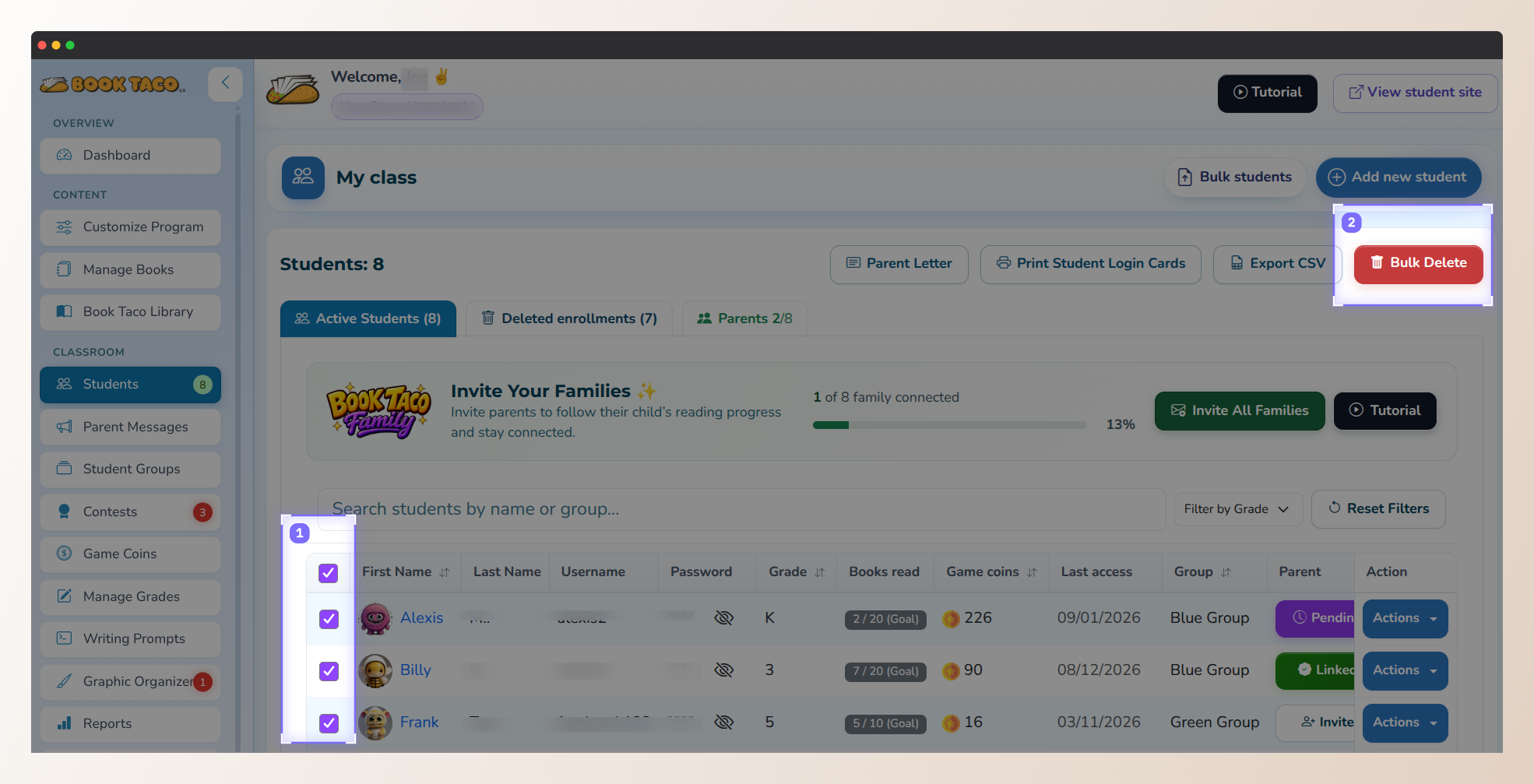
Select students, then click Bulk Delete.
Pro Tip: Removing students frees seats on your plan right away, so you can enroll your new group without upgrading.
Step 3: Remove one student
- Find the student in the Active Students list.
- Click Actions on that student's row.
- Choose Remove from class.
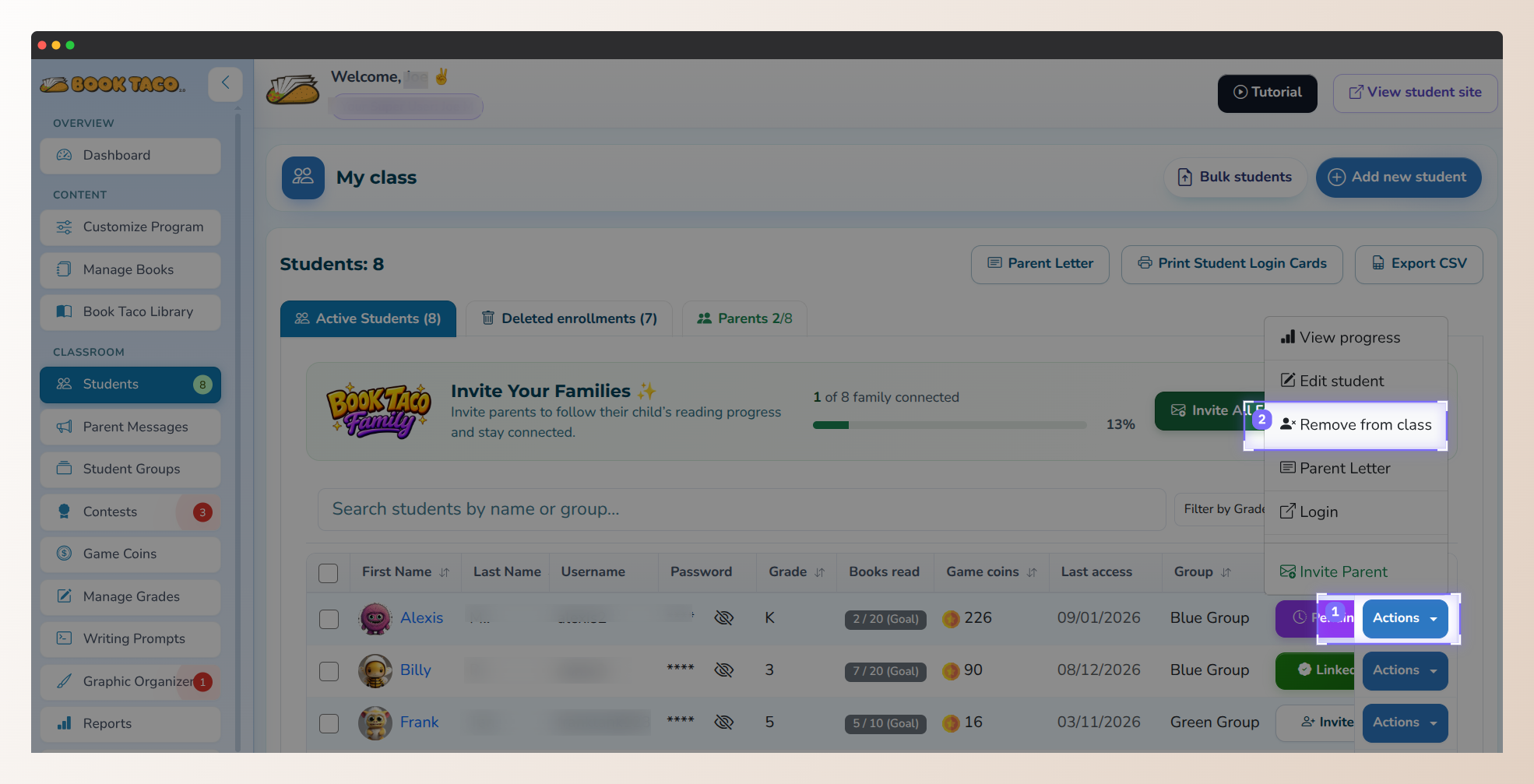
Actions → Remove from class.
Step 4: Confirm the removal
- A confirmation window appears and lists the student(s) you selected.
- Confirm to finish the removal, or cancel to keep them in your class.
- After you confirm, those students leave your active roster and their seats become available again.
This is not permanent: Students are removed from your class only. They are not wiped from Book Taco, and you can bring them back from Deleted enrollments.
Step 5: Find or restore removed students
- On the Students page, open the Deleted enrollments tab.
- You'll see the students you removed from your class.
- To bring one or more back:
- Check the students you want to restore.
- Click Bulk Restore.
- Confirm in the window that appears.
- Restored students return to your Active Students list.
Step 6: Add your new students
- Once seats are free, click Add Student on the Students page to create new accounts one by one.
- If you have a roster file, use your usual import flow to add the new group in bulk.
- New students appear under Active Students as soon as they are added.
Pro Tip: After removing an old class, check your seat count at the top of the Students page before importing. That way you know how many new students you can add on your current plan.
Don't see Remove from class or Bulk Delete? Your account may be managed by a Super User with student edits locked. Ask your school administrator, or contact Book Taco support and we'll help.
Was this article helpful?
That’s Great!
Thank you for your feedback
Sorry! We couldn't be helpful
Thank you for your feedback
Feedback sent
We appreciate your effort and will try to fix the article